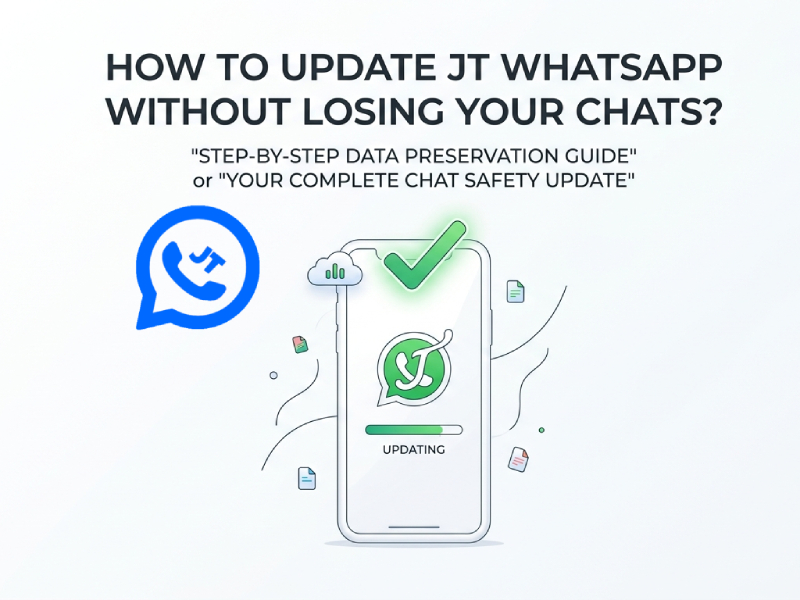
If you want to experience new features, improved performance, and enhanced stability, updating JT WhatsApp is essential. Many users worry that an update might erase chat history or media files. The good news is that, by following the right steps, you can safely perform a JT whatsapp update download and complete the process without losing any conversations. This guide will walk you through how to prepare for the update and ensure all your messages remain intact.
Why It Is Important to Update JT WhatsApp
Besides getting new features, there are several other important reasons to update JT WhatsApp. Each update typically fixes minor issues, such as messages failing to be sent, media files failing to load, or the application crashing. Updates can also improve performance, making apps run faster and smoother, especially on newer Android devices. Additionally, updating ensures better compatibility when you need to restore WhatsApp backup from Google Drive, so your chat history and media remain safe and accessible without errors.
Another key reason is the improvement in security and privacy. While JT WhatsApp offers additional privacy options such as “incognito mode,” updates typically enhance these features and fix any bugs. This helps users ensure chat security and reduces the likelihood of errors that could affect messages or media files.
Finally, the update may also add new customization and productivity tools, such as enhanced chat management, theme options, or improved media sharing functionality. Using the older version might cause you to miss out on these useful features, while updating ensures stable app operation and provides the full JT WhatsApp user experience.
Keeping your app updated is a simple and easy step that can protect your data, improve performance, and give you access to all the latest features your app offers.
Step 1: Back Up Your Chats
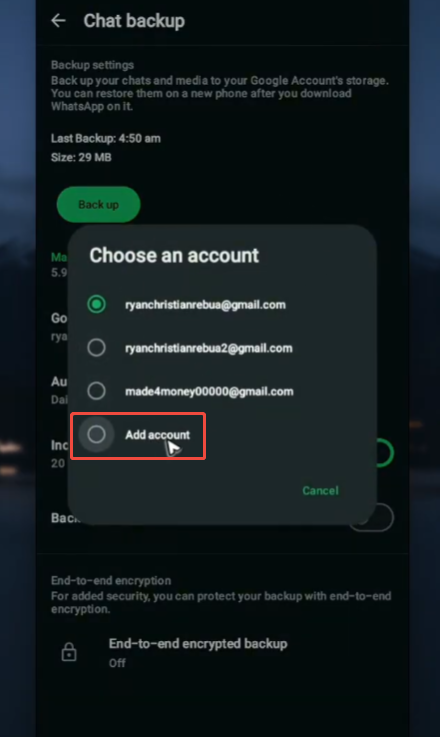
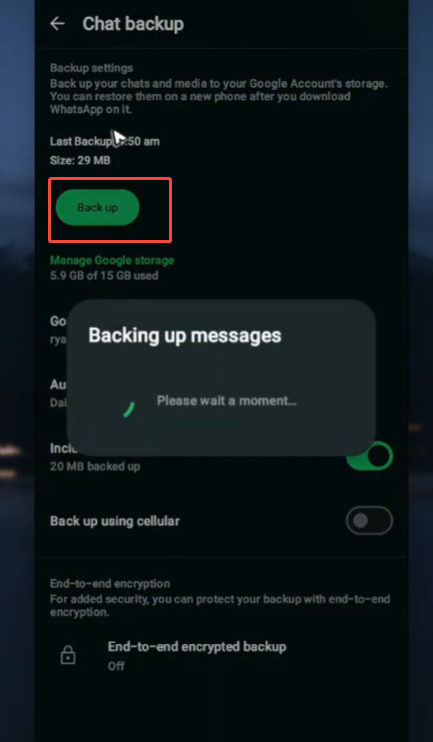
Before installing the new version, the most important step is to back up your chat history. Backups can save your messages, photos, videos, and other chat data so you can restore them after an update.
Follow these steps to create a backup:
Open JT WhatsApp on your phone.
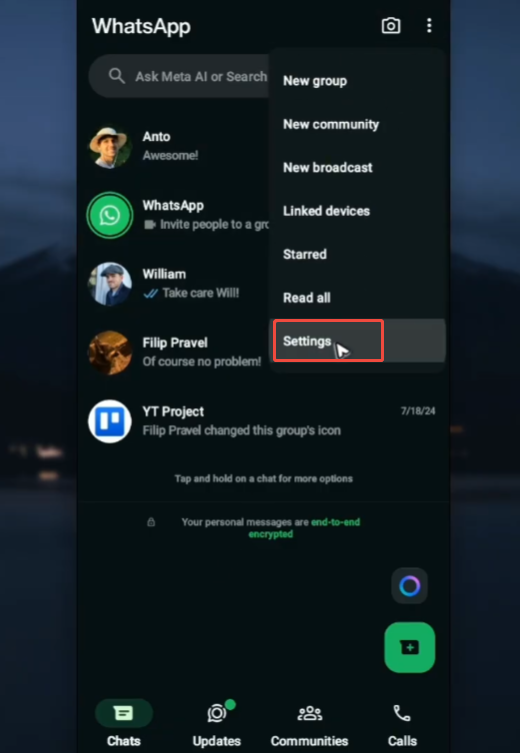
Tap the three-dot menu in the top corner.
Go to Settings.
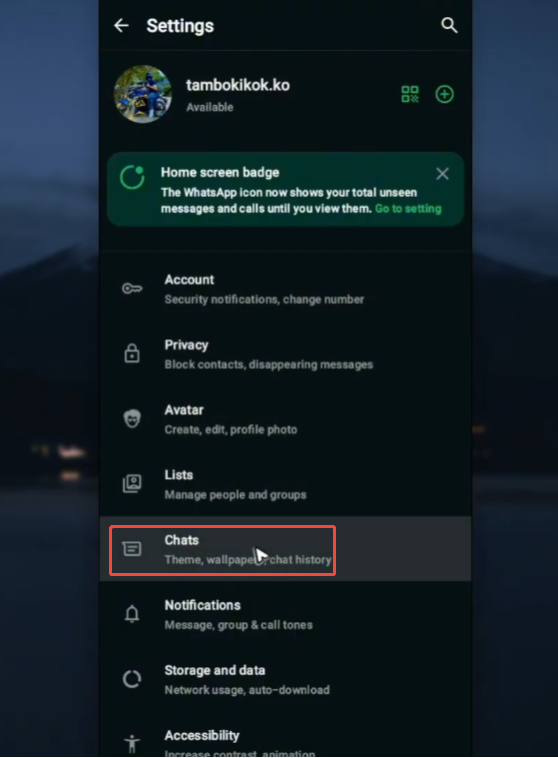
Select Chats.
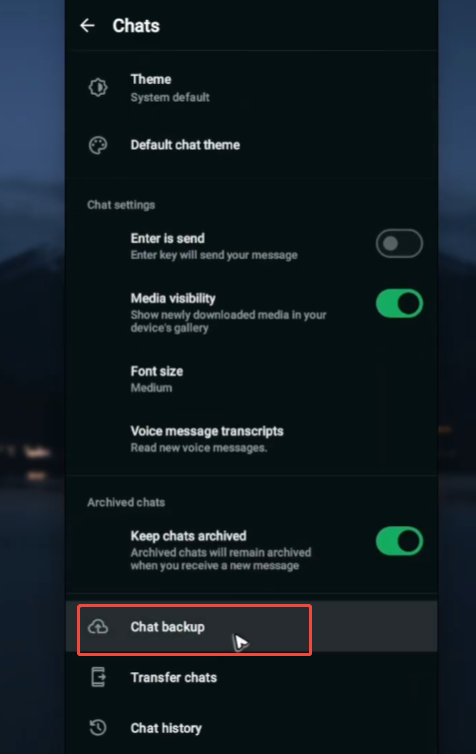
Tap Chat Backup.
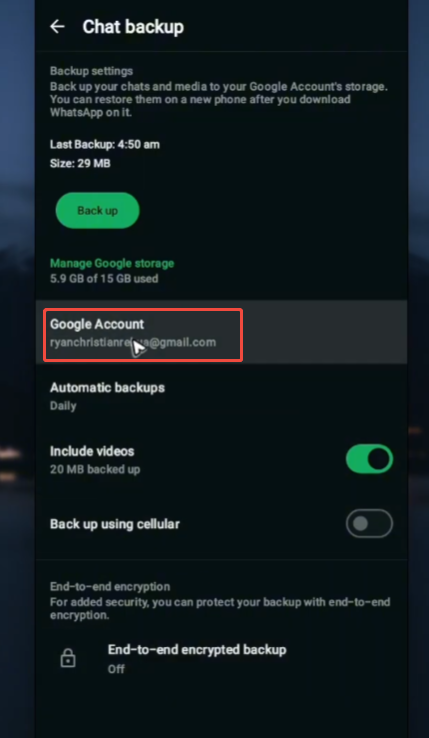
Press Back Up Now.
Wait until the backup process finishes. This step ensures your chat history is stored safely on your device.
Step 2: Download the Latest JT WhatsApp APK
After the backup is complete, the next step is to download the latest version of JT WhatsApp.
To do this:
Visit a trusted website that provides JT WhatsApp APK files.
Find the latest version available.
Tap the Download button.
Wait until the APK file finishes downloading.
Make sure your phone has enough storage space before downloading the file.
Step 3: Allow Installation From Unknown Sources
Since JT WhatsApp is installed using an APK file, Android may ask for permission before installing the update.
If the option is not enabled, follow these steps:
Go to Phone Settings.
Tap Security or Privacy.
Enable Install Unknown Apps or Unknown Sources.
Allow the browser or file manager to install APK files.
Once this is enabled, you can install the new version without problems.
Step 4: Install the Update Without Uninstalling the App
A common mistake is uninstalling the old version before installing the new one. Doing this may result in the loss of your chat history. The correct approach is to directly install the new version over the existing one.
Steps to update:
Open the downloaded APK file.
Tap Install.
Wait for the installation process to finish.
Android will replace the old version with the new one while keeping your data on the device.
Step 5: Open JT WhatsApp and Check Your Chats
After installation, open JT WhatsApp again. The app should load normally and display your existing chat history.
Check several conversations to ensure that messages and media files are still present. If you previously created a backup, the app may also ask if you want to restore it.
In most cases, your chat history will be automatically displayed after the update.
Extra Tips for a Smooth Update
Updating JT WhatsApp is usually straightforward, but following some extra tips can make the process even safer and faster.
- Keep enough storage space
Before updating, please ensure your phone has sufficient available storage space. Insufficient space may cause installation failure or slowdown. Temporarily deleting unnecessary files or apps may help. - Do not delete the app first
Please ensure you install the new version on top of your existing version. Uninstalling the app before updating may result in the loss of your chat history and media files. - Use a stable internet connection
A stable Wi-Fi or mobile data connection ensures the complete download of the APK file. A download interruption may cause file corruption, making installation impossible. - Keep your backup recent
Always create a backup before updating. This ensures that your latest chat logs and media files are safe and secure even in the event of an accident. - Charge your phone
Please ensure your device has sufficient battery power during the update process. Running out of power during installation may cause errors. - Clear cache if needed
If the app seems slow or the installation has issues, clearing the cache of your current JT WhatsApp can help the update run more smoothly. - Check app permissions
After updating, review the app permissions to ensure everything works as expected, including notifications, storage access, and media sharing.
Following these tips will help ensure a smooth update process and maintain a seamless communication experience.
Common Problems During Updates
While JT WhatsApp updates generally go smoothly, some users may encounter minor issues such as temporary glitches or message syncing delays. Being aware of these potential hiccups beforehand allows you to troubleshoot efficiently, ensuring your experience with JT WhatsApp 2026 remains seamless and uninterrupted.
- Installation Failed
This may occur if the APK file is not fully downloaded or is corrupted. To resolve this issue, try downloading the APK file again from a trusted source and ensure your network connection is stable. - App Not Opening After Update
Sometimes the application may not open immediately after installation. Restarting your phone usually solves this problem. If the problem persists, please go to “Settings” > “Apps” > “JT WhatsApp” > “Storage” > “Clear Cache” to clear the app cache. - Missing Chats or Media
If your messages or media files do not appear after the update, it usually means that the backup was not automatically restored. Please go to “Settings” > “Chat” > “Chat Backup” and then use the “Restore” option to restore your conversation. - Incompatibility with Older Devices
Older Android versions may sometimes fail to install the latest JT WhatsApp update. Please check if your device meets the minimum system requirements for the new version. - App Crashes or Freezes
After the update, some users may experience occasional crashes or slow performance. This issue can usually be resolved by restarting the device or ensuring that the application has enough storage space.
Final Thoughts
Updating JT WhatsApp without losing your chat history is straightforward when you take the right approach. Make sure to create a full backup of your messages. Then, download the JT WhatsApp new version APK from a trusted source. Finally, install the update over your existing app without uninstalling it, ensuring all your chats remain intact and accessible.
Keeping JT WhatsApp up-to-date allows you to enjoy better performance, new tools, and a smoother messaging experience, while keeping all your important conversations in one place.