Nowadays, we shoot high-quality videos and photos every day. Most smartphones can now record 4K resolution video, which produces stunning visuals, but the file size is also very large. If you try to send these files through a regular application, they will usually be compressed, resulting in a blurry image. To avoid this issue, many users look for ways to adjust WhatsApp status video quality settings so their clips can maintain better clarity when shared, making the viewing experience closer to the original footage without losing too much detail.
If you use JT WhatsApp, you can share these high-quality files more freely. Here is a simple guide on how to send 4K media files without loss of quality.
Why Does Media Quality Usually Drop?
When you record 4K video or take high-resolution photos, the files contain millions of tiny details, but sharing them through regular chat apps often reduces quality. To avoid this, you can learn how to send HD photos on WhatsApp iPhone and keep your images clear and sharp without losing important details. There are several reasons for this:
1. Data and Server Savings
The biggest reason is bandwidth. Billions of files are transferred globally every day. If everyone sends raw 4K files, the server speed will slow down, and it will cost businesses a lot of money to transfer such a large amount of data. To keep the application free and running fast, the system automatically “trimmed” a portion of the file, thus reducing its size.
2. Lossy Compression
Most applications use a technique called “lossy compression”. This is an intelligent algorithm that looks for details that might be difficult for the human eye to detect at first glance, such as subtle color changes in the blue sky, and deletes this data to reduce file size. While this method works well on small phone screens, it becomes “imperfect” when you zoom in or play videos on a large screen because the data is permanently lost.
3. Speed for the Receiver
Not available with high-speed 5G connectivity, file size still plays a big role in how quickly media is delivered. If you send a 500MB video to a friend with a weak signal, it may take them 20 minutes to download, which can be frustrating in urgent situations. This is why tools like JT WhatsApp 4k video focus on smart compression, reducing files to around 10MB or 20MB so recipients can view them almost instantly, regardless of their internet speed, without completely sacrificing visual quality.
4. Resolving Screen Differences
Applications often reduce video resolution. Even if you shoot in 4K (3840 x 2160 pixels), the app may downgrade it to 720p or 1080p. This is because many phone screens cannot display full 4K resolution, so applications treat the extra pixels as waste space.
Method 1: Change the Media Upload Settings
The easiest way to improve your quality is to change the internal settings of the app.
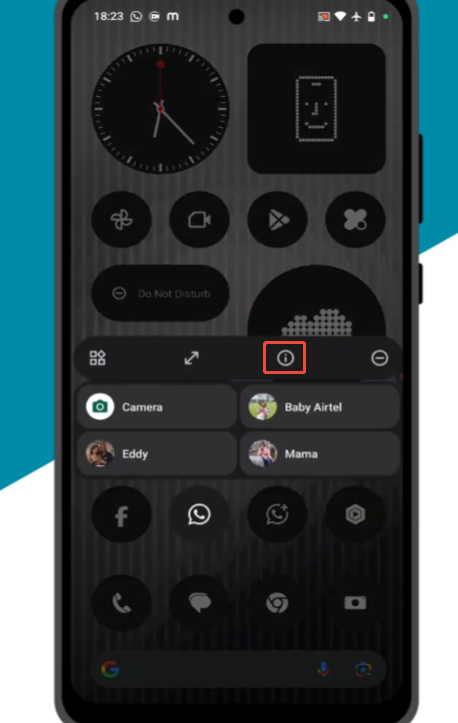
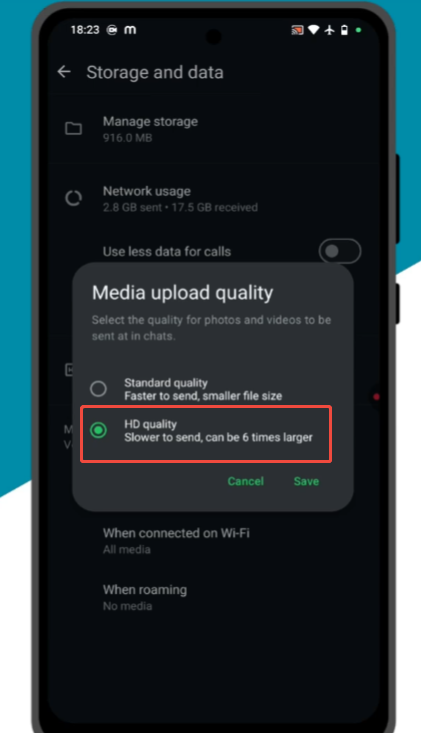
- Open JT WhatsApp and tap the three dots in the top right corner.
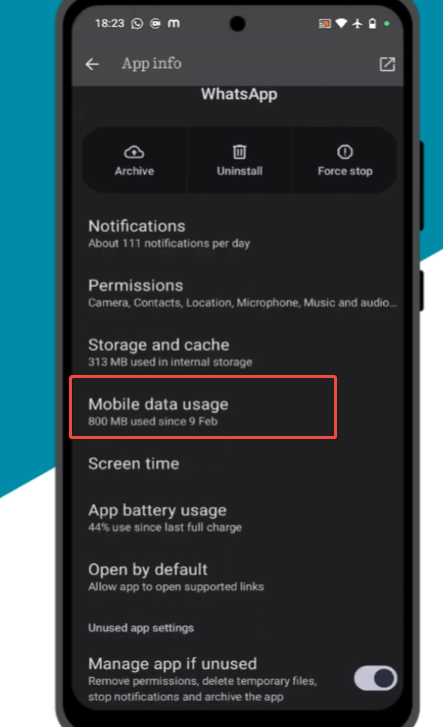
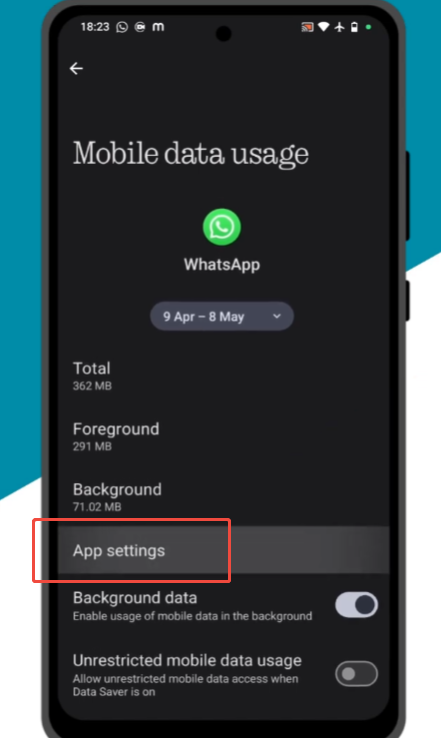
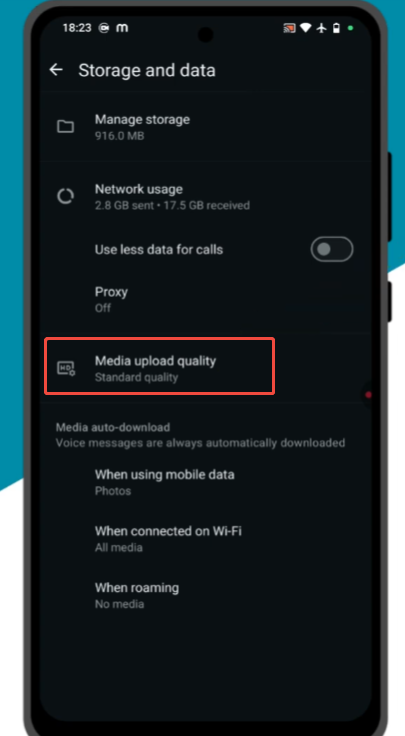
- Go to Settings and then select Storage and Data.
- Look for the Media Upload Quality
- Tap on Photo upload quality and choose HD Quality.
- Do the same for videos if the option is available.
By choosing this, the app will try to keep the original resolution as much as possible instead of shrinking it down to save data.
Method 2: Send as a “Document”
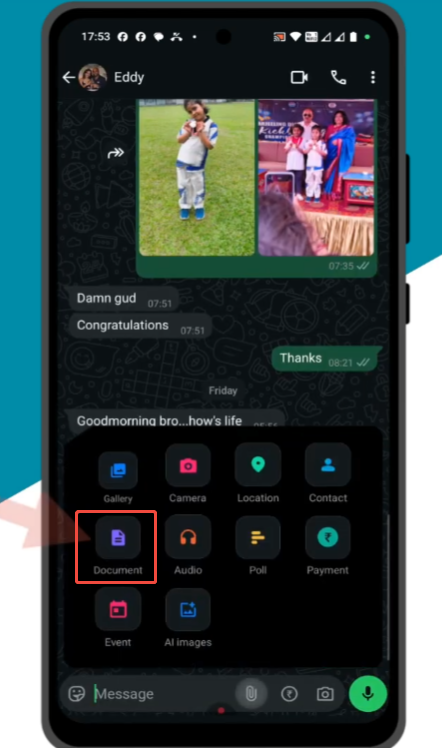
If you want to ensure 100% original quality with zero compression, you should not send the file as a “Gallery” item. Instead, send it as a Document.
Step 1: Open the chat where you want to send the media.
Step 2: Tap the paperclip icon in the message bar.
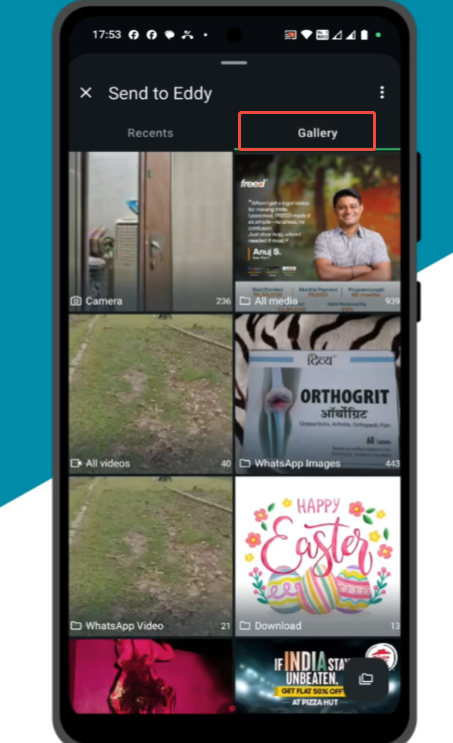
Step 3: Select Document instead of Gallery.
Step 4: Tap “Browse other docs” and find your 4K video or photo in your phone’s folders.
Step 5: Hit send.
When you send a file as a document, JT WhatsApp will treat it as a PDF or a Zip file. It does not change the file’s pixels or bitrate, meaning the recipient will receive the exact same 4K file as on your phone.
Method 3: Use JT WhatsApp Plus Settings
JT WhatsApp often has a special menu for “Plus” or “Extended” settings.
Go to JT Settings.
Find the Media Sharing section.
Here, you can often find sliders to increase the upload size limit.
Make sure the “Send images in high resolution” slider is pushed all the way to the right.
Enable the option to send videos larger than 16MB.
A Few Tips for Success
Sending 4K media files is not as simple as clicking a button. To ensure your high-quality videos and photos reach your friends smoothly, please remember the following practical tips:
Connect to Strong Wi-Fi: 4K video files can be very large; sometimes, even a short clip can be hundreds of megabytes in size, which makes sharing them a bit challenging. When using apps like JT WhatsApp latest version, it’s important to keep in mind that sending such large files over mobile data will be slow and could quickly use up your monthly data allowance. For a smoother experience and faster uploads, it’s always better to connect to a stable Wi-Fi network before sharing high-resolution videos.
Check Your Internal Storage: Before attempting to send or receive large 4K files, make sure your phone has enough available storage space. If storage space is almost full, WhatsApp may not be able to process the file, or the transfer may get stuck midway. When processing ultra-high-definition media, it is best to reserve at least 1GB of available space.
Be Patient with Upload Times: Because 4K files are much larger, they take much longer to send than regular photos. Even with a good network connection, it may take a minute or two to see the loading icon. Please do not close the application or screen immediately; allow the application to complete the transfer in the background to avoid file corruption.
Tell the Receiver to Use “Save to Gallery”: When you send a 4K video as a document, the recipient may not see a preview thumbnail. Please tell them to click on the file to download, and then select “Save to Gallery” or “Save to Downloads”. This allows them to watch videos using the phone’s built-in video player, which typically plays 4K videos much better than the chat interface.
Keep Your App Updated: The developers frequently update JT WhatsApp to handle larger files and fix bugs related to media sharing. If you find that 4K video causes the app to crash, check if an updated version is available. Newer versions typically mean greater stability for high-resolution transmissions.
Final Check Before Sending
There are a few small details you should carefully check before sending 4K media files. Taking the time to look at these details can save you time and ensure that the recipient truly appreciates the high-quality content you share.
Check the File Extension: When sending 4K video as a file, please ensure that the file extension is .mp4 or .mkv. If the file extension is missing or changed, the recipient may not be able to open the video properly.
Battery Life: Uploading very large 4K files will quickly drain your phone’s battery because the phone’s antenna needs to work under high load for an extended period of time. Therefore, it’s best to ensure your phone has at least 20% battery, or keep it fully charged when sending multiple large videos.
Privacy First: Because of its extremely high resolution, 4K video can clearly show some details in the background, such as house numbers or license plate numbers, which may be difficult to see in low-resolution videos. Before sending a video, be sure to zoom in and view it quickly to ensure that your private information is not accidentally leaked.
Test with a Small Clip: If you are unsure whether your settings are correct, please try sending a 5-second 4K video clip first. If the short video is clear and smooth, you can confidently send longer and larger files.