WhatsApp is one of the most popular messaging apps in the world. People use it to chat with friends, share photos, and send videos. But sending long videos can be a problem because WhatsApp has a file size limit, which means longer clips often need to be cut or compressed before sharing. In this article, we will explain simple and practical ways to send long videos without cutting them, so you can keep the original quality and full length. We will also touch on alternative methods and helpful tips, including a useful JTWhatsApp long video status trick that can make sharing extended videos much easier for everyday users.
1. Understanding WhatsApp Video Limits
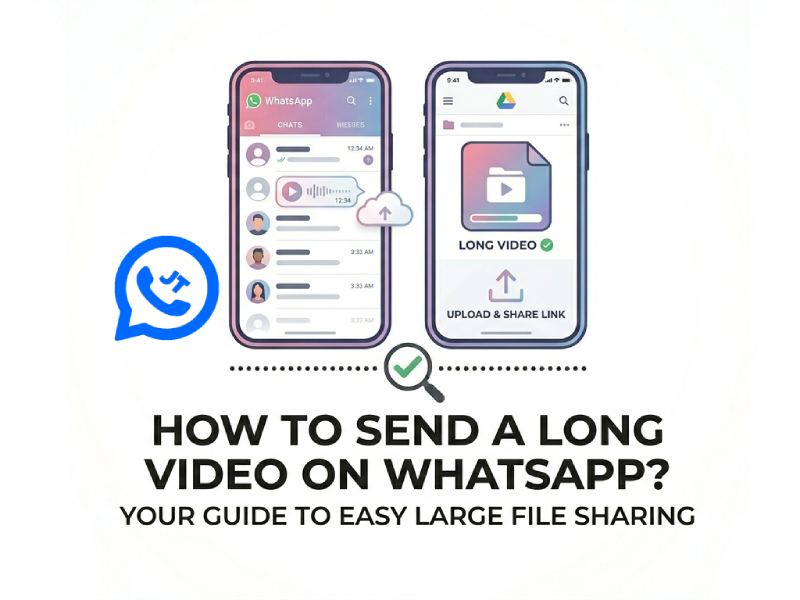
Before trying to send a long video, it’s important to know WhatsApp’s limits. The app allows videos up to 16 MB per message, which usually means clips of about 1 to 3 minutes in standard quality on most phones. If your video is longer or recorded in high resolution, it will likely exceed this limit, making it harder to share directly. However, with recent updates, users can now send videos up to 2GB on WhatsApp, giving much more flexibility when sharing larger files without needing to cut or compress them.
When a video is too large, WhatsApp will either fail to send it or require you to cut or compress the file. This can be frustrating if you want to share an entire event or a long clip without losing parts of it.
It’s also important to note that the 16 MB limit applies per message, not per day or per conversation. That means you can send multiple short clips, but each one must stay under the size limit.
Knowing these limits helps you choose the right method to share your video. For example, you might compress the file, use cloud storage, or split it into parts. Understanding the restriction before sending ensures you don’t lose video quality or content, and avoids failed messages.
2. Compressing Videos Without Losing Quality
One way to send long videos on WhatsApp is by compressing the file size. Compression makes the video smaller so it fits under WhatsApp’s 16 MB limit, but it doesn’t have to reduce the quality too much if done correctly.
There are several ways to compress videos:
- Video Compression Apps: There are apps available for both Android and iOS that can compress videos easily. Some popular apps allow you to select the level of compression and maintain high resolution. You simply choose your video, pick a compression option, and save the smaller version.
- Online Video Compressors: If you don’t want to install apps, you can use websites that compress videos online. You upload your video, the site compresses it, and then you download the smaller file to send via WhatsApp.
- Adjusting Resolution or Bitrate: Some apps allow you to reduce the resolution or lower the bitrate slightly. This can shrink the file size without making the video look bad on a phone screen.
When compressing, it’s a good idea to check the final file size to make sure it’s under WhatsApp’s limit. Preview the compressed video to make sure the quality is acceptable. This way, you can send long videos directly on WhatsApp without cutting important parts.
3. Using Cloud Storage Services
For very long videos that are too big to send directly through WhatsApp, cloud storage services are one of the easiest solutions. Services like Google Drive, Dropbox, OneDrive, and iCloud allow you to upload large files and share them with anyone using a link, so you don’t have to worry about size limits while keeping the original quality. Some users also look for alternatives like JT WhatsApp v17.10 latest version download to explore extended sharing features, but using cloud platforms remains a more stable and widely supported method for handling large video files.
Here’s how it works in detail:
- Upload your video to the cloud
Open your preferred cloud app and upload the long video. Depending on the size and your internet speed, this may take a few minutes or longer for very large files. - Generate a shareable link
Once the video is uploaded, most cloud apps let you create a link that anyone can use to access the file. You can usually set permissions, such as allowing only viewing or allowing downloads. - Send the link via WhatsApp
Copy the link and paste it into a WhatsApp message to your contact. They can click the link to watch the video online or download it to their device. - Optional: Add instructions
If the recipient is not familiar with cloud storage, it can help to include a short note, like “Click the link to watch the full video” or “Download the video using this link.” This ensures they know how to access it easily.
Using cloud storage also has extra benefits: you can store your videos safely, free up space on your phone, and share multiple videos at once without worrying about file size limits. It’s a reliable method for sending long videos while keeping the quality intact.
4. Using JT WhatsApp or Alternative Apps
For users who want to send long videos without cutting them, JT WhatsApp can be a helpful option. While it still has some file size limits similar to the regular WhatsApp, JT WhatsApp sometimes handles slightly larger files more smoothly because it is designed for business communication and media sharing. If you already use JT WhatsApp, you can try sending longer clips directly, especially for videos under 100 MB.
Another approach is to use alternative messaging apps that allow bigger video files. For example:
- Telegram: You can send videos up to 2 GB in size. This makes it very convenient for long recordings or high-quality videos. You can then share the download link with your WhatsApp contacts if needed.
- WeTransfer links: This app allows sending large videos or links to files stored online. You can send the link through WhatsApp, so the recipient can view or download the full video without losing quality.
Using these methods, you can avoid the frustration of WhatsApp cutting your videos. It’s especially useful for sharing event recordings, tutorials, or vacation videos with friends, family, or colleagues.
5. Splitting the Video
If your video is too long to send as a single file on WhatsApp and you don’t want to compress it, splitting it into smaller parts is a practical solution. This approach helps maintain the original quality of each segment while keeping file sizes manageable for sending. To make the process smoother, you can also explore options like JTWhatsApp media sharing settings, which may offer more flexibility when handling larger files and improve your overall sharing experience.
You can do this with simple video editing apps available on both Android and iOS. Most apps allow you to select the exact start and end times for each clip, so you can divide the video into several short segments under WhatsApp’s 16 MB limit.
6. Tips for Sending Long Videos
Sending long videos can be easy if you follow a few simple habits. These small details can help you avoid failed uploads, long waiting times, or playback issues on the receiver’s side.
- Check your internet connection: A stable Wi-Fi connection is better than mobile data when sending large files. If your connection is weak, the upload may stop or take too long. Try to send videos when your network is stable.
- Use a common video format: MP4 is the safest choice because it works well on most devices. If your video is in another format, it may not open properly for the other person.
- Rename the file clearly: Give your video a simple name so the receiver knows what it is. This is helpful when you send multiple files or use cloud links.
- Avoid sending too many large files at once: If you send several big videos together, WhatsApp may slow down or fail to upload some of them. It is better to send them one by one.
- Check storage space: Make sure your phone has enough storage before sending or downloading videos. Low storage can cause errors or stop the process.
- Inform the receiver in advance: Let the other person know you are sending a large video or a download link. This way, they can prepare for the download and avoid confusion.
Test the video before sending: Play the video once to make sure it works fine. This helps you avoid sending broken or incomplete files.