Many people use JTWhatsApp daily for chatting, making calls, taking photos, and sending important communications, and some users even explore options like JTWhatsApp mod apk to access additional features. Because the app stores a lot of personal information, account security is more important than ever. Enabling two-step verification is a simple and effective way to enhance account protection, as it adds an extra layer of security beyond the usual login process and helps prevent unauthorized access even if someone knows your password.
If you’ve never used this feature before, don’t worry. The setup process is very simple and can be completed in just a few minutes. In this guide, you will learn what two-step verification is, its importance, and how to set it up in JTWhatsApp.
What Is Two-Step Verification?
Two-factor authentication is a security feature that adds an extra layer of protection to your account. Typically, when you log in to instant messaging applications such as JTWhatsApp latest version, you need to use your mobile phone number and SMS verification code to verify your account, which helps ensure that only you can access your profile even if someone else knows your login details.
Enabling two-factor authentication provides enhanced security. In addition to entering the SMS verification code, you will also need to enter the personal PIN code you created earlier. This PIN code is usually a six-digit number.
This means that your account is not only linked to your phone number, but is also protected by a PIN code that only you know. Even if you change your phone, reinstall the app, or try to log in again later, the system may still require you to enter this PIN code to grant access.
Some versions of JTWhatsApp also allow you to add an email address during this process. This is very useful if you forget your PIN, as you can retrieve it using your email address.
Two-factor authentication is like adding an extra lock to your account. Your mobile phone number opens the first door, and your PIN code opens the second door. This makes account access more secure, giving users greater peace of mind when using the application daily.
Why Use Two-Step Verification in JTWhatsApp?
Many users install JTWhatsApp to experience its rich features, such as customization themes, privacy controls, and more flexible chat settings. But in addition to these features, protecting your account security is equally important. This is where two-factor authentication comes in handy.
Enabling this feature will provide your account with additional protection. Even if someone obtains your phone number or verification code, they will still need to enter your personal PIN to log in. This makes it much more difficult for others to access your account.
Two-step verification is especially helpful in daily situations like:
- Switching to a new phone
- Reinstalling JTWhatsApp after an update
- Moving your account to another device
- Recovering your chats after resetting your phone
For users who spend a lot of time chatting or keeping important messages in JTWhatsApp, two-step verification is a simple setting that can make a big difference over time.
Before You Start
Before setting up two-step verification, make sure:
- JTWhatsApp is installed and working normally
- Your phone number is already verified
- You can access your device settings if needed
- You have a PIN that is easy for you to remember
Most users choose a six-digit number.
Step 1: Open JTWhatsApp Settings
Start by opening JTWhatsApp on your phone.
Then:
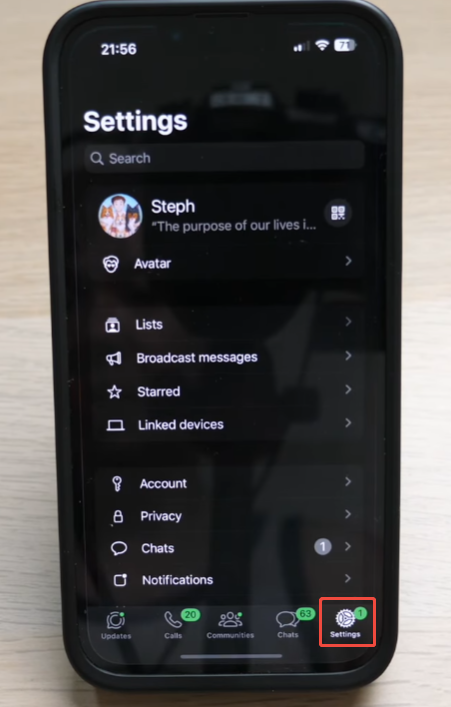
- Tap the three-dot menu in the top corner
- Open Settings
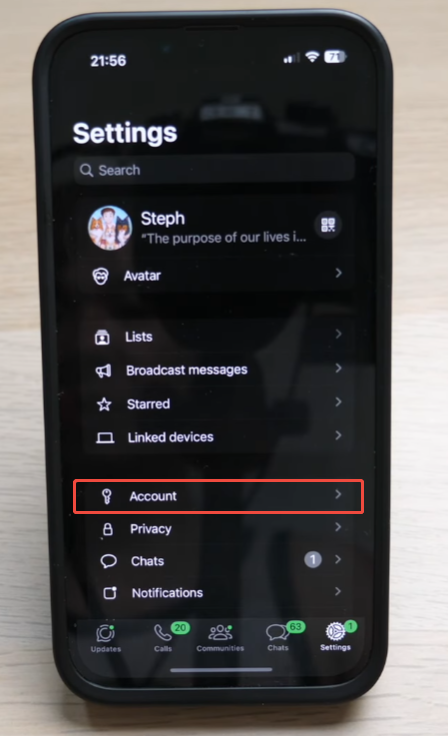
- Go to Account
Inside the account section, you will see security options.
Step 2: Find Two-Step Verification
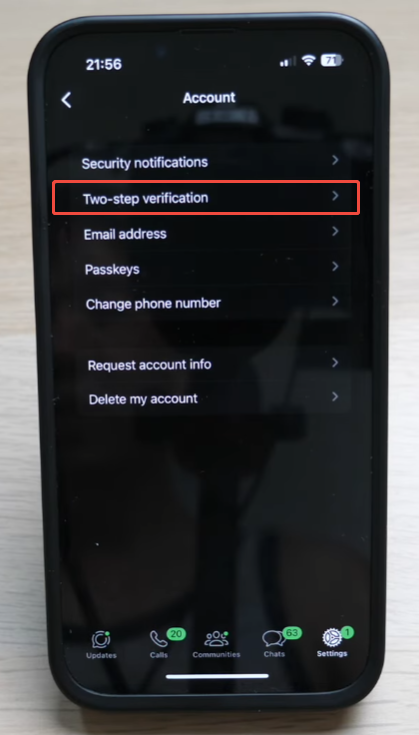
Under the account menu, look for Two-Step Verification.
Tap it to continue.
You may see a short explanation of how the feature works before setup begins.
Step 3: Create Your PIN
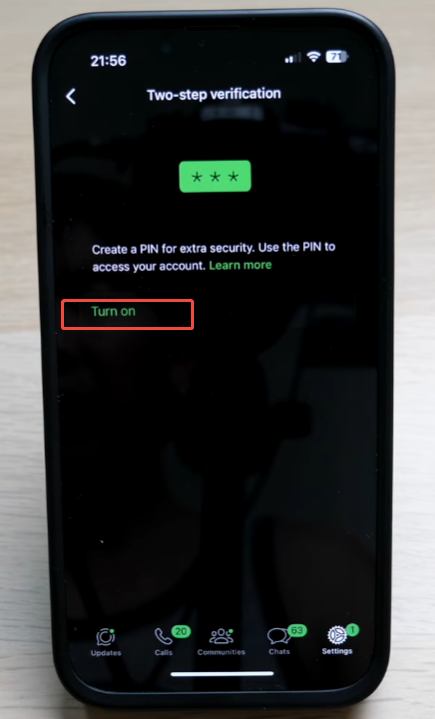
Now you need to create your personal PIN.
- Enter a six-digit number
- Enter it again to confirm
Try to choose something you can remember easily, but avoid very simple patterns like 123456 if possible.
This PIN will be needed if you register your account again in the future.
Step 4: Add an Email Address
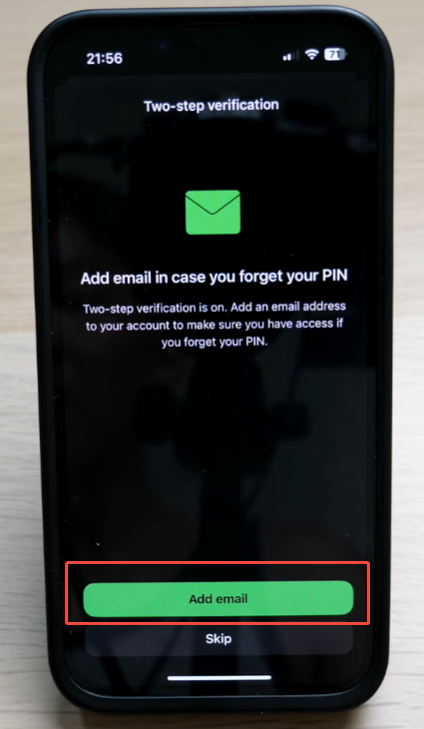
After creating your PIN, JTWhatsApp may ask for an email address.
This step is optional in some versions, but it is very useful.
An email can help you:
- Reset your PIN if you forget it
- Recover account access more easily
- Confirm security changes later
Enter your email carefully and double-check for mistakes.
Step 5: Finish the Setup
Once your PIN and email are saved, the setup is complete.
JTWhatsApp will now use two-step verification for extra protection.
From this point, your account has one more layer of security.
How to Check If It Is Working
After setting up two-step verification, it’s best to check that everything is working correctly. This only takes a minute to confirm that your account has enabled extra protection.
Start by opening JTWhatsApp on your phone.
Then follow these steps:
- Open Settings
- Tap Account
- Select Two-Step Verification
If the feature is active, you should see options such as:
- Change PIN
- Change Email Address
- Turn Off
These options usually mean that two-step verification has been enabled successfully.
You may also notice that JTWhatsApp will occasionally ask you to enter a PIN code. This is normal. The app does this to remind you, help you remember the security code, and ensure you don’t forget it.
If you do not see these options, try restarting the application and checking again. In some cases, updating to the latest version can also help the feature display correctly. Regular checks ensure that your account protection features are always active and functioning properly.
Tips for Better Account Protection
Enabling two-step verification is a great start, but good account security also depends on your daily habits, and many users still ask “is JTWhatsApp safe” when deciding how much they can rely on it. A few simple steps can help you keep your JTWhatsApp account secure in the long term, such as avoiding unknown links, keeping your app updated, and not sharing verification codes with anyone.
Choose a PIN code that is easy to remember but not easy for others to guess. Avoid using common numbers, such as your birthday, 123456, or repeated numbers. Simple yet personalized combinations of numbers often work better.
Keep your verification code safe. If you receive a verification code via SMS when logging in or registering, please do not share it with anyone. These verification codes are only used for your account settings.
When setting up two-step verification, it’s also a good idea to add and confirm your email address. If you forget your PIN, your email address can greatly simplify the retrieval process.
You should also keep the app updated. New versions typically improve performance, fix bugs, and make applications run more smoothly on new devices.
Finally, protect your phone itself. Using screen lock, fingerprint recognition, or facial unlock can add an extra layer of protection. Even if someone gains access to your phone, it will be difficult for them to open your apps or view your chat history.
Common Questions
Users typically encounter some common issues when enabling two-step verification in JTWhatsApp for the first time. Understanding the details of these issues can simplify the setup process and help avoid confusion later on.
Does Two-Step Verification Affect Daily Chats?
No, this will not affect your normal use of the app. You can still send messages, make phone calls, share photos, and use all other features. Two-step verification is primarily effective when an account is registered or when significant changes occur to the account.
Do I Need to Enter the PIN Every Day?
No. In most cases, you do not need to type your PIN every time you open JTWhatsApp. The PIN is usually needed only when you register your phone number again, switch to a new device, or make sure account changes.
What Happens If I Change My Phone?
If you transfer your JTWhatsApp account to a new phone, you may be asked to re-verify your number. You will then need to enter a PIN code to complete the setup. This helps protect your account security when switching devices.
Can I Change My PIN Later?
Yes. If you wish to use a different PIN code, you can always go back to your two-step verification settings to update it. Many users do this to set a password that is easier to remember.
Can I Turn Off Two-Step Verification?
Yes. JTWhatsApp allows you to disable two-step verification at any time. Simply open your account settings, find the two-step verification section, and then select the off option.
Will My Chats Be Deleted If I Enable It?
No. Turning on two-step verification does not remove your chats, photos, videos, or settings. It only adds extra protection to your account. Your data stays exactly where it is.
Final Thoughts
Setting up two-step verification in JTWhatsApp is one of the easiest ways to improve account security, and it becomes even more important if you choose to download JTWhatsApp APK from third-party sources instead of official app stores. The entire process takes only a few minutes, yet it provides long-term protection for your chat history, media files, and personal information.
If you frequently use JTWhatsApp, enabling this feature is definitely a wise move. With a secure PIN code and backup email address, you can use the app with greater peace of mind and have better control over your account.