Many Android users still use older smartphones because they are reliable, familiar, and still meet their daily communication needs. However, as instant messaging apps become more feature-rich, their performance may begin to decline. Users of JT WhatsApp APK 2026 often appreciate its extensive customization options and extra features, but these additions may consume more system resources than standard messaging applications, which can sometimes affect speed and responsiveness on older devices.
If JT WhatsApp runs slowly on older Android phones, you can try the following methods to improve its speed and make daily use smoother. Most tweaks can be completed in just a few minutes and can significantly improve performance.

Why JT WhatsApp Becomes Slow on Older Phones
Older Android phones use hardware released several years ago. While they can still handle basic chat messages, modern applications typically require more memory and processing power than before. In addition to standard messaging functions, JT WhatsApp Mod offers extra customization tools, themes, privacy controls, and interface settings that can increase resource usage on older devices. As a result, users may notice slower performance, longer loading times, or reduced responsiveness compared to newer smartphones.
Over time, the amount of data stored grows. Thousands of messages, images, videos, stickers, and documents will gradually increase the application’s load. JT WhatsApp needs to process a large amount of information each time it is launched, so the loading speed may be slow.
Another common reason is limited RAM capacity. Older devices typically have only 2GB to 4GB of available memory. If multiple apps are running in the background, JT WhatsApp’s available resources decrease, leading to lag, slower chat loading, or stuttering when switching conversations.
Storage space usage is also crucial. When the internal storage is nearly full, the Android system’s file reading and writing speed will slow down. This will not only affect the operation of JT WhatsApp, but also the overall performance of the device.
Check Available Storage Space
Storage space directly affects device performance. When internal storage is nearly full, the Android system may struggle to manage temporary files efficiently.
How to Check Storage
- Open Settings.
- Go to Storage.
- Check available space.
For smoother performance, try to keep at least 10% to 20% of storage free.
Remove Unnecessary Files
You can free space by deleting:
- Duplicate photos
- Old videos
- Downloaded files
- Unused applications
- Large documents
A cleaner device usually responds faster.
Clear JT WhatsApp Cache Regularly
Cached files help WhatsApp load chat history, pictures, stickers, and other content faster. These temporary files grow with daily app use. Weeks or months later, the cache may take up hundreds of megabytes or even more.
When the cache is too large, older Android phones may experience slower chat window opening speeds, slower media loading speeds, or slower conversation switching speeds. Regularly clearing the cache helps remove unnecessary temporary files, making applications run more smoothly.
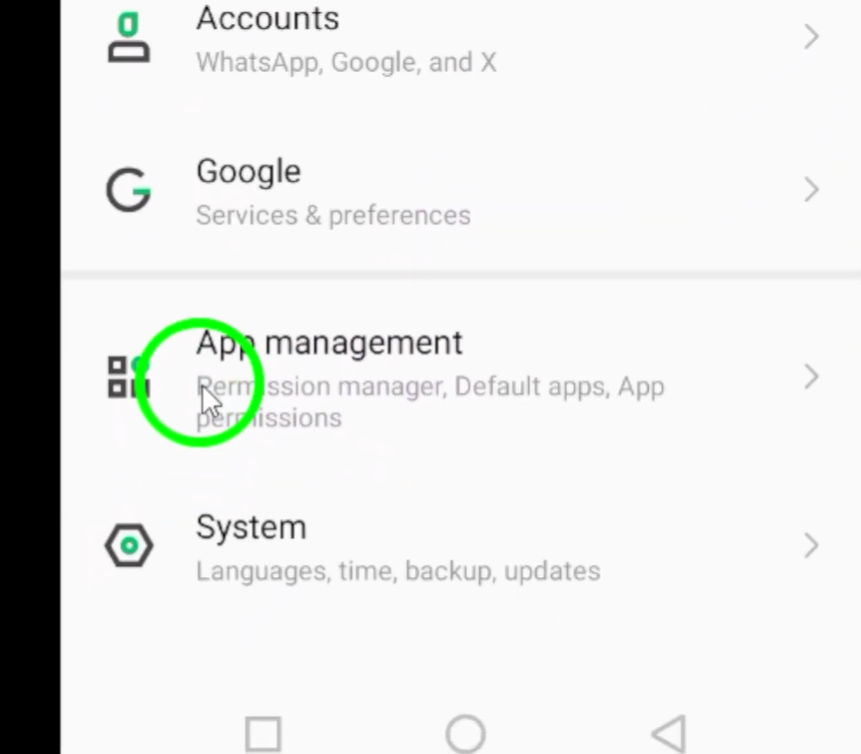
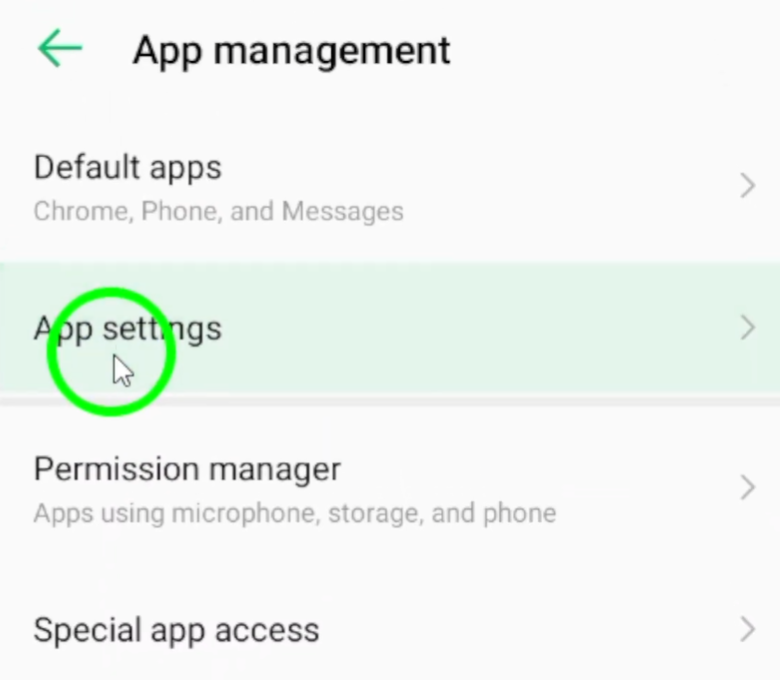
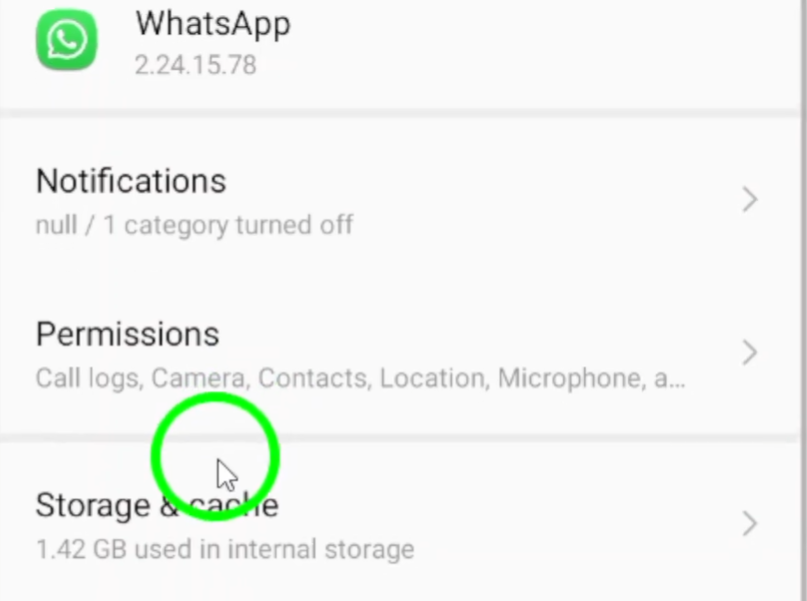
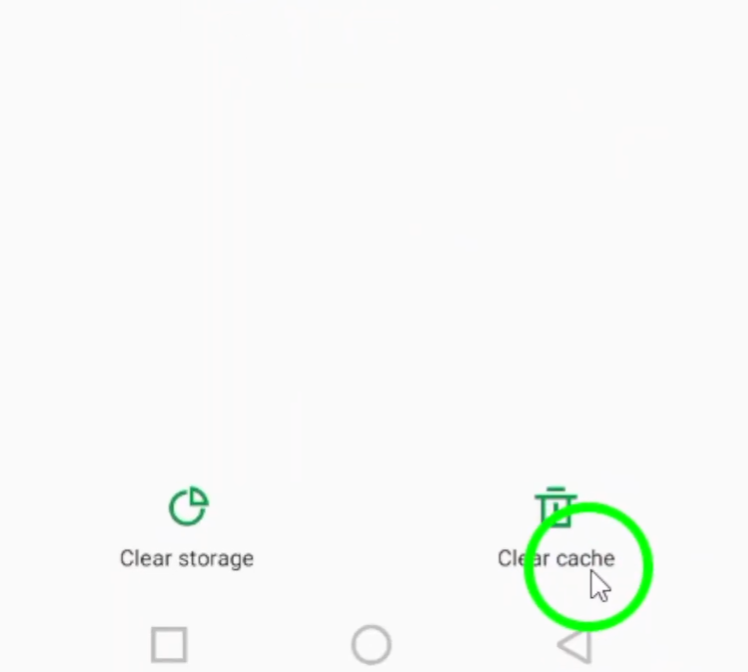
Steps to Clear Cache
- Open Settings on your Android device.
- Tap Apps or Application Manager.
- Select JT WhatsApp.
- Open Storage.
- Tap Clear Cache.
This process removes temporary files only and does not affect your messages, contacts, or chat history.

Reduce Automatic Media Downloads
Automatic downloads can consume storage and memory, especially in active group chats.
Recommended Settings
| Media Type | Suggested Setting |
| Photos | Wi-Fi Only |
| Videos | Manual Download |
| Documents | Manual Download |
| Audio Files | Wi-Fi Only |
By reducing automatic downloads, the app has fewer files to process.
Remove Old Media from Chats
Many users keep years of photos, videos, and voice messages inside the app.
Clean Large Chats
Visit Storage Management and identify conversations that occupy the most space.
Consider deleting:
- Old videos
- Repeated images
- Outdated documents
- Unnecessary voice notes
This can significantly reduce loading times.
Disable Unnecessary Visual Effects
One reason why JT WhatsApp runs slower on older Android devices is the presence of numerous visual enhancements running in the background. Features like animations, custom transitions, and dynamic UI elements can make the app more attractive, but they also consume extra processing power and memory. For users looking into how to Speed Up JT WhatsApp, reducing or disabling some of these visual effects can help improve overall responsiveness. On devices with limited hardware resources, these enhancements may cause delays when opening chats, switching screens, or scrolling through conversations.
Consider reducing or disabling features such as:
- Screen transition animations
- Animated chat backgrounds
- Scrolling effects
- Floating buttons with animations
- Dynamic theme elements
- Excessive sticker or emoji animations
A simpler interface allows devices to focus more resources on core messaging functions. Many users have noticed that turning off unnecessary effects makes chat windows open faster and navigation smoother.
Restart the Device Regularly
Many users rarely restart their phones, instead letting them run continuously for days or even weeks. Although modern Android systems are designed to manage resources automatically, older devices can often improve performance by occasionally rebooting. A simple restart helps clear temporary background processes, refresh system memory, and reduce minor slowdowns that may affect daily tasks. This can also help apps run more smoothly, especially when using advanced customization options and JT WhatsApp features on devices with limited hardware resources.
When you use WhatsApp throughout the day, the app and other background services continuously consume memory. Over time, temporary files and inactive processes accumulate, which can lead to performance degradation, response delays, or stuttering when opening chat logs and media files.
Restarting the device helps refresh the system by:
- Clearing temporary memory usage
- Closing unnecessary background processes
- Refreshing system resources
- Improving overall app responsiveness
- Reducing minor slowdowns that build up over time
For users of older Android phones, restarting the device every few days can help maintain more stable performance. If you find that WhatsApp starts up slowly, chats load slowly, or your phone is not as responsive as before, a simple restart may bring immediate improvement. Combined with regularly cleaning up storage space and cache, this habit can help applications run smoothly on older hardware.
Limit Background Applications
Many older Android devices have limited RAM, meaning that running too many apps at the same time can impact WhatsApp’s performance. Even if an app isn’t actively used, it may continue running in the background, consuming memory, processing power, and battery power.
Common examples include:
- Social media apps
- Video streaming services
- Shopping apps
- News applications
- Music players
- Cloud storage apps
When multiple background applications run simultaneously, the Android system must allocate available resources to them. This can lead to slower chat loading speeds, delayed notifications, typing lag, and longer application startup times.
Reduce Group Activity Load
Many JT WhatsApp users have joined numerous groups, including family chat groups, work discussion groups, community groups, gaming groups, and promotional channels. While each group may seem easy to manage individually, the combined activity of all groups can put a significant burden on older Android devices.
Every new message, image, video, sticker, or document received by the group needs to be processed and stored by the application. In highly active groups, hundreds of messages may be received in a short period of time, which will increase memory usage and prolong chat synchronization time.
To alleviate this burden, periodically review your group list and identify conversations that are no longer valuable. Leaving inactive or unnecessary groups immediately reduces the amount of content the app needs to process.
These small adjustments help JT WhatsApp reduce the resources required for background activity processing. Therefore, older devices may experience faster chat loading speeds, smoother scrolling, and less latency in everyday use. Managing group activities is one of the simplest ways to keep your app running smoothly without changing how you use important conversations.
Signs That Performance Is Improving
After applying the optimization methods discussed above, you may begin to notice several positive changes in the way JT WhatsApp performs. Some improvements can appear immediately, while others become more visible after a few days of regular use.
Common signs that performance is improving include:
- Faster app startup times when opening JT WhatsApp.
- Chats are loading more quickly, especially conversations with large amounts of media.
- Smoother scrolling through messages, groups, and status updates.
- Less delay when typing messages or switching between chats.
- Images, videos, and documents are opening faster than before.
- Reduced freezing or lag during busy conversations.
- Faster search results when looking for contacts or messages.
- More responsive navigation when accessing settings and customization options.
You may also notice that the equipment is operating more stably overall. Because JT WhatsApp uses fewer resources, your phone may have more available memory for other tasks. This simplifies multitasking and improves the performance of other apps running in the background.
These improvements are more likely to last if you regularly check your storage space and control unnecessary files. Even small maintenance habits like clearing the cache and deleting old media files can help JT WhatsApp run smoothly on older Android devices.
Conclusion
Even older Android devices can run JT WhatsApp smoothly as long as system resources are managed properly. Clearing cache, freeing up storage space, reducing media downloads, simplifying themes, and organizing chat history are all effective ways to improve performance. Rather than relying on a single optimization scheme, combining multiple optimization methods usually yields the best results. Regular maintenance ensures a fast and smooth JT WhatsApp experience, even on older phones.