When your phone is lost or damaged, the first thing you usually think of is the messages. For JT WhatsApp users, this question is even more pressing: Is it possible to recover data without a physical phone? In many cases, the answer depends on whether you previously enabled Google Drive WhatsApp backup, which can store your chats and media in the cloud and make it easier to restore them on a new device.
It is difficult, but not impossible. Because JT WhatsApp is a modified version, it does not work exactly like the official app. Here is a detailed guide explaining how your data works and what steps you can take.
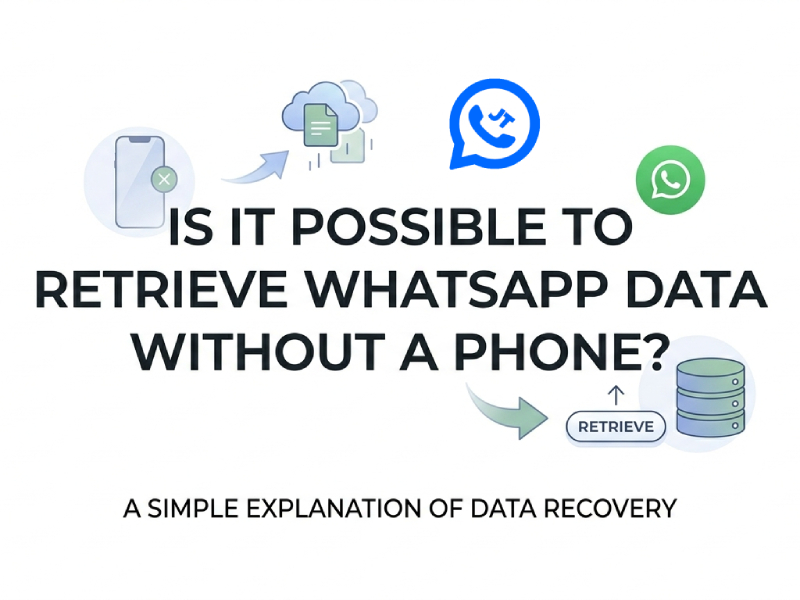
Why Retrieving Data is Different on JT WhatsApp
The key difference lies in the server access and backup protocols. Unlike the official app, JT WhatsApp runs as a third-party modified version, which changes how your data is processed:
Google Drive Restriction: The official WhatsApp app is now directly integrated with Google Drive for seamless cloud backup. Google typically blocks “unauthorized” apps like JT WhatsApp from accessing these APIs, forcing the app to rely on local backups stored in the phone’s internal storage.
Database Naming: JT WhatsApp saves data in a folder named JTWhatsApp instead of WhatsApp. Because of this different storage path, many common tools designed for WhatsApp data recovery may not automatically detect the files. If you lose your phone, standard database recovery programs will usually fail to locate these backups unless you previously renamed the files manually and moved them to a cloud service for safekeeping.
Server Independence: WhatsApp servers only store messages before they are delivered. After delivery, they exist only on your device. Because WhatsApp cannot “handshake” with the official cloud server for automatic recovery, your data can only be physically stored in hardware or in files that you manage manually.
Three Ways to Get Your Data Back
1. Restore via Cloud Backups
While JT WhatsApp often struggles with direct Google Drive integration, some versions allow it, or users manually sync their folders.
Google Drive: If you enable this feature, sign in to the same Google account on your new phone. During setup, the app will prompt you to restore data from the cloud.
Manual Cloud Sync: If you have previously uploaded the JTWhatsApp folder to Mega, Dropbox, or MediaFire, please download it to your new phone’s internal storage before installing the app. Rename the folder to a name consistent with the application’s expected directory so that the system can detect it during initialization.
2. Physical SIM Recovery & Verification
The “key” to your data is your phone number, not the device.
SIM Swap: Obtain a replacement SIM with your original number from your carrier.
Verification: Insert the SIM into any working phone. Install JT WhatsApp and enter your number. Once the SMS code is verified, the app will attempt to locate any linked backup.
Note: This grants access to the account, but message history only returns if a backup file is present.
3. Linked Devices
If you previously linked your JT WhatsApp to a PC or tablet, you have a “live” window into your data.
Active Sessions: If the conversation has not expired, you can view all chat history, media, and contacts on the associated device even if the main phone is lost or damaged.
Data Extraction: While you can’t “push” this data back to your new phone, you can manually copy the text, download important media files, or use the “Export Chat History” feature on the home screen to save critical information.
Comparison: Official vs. JT WhatsApp Recovery
| Feature | Official WhatsApp | JT WhatsApp |
| Default Backup | Google Drive / iCloud | Local Storage |
| Recovery without Phone | Easy | Hard |
| Verification | SMS / Call | SMS / Call |
How to Prevent Data Loss in the Future
1. Enable Local and Cloud “Dual Backups”
Since JT WhatsApp often struggles with direct Google Drive integration, you must manage backups manually to stay safe:
Internal Backup: Go to Settings > Chats > Chat Backup. This creates a local file in your phone’s memory.
Manual Cloud Sync: Open your phone’s file manager, find the JTWhatsApp folder, and upload it to Google Drive, Mega, or Dropbox weekly. This is the only security measure in case your phone is lost.
2. Use the “Export Chat” Feature
For essential conversations, do not rely on the app’s database.
Go to a specific chat, tap the three dots > More > Export Chat.
Select “Include Media” and send the resulting .txt and media files to your email or Telegram “Saved Messages”.
3. Schedule “Titanium” or System-Level Backups
If your device is rooted or you use advanced backup tools like Titanium Backup or Swift Backup:
Schedule a full “App + Data” backup.
These tools preserve the actual login sessions and databases, allowing you to restore your applications to their original state on a new device without needing SMS verification codes.
4. Maintain an Active Linked Device
Log in to your WhatsApp web or desktop app on a trusted computer.
Even if your phone is damaged or stolen, you can still access your messages on your computer.
While waiting for your SIM card to be replaced, you can copy important information or take screenshots.
5. Verify Your Recovery Email
Please ensure that your Google account or the email address associated with cloud storage is secure and that two-factor authentication (2FA) is enabled. If you lose your phone, you must be able to immediately log in to cloud storage from another device to retrieve the folders you uploaded.
Common Myths & Realities
When you try to recover data, you may see a lot of conflicting information online. It is crucial to understand which methods are truly effective and which are just myths.
Cloud backup on JT WhatsApp works exactly like the official app?
This is a common mistake. Although there is a sync option in the settings, WhatsApp often cannot sync directly with Google Drive due to security restrictions. Because of this limitation, some users start looking for ways to recover WhatsApp data without backup when they realize their files are missing. You should always check if backups have been uploaded, or rely on manually copying the folder.
Can I recover messages using only my IMEI number or Serial Number?
That’s impossible. WhatsApp’s encryption requires your phone number to verify your identity and obtain the decryption key. No hardware ID can bypass this restriction.
Can third-party ‘ Recovery Tools’ skip the SMS verification?
Be very careful. Many websites claim their software can “crack” WhatsApp and access your data without your phone. Most of these are scams designed to steal your information or install malware.
If I lose my phone, will my messages be deleted from the server?
Your text messages will be stored in your phone’s memory, not on a permanent server. If you do not have a backup and your phone is lost, your data will be lost permanently because the company does not store your private chat logs.
Final Thoughts
Without a mobile phone, JT WhatsApp data can only be restored if you have a SIM card and have previously backed up your data to another location. Many users who install the JT WhatsApp latest version also rely on backup features to avoid losing their chat history. Without a physical device or a cloud copy of the local database, the encryption mechanism makes it impossible for anyone to “extract” messages from the server.