JT WhatsApp is a popular modified version of WhatsApp that offers extra features and stronger chat control, but some users may face issues like crashes, login failures, or messages not sending. These problems can be caused by outdated versions, poor network, or device compatibility. To fix them, try updating the app, clearing cache, or reinstalling it from a trusted JTWhatsApp download apk source to ensure stable performance.
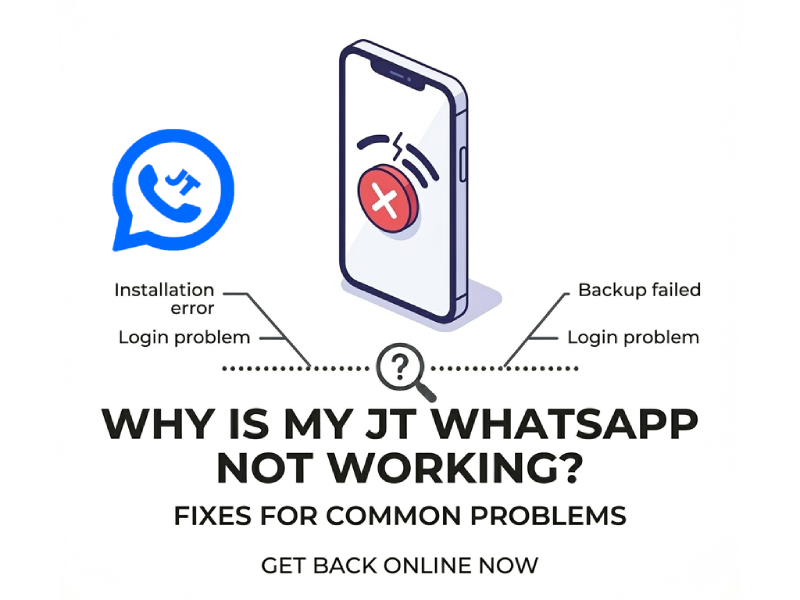
Common Reasons Why JT WhatsApp Stops Working
Understanding the root cause of a problem helps to solve it more quickly. In most cases, the problem is not accidental, but is usually caused by some common factors that affect the operation of apps on mobile phones.
1. Outdated App Version
If you are using an older version of JT WhatsApp, it may not work properly. Instant messaging services are frequently updated, and outdated versions often struggle to keep up with new server requirements. As a result, users may face a WhatsApp problem where messages fail to send, chats do not load correctly, or the app crashes unexpectedly. In some cases, certain features may stop working altogether, making the overall experience unstable and unreliable. Updating to the latest version is usually necessary to restore normal functionality and ensure smooth communication.
2. Internet Connection Issues
An unstable network connection or weak signal is one of the most common causes of this problem. If the signal is poor or the network switches frequently, the application may have difficulty sending messages or loading media files. Even a brief interruption in the network connection can cause an application to appear to malfunction.
3. App Data Problems
Over time, the application stores temporary files to speed up its operation. Excessive cached data can cause problems such as lag, freezing, or even the inability to open the application. In some cases, corrupted data can also cause certain functions to malfunction.
4. Server or Service Issues
Sometimes the problem isn’t with your device. If the service is interrupted or under maintenance, many users may encounter the same problem at the same time. During this time, messages may fail to send, or applications may become unavailable.
5. Device Compatibility
Not all phones can run modified apps smoothly. If your device has an older operating system, insufficient RAM, or limited storage, the app may crash or run slowly. Some functions may not work properly, depending on your device settings.
6. Background Restrictions
Some mobile phones limit background applications to save battery power. If WhatsApp is restricted, message syncing may stop or notifications may be delayed. This can cause the application to appear to be unable to run, when in fact it has simply been paused by the system.
7. Storage Space Issues
If your phone’s storage is almost full, the application may not function properly. WhatsApp needs space to store messages, media files, and temporary files. If there isn’t enough space, it may lag, fail to download files, or crash frequently.
How to Fix JT WhatsApp Not Working
You can try the following steps to solve the most common issues.
If JT WhatsApp is not working properly, you can try the following simple steps. It’s best to try them one by one, rather than trying all methods at once, so that you can find the solution that truly solves the problem.
1. Check Your Internet Connection
Let’s start with the basics. Open a website or other application to check if your network connection is working properly. If the page fails to load, try switching between Wi-Fi and mobile data. You can also turn on airplane mode for a few seconds and then turn it off. This usually refreshes the network connection.
2. Update the App to the Latest Version
Using an old version is one of the most common reasons for errors. New versions usually fix bugs and improve performance. Download the latest version and install it over your current one. After updating, open the app and check if it works normally.
3. Clear Cache and App Data
Cached files can sometimes cause crashes or slow loading. Please go to your phone settings, find JT WhatsApp, and clear the cache first. If the problem persists, you can also clear the application data. Please note that clearing data may delete some settings, so it is best to back up your chat history whenever possible.
4. Restart Your Device
A quick restart can resolve many hidden issues. It will close background applications and refresh the system. After restarting, open JT WhatsApp again to see if the problem is resolved.
5. Check Storage Space
If your phone’s storage is almost full, the application may not function properly. Please ensure that you have enough available space. Delete infrequently used applications, old videos, or large files to free up memory.
6. Reinstall the App
If the problem persists, please uninstall JT WhatsApp and reinstall it. Before proceeding, please try backing up your chat history. A clean install can resolve deeper issues that simpler steps cannot address.
7. Check App Permissions
Make sure the app has the permissions it needs, such as storage, contacts, and network access. Without these, some features may not work properly.
8. Wait and Try Again Later
If none of the above steps work, the problem may not be with your device. Sometimes the service may experience temporary outages. Wait a moment and try again; the problem will be solved without making any changes to the device.
What to Do If Messages Are Not Sending
If WhatsApp can be opened normally, but messages cannot be sent, it is usually not a big problem and can be solved by checking a few things.
If you see the message “Check your network connection. Sending messages requires a stable network connection,” first confirm your internet is working by opening a website or another app. If the issue continues, switch between Wi-Fi and mobile data, or turn airplane mode on and off briefly. As a final step, you can look up how to restart JT WhatsApp to refresh the app and restore normal messaging.
Check the message status icon. Normally, a gray checkmark indicates that a message has been sent but not yet delivered. If there is no checkmark, the app may not be connected to the network. Please wait a moment or resend the message.
You should also check if the contact is blocked. If someone is blocked, your message will not be sent. Go to WhatsApp settings and check your blocked contacts list.
Another step is to restart the application. Close WhatsApp completely and then reopen it. This can fix some minor glitches that prevent messages from being sent.
If the problem persists, try clearing the cache in your phone’s settings. This will delete temporary files that may cause errors, but will not delete your chat history.
You can also try sending messages to different contacts. If only one contact is unable to receive messages, the problem may lie with that contact; for example, their phone may be offline.
Check the date and time settings on your device. If the settings are not correct, the application may be unable to connect. Please set it to automatic to avoid synchronization issues.
By following these steps, you can usually find the cause of the problem and successfully restore the message sending function.
Tips to Keep the App Running Smoothly
To avoid problems in the future, it helps to follow a few simple habits:
- Keep the app updated
- Avoid using too many heavy features at the same time
- Clean up storage space on your phone
- Restart your device from time to time
These small steps can improve overall performance and reduce errors.
When You May Need to Wait
In some cases, the problem is not caused by your phone or settings. Even after trying all the basic fixes, JT WhatsApp may still not work properly. This situation is usually temporary.
Sometimes, the app depends on changes to the WhatsApp main system. If the main system is updated or adjusted, modified versions like JT WhatsApp may take some time to catch up. During this period, users may encounter problems such as login errors, message delays, or sudden crashes. In such cases, many users look for the jt whatsapp download apk latest version to ensure better compatibility and smoother performance once the update is aligned.
Sometimes, many users will report the same problem at the same time. This usually means that there are widespread problems with the service. In this case, you have no choice but to wait for it to return to normal.
A good approach is to check online communities or user groups. If others are facing the same issue, it confirms that the problem is not only on your device. Once the developers release a fix or update, the app should start working again.
Waiting can be frustrating, but in these cases, it is often the only solution while the issue is being resolved in the background.