If you use WhatsApp frequently, you may notice that the app runs slowly or takes up too much storage space. This is usually because applications store temporary files (called caches) to speed up loading. Over time, the cache will grow larger and larger, which can affect overall performance. For users searching for whatsapp clear cache iphone, understanding how cache works can help keep the app running more smoothly while also freeing up valuable storage space on your device.
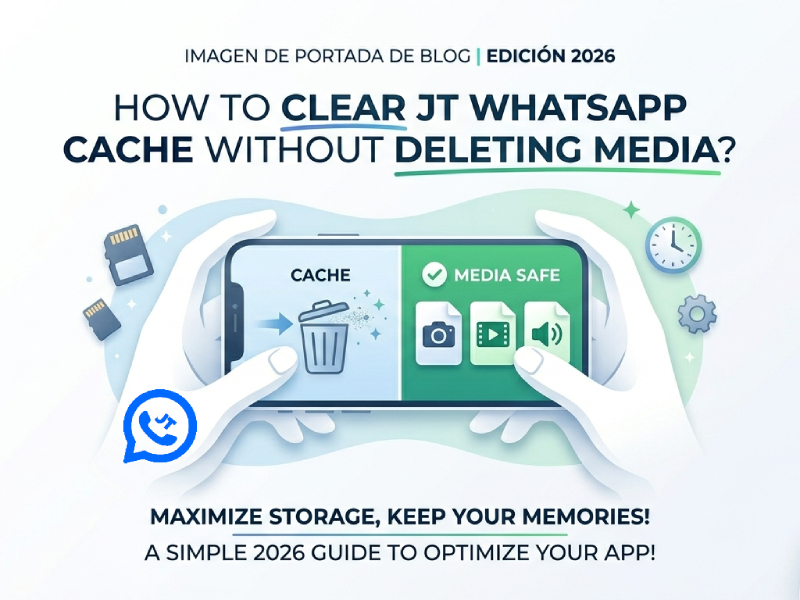
The good news is that you can clear the cache without deleting photos, videos, or other media files. This article will explain step by step how to do it and the importance of clearing the cache.
What Is Cache in JT WhatsApp
In JT WhatsApp, caching refers to temporary data that the application stores while you are using it. This data helps the app open chat windows faster, load images faster, and improve your overall user experience. If you are wondering how to clear JT WhatsApp cache, it usually becomes useful when the app starts feeling slow or storage usage increases. Instead of repeatedly downloading or loading the same content, the app saves small files in storage for quick access.
This cache may include:
- Profile photos from your contacts
- Image and video previews
- Sticker packs and emoji data
- Voice message previews
- Recently opened chat data
- Temporary files from shared documents
For example, if you open the same chat window multiple times throughout the day, WhatsApp may use cached files to display messages, profile pictures, or media files faster. This can save loading time and make the application run more smoothly.
Over time, these temporary files will accumulate. If you frequently participate in multiple chats, groups, or media-sharing conversations, the cache files can become very large. In some cases, cached files can even occupy hundreds of megabytes or more of space.
Why You Should Clear Cache
Clearing the cache is a simple habit, but if you use WhatsApp every day, it can make a significant difference. When you open a chat, view photos, play videos, or download files, the application saves temporary data in the background. Over time, these files will accumulate and may take up more space than many users expect.
One of the biggest benefits of clearing the cache is freeing up storage space. In active chats or large group conversations, cached files can grow rapidly. After several weeks or months of use, they may take up hundreds of MB or even more. Clearing the cache can free up more space on your phone for installing apps, photos, or other files.
Another benefit is improved app performance. When too much old cache remains in the application, some pages may load slowly, media previews may take longer to display, or switching between chats may feel less smooth. Clearing the cache can delete old temporary files, thus helping applications run more smoothly.
It can also help fix some minor app issues. Sometimes users may find that their profile picture fails to load, stickers do not display correctly, or media previews are blank. In many cases, the problem lies with the old cache files. Clearing the cache can often refresh the app and resolve these minor issues. Battery consumption is another issue that many people tend to overlook. If an app continuously runs too many background files, it can consume extra system resources. Clearing the cache can sometimes help applications run more efficiently.
Most importantly, clearing the cache is safe for everyday use. It will only delete temporary files, not your chat history, photos, videos, or documents. Therefore, you can easily keep WhatsApp clean and running smoothly without losing any important data.
How to Clear Cache in JT WhatsApp
There are two main methods to clear cache while keeping your media safe.
Method 1: Using JT WhatsApp Settings
- Open JT WhatsApp.
- Tap the three dots in the top-right corner to open the menu.
- Go to Settings → Storage and Data → Manage Storage.
- Look for Clear Cache or a similar option.
- Tap Clear Cache and confirm.
This removes temporary files but keeps all your photos, videos, and documents intact.
Method 2: Using Your Phone Settings
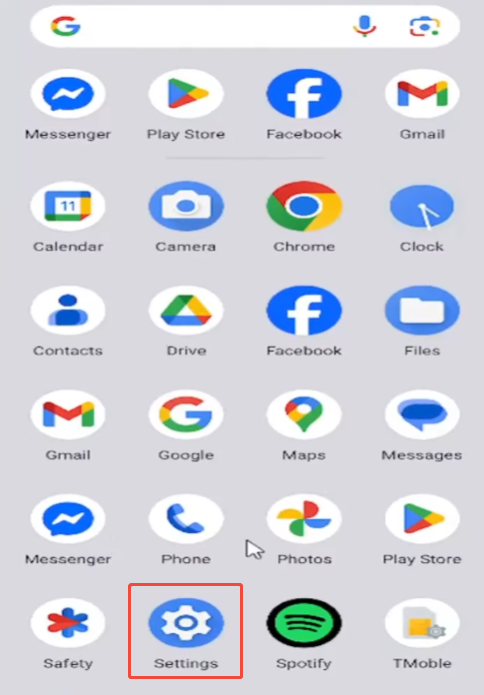
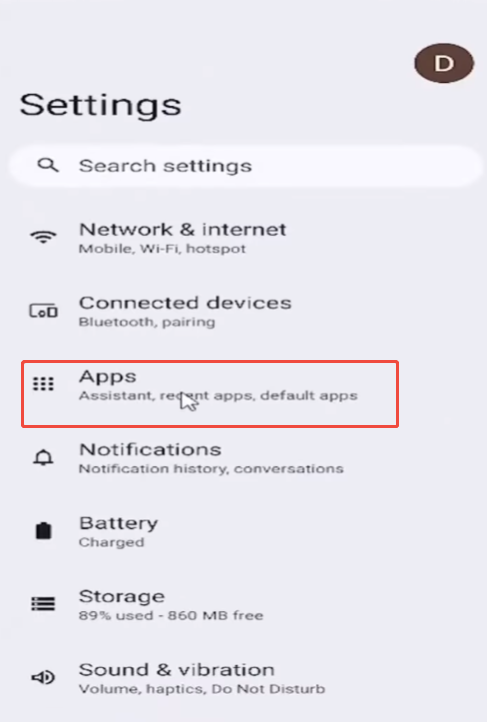
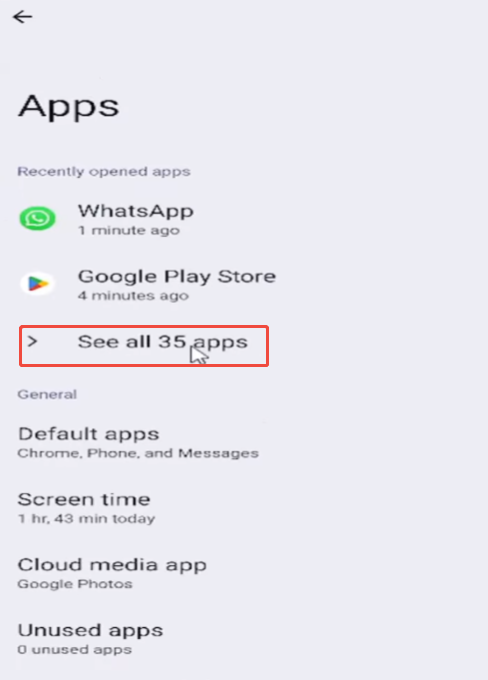
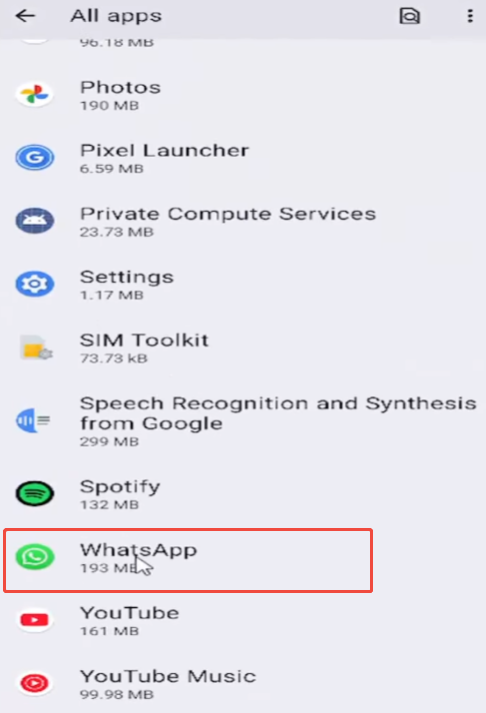
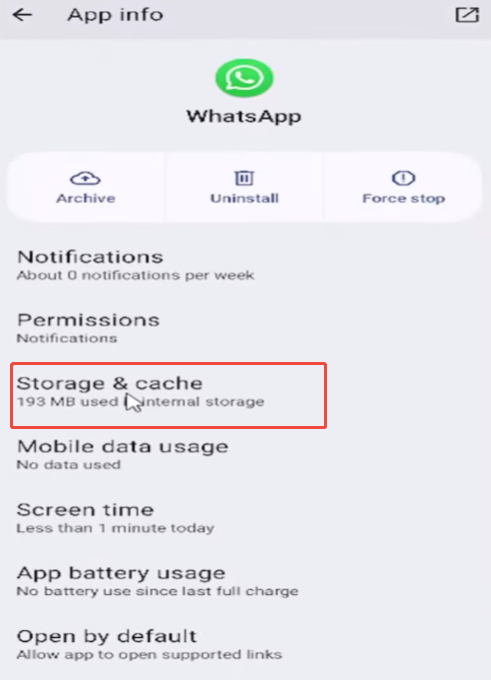
- Go to your phone Settings → Apps → JT WhatsApp.
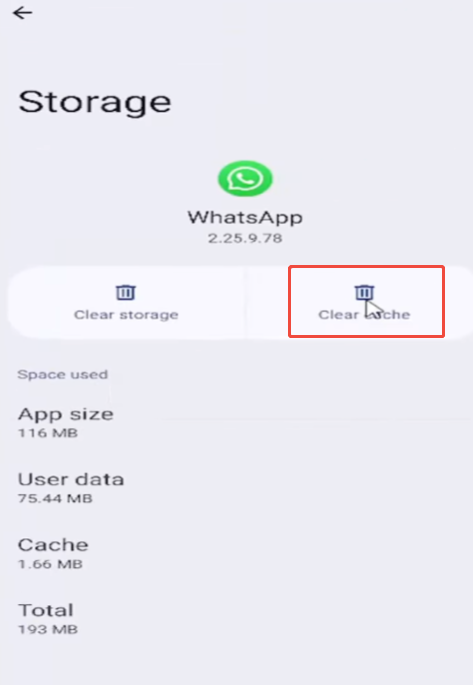
- Tap Storage.
- Select Clear Cache.
Do not tap Clear Data. Clearing data will remove your chats and media. Clearing the cache only removes temporary files.
Tips to Manage Cache Regularly
Regularly clearing the cache helps JT WhatsApp run more smoothly. Instead of waiting until applications run slowly or storage space is insufficient to clean up, it’s better to develop some simple habits. For users who recently completed a WhatsApp JT download, checking cache usage from time to time can also help keep media files, chats, and app performance in better condition during daily use.
It is recommended to check the cache every one to two weeks. If you use JT WhatsApp daily, especially in group chats, the cache files will grow rapidly. Regular checks can help you avoid running out of storage space in the future.
Pay attention to chats containing large amounts of media files. Some chats contain many photos, videos, GIFs, or stickers. These files typically generate more temporary data. If a chat file becomes too large, you can view and delete files that are no longer needed.
Another useful habit is to restart the app after clearing the cache. This helps the app reload new temporary files and may improve overall performance.
You should also reserve enough available storage space on your phone. If the device’s storage space is almost full, the application may not run smoothly. Leaving some available space helps JT WhatsApp better manage its cache.
Regularly updating the app can also help. The new version may improve storage management and reduce unnecessary cache files.
If you frequently receive large videos or numerous images, consider downloading only the files you actually need. This can reduce cache usage and keep your application cleaner.
By developing these small habits, you can make JT WhatsApp run more smoothly, save storage space, and enjoy a smoother daily chat experience.
What Happens After Clearing the Cache
Many users worry that clearing the cache might delete important files, but this doesn’t happen in most cases. The cache only contains temporary files that help the app load content faster. Your critical data remains safe after clearing the cache.
After clearing the cache, your chat history, photos, videos, voice memos, and documents will still be retained in JT WhatsApp. Your account settings, chat history, and downloaded media files are generally unaffected.
You may notice that the app feels a little different the first time you open it. For example:
- Profile pictures may take a few seconds to load again
- Media thumbnails may reload inside chats
- Stickers or emojis may need to be refreshed once
This is normal because the app is creating new temporary files.
When Should You Clear JT WhatsApp Cache?
Many users are unsure when they should clear their cache. In daily use, there is no need to clear the cache every day. The cache is designed to help applications run faster, so it doesn’t need to be cleared frequently.
When you notice certain changes, it’s a good time to clear your WhatsApp cache. For example, apps may open more slowly than usual, chats may take longer to load, or your phone’s storage may start to fill up. If you are using JT WhatsApp Anti-Ban, keeping the cache clean can also help the app run more smoothly during daily use. These are common signs that cached files accumulate over time.
If you use WhatsApp daily, especially when sharing photos, videos, stickers, or voice messages, it is recommended to check your cache every few weeks. Heavy users may need to clear the cache more frequently, while occasional users may only need to clear it once in a while.
Clearing the cache as part of your daily phone maintenance helps keep WhatsApp running smoothly without affecting your chat history or saved media files.