Sharing pictures on WhatsApp is one of the most common ways to communicate with family and friends. WhatsApp often compresses images, resulting in decreased image quality, which can be frustrating when you want to preserve details. JT WhatsApp, a modified version of WhatsApp available as a JT WhatsApp APK, offers additional features, including methods to prevent image compression, allowing you to share high-quality photos without losing clarity or detail.
1. Why Images Get Compressed in WhatsApp
By default, WhatsApp compresses images before sending them. This is because WhatsApp wants to reduce the file size of photos, which has several advantages. It saves storage space on both your and the recipient’s phones. Large, high-resolution photos take up a lot of memory, and compressing photos makes the app run more smoothly and quickly. In the JT WhatsApp latest version, users can choose to send images without compression, preserving full quality while still benefiting from the app’s efficient performance.
Smaller files send and download faster, especially when using mobile data or with a slow internet connection. If every photo were kept to its original size, sending a single image could take longer and consume a lot of data.
This compression method also has drawbacks. High-resolution images, screenshots, or images with text often lose sharpness and clarity. Colors may be slightly off, and details may become blurry. This can be frustrating if you want to share professional photos, artwork, or any images that require high quality.
WhatsApp addresses this issue by allowing users to choose to bypass or reduce compression, allowing photos to reach the recipient with almost the same quality as when they were taken.
2. Using the “Send as Document” Option
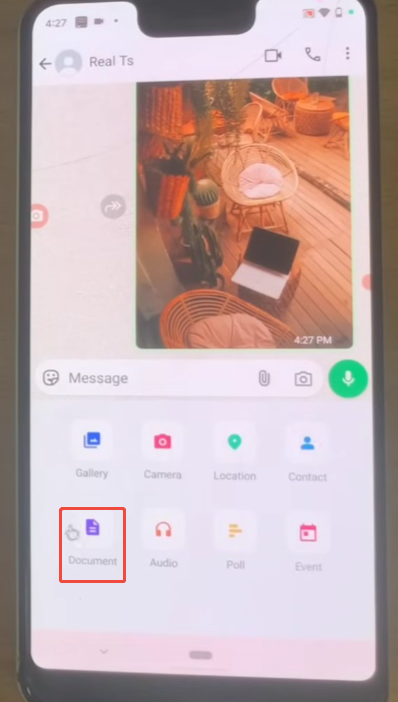
In WhatsApp, one of the simplest and most effective ways to prevent image compression is to send images as documents. Normally, when you select an image from your gallery to send, WhatsApp automatically compresses it to save space and data. This can reduce image quality, especially for high-resolution images. By sending images as documents, WhatsApp treats them as files rather than regular photos, thus preserving the original resolution.
Here’s how to do it step by step:
- Open the chat where you want to send the image.
- Tap the attachment icon located near the message box.
- Select Document instead of Gallery or Camera. This option allows you to browse your phone storage directly.
- Find and select the image file you want to send. You might need to locate it in your phone’s internal storage or in the folder where your photos are saved.
- Tap Send, and the image will be delivered in its original quality, without compression.
This method is especially useful if you’re sharing images for professional purposes, such as design work, screenshots with text, or any photo that emphasizes detail. It also works well for sending multiple images at once, as JT WhatsApp allows bulk document sending without compression.
3. Enabling High-Quality Media in JT WhatsApp Settings
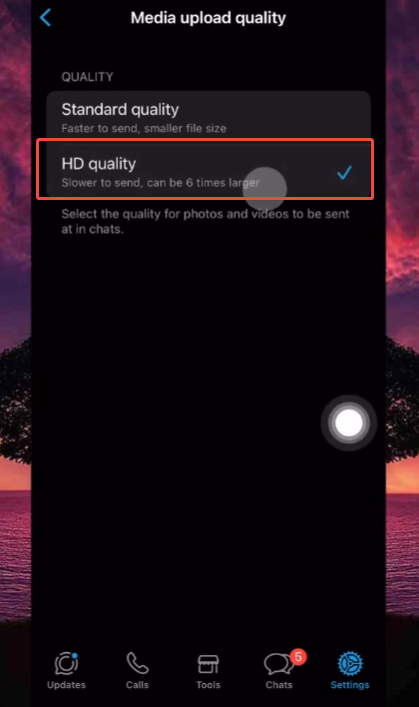
JT WhatsApp allows users to adjust media settings to send pictures and videos in higher quality. This is extremely useful if you want to share photos without losing detail, and you don’t have to send images as documents every time. Here’s a step-by-step guide and some additional tips:
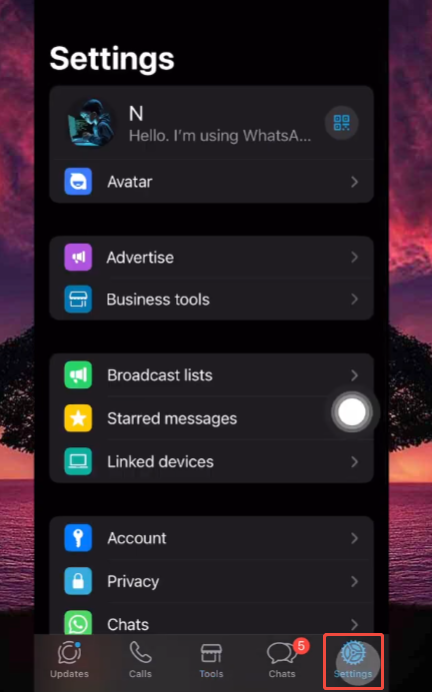
- Open JT WhatsApp Settings
Start by opening JT WhatsApp and tapping the three-dot menu in the top-right corner of the screen. Select Settings from the dropdown list. - Navigate to Media Settings
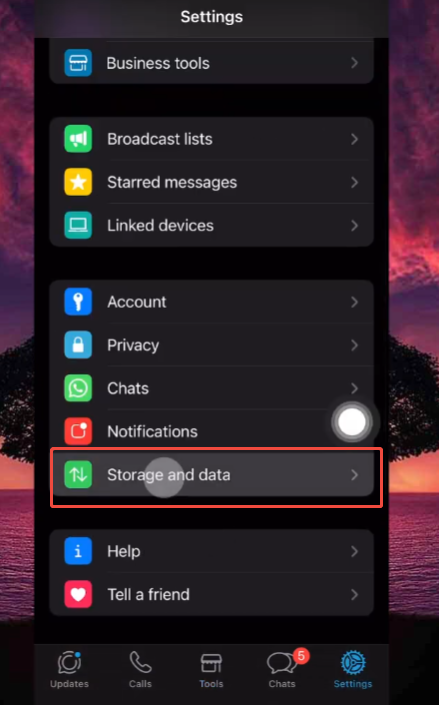
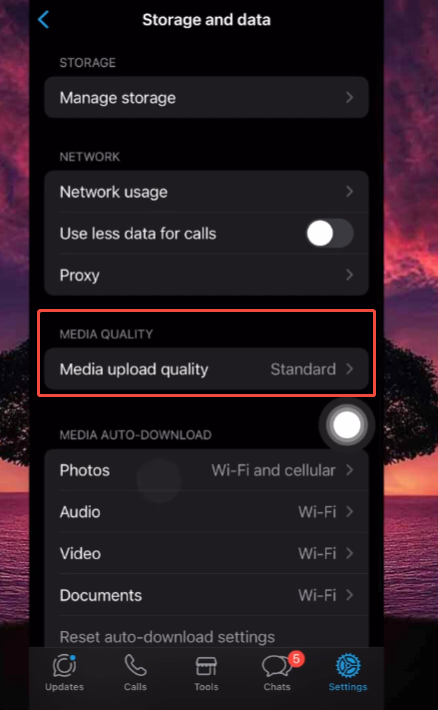
In Settings, look for Media Settings or sometimes Chat Settings. This section controls how images, videos, and other media are sent and displayed. - Select Image Quality or Media Upload Quality
Within Media Settings, you will see an option for Image Quality or Media Upload Quality. JT WhatsApp usually offers three main choices:
- Auto/Default: Uses normal compression like standard WhatsApp.
- High Quality: Reduces compression significantly, keeping most details intact.
- Best Quality: Sends images in nearly full resolution with minimal compression.
- Tips for Best Results
- Please ensure your phone has sufficient storage space and a stable network connection, especially when sending high-resolution media files.
- If you need to send a large number of pictures or videos in a single chat, consider sending them in smaller batches to avoid sending failures.
- Remember that high-quality media will use more data, so it’s better to use Wi-Fi when possible.
Enabling JT WhatsApp’s High Quality Media feature allows you to send and receive images with significantly higher resolution than WhatsApp’s default settings, making it perfect for photographers, designers, or anyone who values image detail. If you’re wondering how to send full-size photos on JT WhatsApp, this feature ensures your images maintain their original clarity and sharpness without unnecessary compression, letting every detail shine through when sharing with friends or clients.
4. Things to Keep in Mind
While sending images in high quality is very useful, there are several points to consider to make sure the process goes smoothly:
- Larger file sizes: High-quality images are much larger than compressed image files. This will consume your phone’s storage space much faster, especially when sharing a large number of photos in a short period of time. Make sure your phone has enough space before sending large albums.
- Data usage: Sending high-resolution images will consume more mobile data. If you are on a limited data plan, it’s best to use Wi-Fi whenever possible to avoid extra charges.
- Download time for recipients: Large files download slowly, especially for users with slow internet speeds. If you know your contact has a limited internet speed, it’s best to remind them before sending large files.
- Phone performance: Opening and viewing very large images may require more processing power, especially on older devices. This could cause your phone to run slightly slower when browsing chat history containing many high-resolution photos.
- Consistency between users: To fully experience high-quality image sharing, it’s best if both you and your chat partner use JT WhatsApp. If they are using the regular version of WhatsApp, some images may still be compressed or take longer to download.
- Backup considerations: Large images will increase the size of your chat history backup. If you are using cloud backup, please ensure you have enough space to store all your media files.
By keeping these key points in mind, you can successfully share high-quality images, avoid potential problems, and enjoy the benefits of clear, detailed photos.
5. Advantages of Disabling Image Compression
Disabling image compression in WhatsApp offers numerous obvious benefits. First, your photos will retain full detail and sharpness, which is especially important for photos taken with a high-resolution camera, screenshots, or any image that values detail. You no longer need to worry about color distortion or blurry edges, and when exploring customizations like JT WhatsApp themes, you can enjoy not only visually appealing layouts but also perfectly clear images shared within them.
It ensures that important visual elements remain sharp and clear. For example, when sharing documents, charts, or graphs, compressed images can result in reduced text clarity or blurred lines. Sending uncompressed images preserves all the original information, making it easy for recipients to view or print.
Sharing high-quality images enhances the overall viewing experience. Clear, large-format images look better on tablets, computers, or high-resolution phones. Friends and family can appreciate the original sharpness of the photos without pixelation or distortion.
Sending uncompressed images is also crucial for professional use. If you are a photographer, designer, or content creator, maintaining image quality is paramount. High-quality images project a professional image and prevent any loss of detail that could affect your work.
By keeping images uncompressed, you can ensure that every photo you share retains its original look, detail, and impact.
6. Conclusion
One major advantage of JT WhatsApp over the regular version is its ability to send uncompressed, high-quality images. Whether using the “Send as Document” feature or enabling high-quality media settings, you can share clear photos and enjoy better image quality in your chats. Please be mindful of file size and data usage for a smoother and more satisfying chat experience.