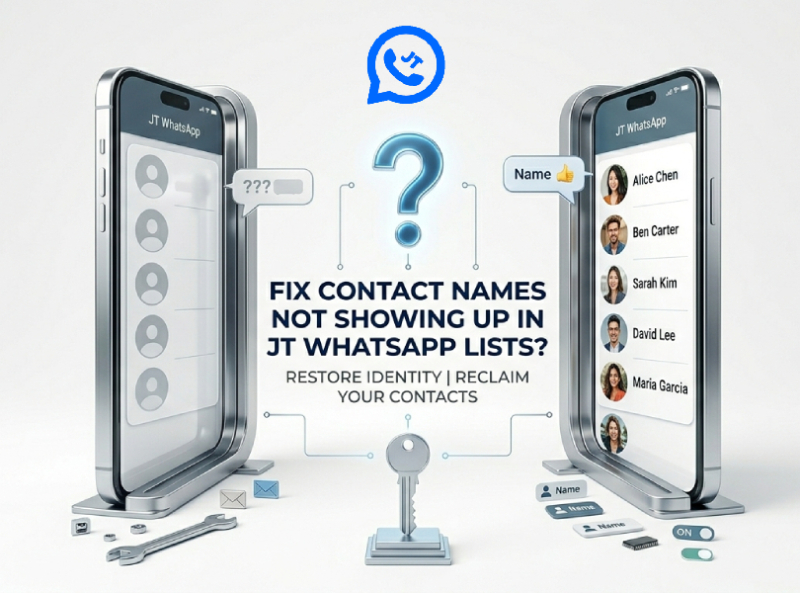
Many people use WhatsApp to stay connected with family and friends. However, a common problem users encounter is that chat history or contact lists do not display contact names, but only phone numbers. This issue can be especially frustrating when switching devices or trying to use modified versions of the app, such as after a JT WhatsApp download, but fortunately, it is usually easy to resolve. This article will explore the main causes of this problem and provide some practical solutions.
1. Check Permissions
JT WhatsApp needs access to your phone’s contacts to display contact names correctly. If the app does not have permission, it will only display the phone number and not the saved contact names. To ensure correct permission settings, please carefully follow these steps:
- Open your phone’s Settings and go to Apps or App Management, depending on your device.
- Scroll through the list and select JT WhatsApp.
- Tap Permissions and check if the Contacts permission is turned on. If it is off, enable it.
- After enabling contact permissions, it is recommended to restart your phone. This ensures that JT WhatsApp recognizes the changes and can access your contacts normally.
In addition, some phones also have settings such as “Allow apps to run in the background” or “Optimize battery usage”. Please ensure that JT WhatsApp is allowed to run in the background; otherwise, the app may lose contact access when it is not open.
Checking and enabling permissions is the first and usually the simplest step in resolving the issue of missing contact names. Without the correct permissions, JT WhatsApp will not be able to read your saved contacts; as a result, JT WhatsApp not showing contact names will leave you seeing only the phone numbers instead of the actual contact names.
2. Refresh Your Contacts
Sometimes, JT WhatsApp does not automatically update your contact list, which causes names to disappear and only numbers to be displayed. Refreshing your contact list will force the app to resync the contacts saved on your phone. Here are the specific steps:
- Open JT WhatsApp and go to the Contacts
- Tap the menu button (three dots) in the top-right corner.
- Select Refresh. This tells JT WhatsApp to reload all contacts from your phone.
Refreshing may take a few seconds, depending on the number of your contacts. After refreshing, please check if the missing contact names are now displayed.
If in-app refresh doesn’t work, you can also try refreshing your phone’s system-level contacts:
- Open your Contacts or Phone
- Pull down the contact list to refresh This updates all changes and makes sure that new contacts or edited names are recognized by JT WhatsApp.
Refreshing your contacts regularly is a simple step, but it helps keep JT WhatsApp synced with your phone, especially if you frequently add new contacts or switch between different instant messaging apps.
3. Check the Contact Format
WhatsApp requires the phone number saved in the contacts to display names correctly. If the number is saved in an incorrect or inconsistent format, the application may not recognize it, showing only the phone number instead of the name. To fix this, ensure all contacts are saved in a uniform format compatible with JT WhatsApp APK 2026, so names display properly, and messaging remains seamless.
- Include the country code: Make sure every contact has the correct country code at the beginning of the number. For example, a US number should begin with +1. Without the country code, JT WhatsApp may not match the contact to your chat list.
- Remove extra symbols or spaces: Numbers containing extra characters may cause the app to fail to recognize the contact correctly. Please clean up your number so that it is formatted like +1234567890.
- Use consistent formats: JT WhatsApp may display inconsistencies if some contacts are saved with country codes while others are not. Please try saving all numbers in the same format.
- Check duplicates: Sometimes, duplicate contact information can cause the application to malfunction. This problem can be avoided by deleting or merging duplicate entries.
- Update outdated numbers: If your contact has recently changed their phone number, please update that number in your phone’s contacts. Expired numbers may only display the phone number until you correct it.
After making these adjustments, return to JT WhatsApp and refresh your contacts. In most cases, proper formatting will immediately allow the app to display the contact’s name, not just the number.
4. Clear Cache and Data
Clearing JT WhatsApp’s cache and data can fix a temporary bug where contact names are not displayed. The cache stores small files to help applications run faster, but sometimes these files can become corrupted, causing display problems. Clearing the cache will not delete your chat history, so it’s usually worth a try first.
To clear cache:
- Go to Settings on your phone.
- Open Apps or App Management.
- Find JT WhatsApp and tap it.
- Go to Storage.
- Tap Clear Cache.
After clearing the cache, restart JT WhatsApp and check if the contact names are displayed correctly.
If the problem persists after clearing the cache, you can try clearing the data. This option will delete temporary files and reset some application settings, which can resolve some more stubborn problems. Important Note: If you have not backed up your chat history, clearing the data may delete your chat history. For safety:
- Back up your chat history first via JT WhatsApp Settings > Chats > Backup.
- Then go to Settings > Apps > JT WhatsApp > Storage.
- Tap Clear Data.
After clearing the data, reopen the application, restore the backup, and then check the contact list. Most users have found that this step can fix the problem of missing contact names caused by corrupted files or settings.
5. Update JT WhatsApp
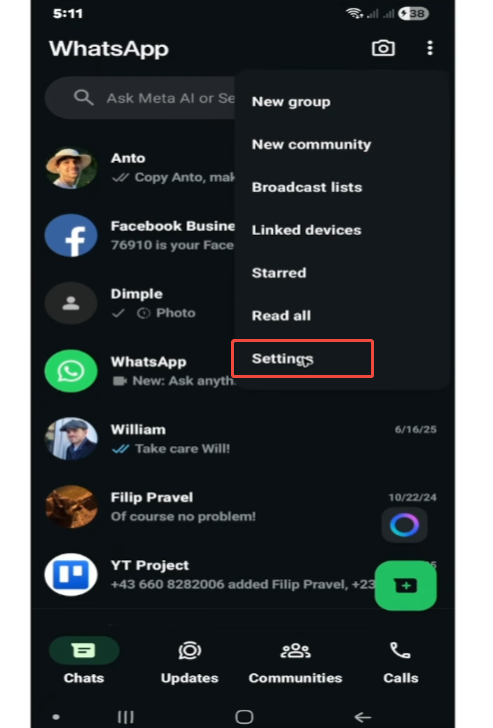
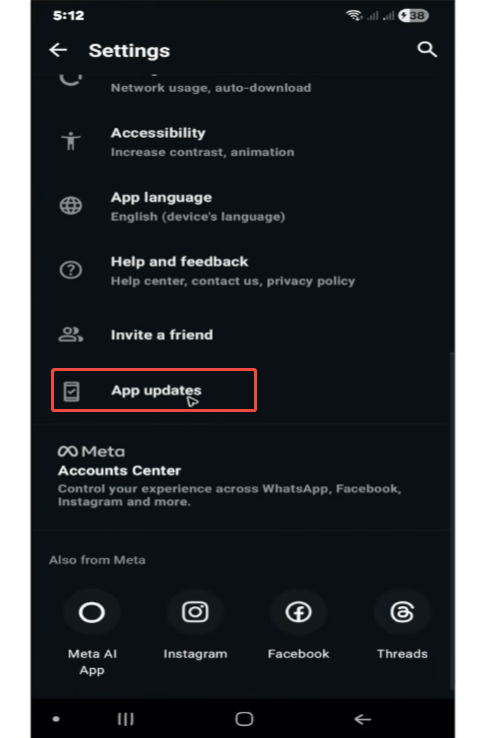
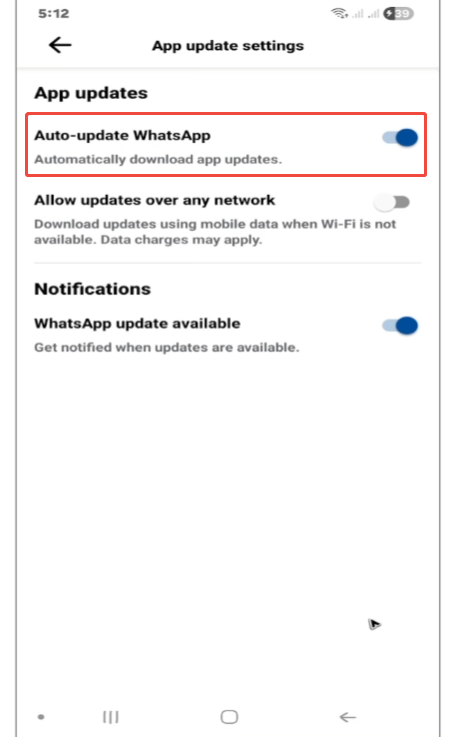
Using an outdated version of WhatsApp can cause a number of problems, such as missing contact names, but you can resolve this issue by learning how to fix JT WhatsApp contacts. Developers typically release updates to fix vulnerabilities, improve performance, and add new features, so keeping applications updated is crucial for smooth operation.
To update JT WhatsApp:
- Check the current version: Open JT WhatsApp, go to Settings > About, and note the version number.
- Visit the official source or a trusted site: Because JT WhatsApp is a modified version of the app, it cannot be downloaded from major app stores. Please be sure to download the latest version from a reliable source to avoid security risks.
- Download and install the update: Follow the instructions provided by the source. Usually, you need to allow installation from unknown sources in your phone settings.
- Restart your phone: After updating, restart your device to ensure all changes take effect.
Updating the app can usually fix the bug that causes contact names not to be displayed. It also ensures that your app is compatible with the latest Android or iOS system versions, thus preventing potential future problems.
6. Re-sync Contacts
If the above steps are ineffective, resynchronizing contacts can usually solve the problem. Sometimes, JT WhatsApp does not automatically update the contact list from your phone or Google account. Resynchronization ensures that the application gets the latest contact information.
To re-sync contacts:
- Open your phone’s Settings.
- Go to Accounts or Accounts & Backup, depending on your phone model.
- Select the account where your contacts are saved, usually your Google account.
- Tap Account sync or Sync Account.
- Make sure Contactsis is enabled, then tap Sync now or Sync.
Once synced, open JT WhatsApp and go to the “Contacts” tab. If you still cannot see the contact’s name, try clicking the menu (three dots) and selecting “Refresh” to force the application to update the contact list.
Resyncing is especially useful if you’ve recently added new contacts, changed your phone number, or switched phones. This helps JT WhatsApp correctly match phone numbers with saved names, thus reducing instances where only the number is displayed without the name.
7. Backup and Reinstall
As a last resort, you can back up your chats and reinstall JT WhatsApp:
- Back up your chat history in JT WhatsApp Settings > Chats > Backup.
- Uninstall the app.
- Reinstall it and restore your backup.
This often fixes persistent issues with missing contact names.
Conclusion
The issue of contact names not displaying in the JT WhatsApp contact list is a common but solvable problem. You can quickly resolve this issue by checking permissions, refreshing contacts, correcting number format, clearing cache, updating the app, and resyncing contacts. Following these steps will ensure a smooth and organized chat experience and that contact names are displayed correctly.