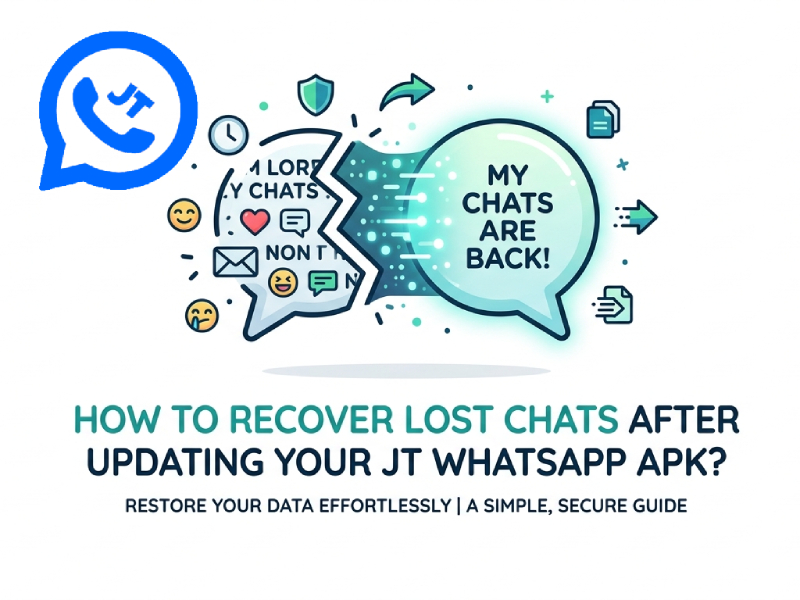
Updating the JT WhatsApp APK can bring new features and improvements, but it can sometimes lead to the loss of chat history. Losing important information is frustrating, especially if you rely on WhatsApp for personal or work communication. If you ever find yourself in this situation, there are ways to restore your messages safely, and this article will guide you step by step on how to recover lost chat history after updating JT WhatsApp, ensuring that your conversations are preserved without unnecessary complications.
1. Understand Why Chats Get Lost
Chat history may disappear unexpectedly when you update the JT WhatsApp APK. A common reason is incomplete backups, and if you didn’t save your chat history before updating to the JT WhatsApp latest version, the app won’t be able to automatically restore it.
Another reason is version conflict. Not all updates are fully compatible with backup files of older versions. If the new version cannot read the old backup, your message will not be displayed.
Insufficient storage space may also lead to the loss of chat history. If your phone doesn’t have enough storage space, or JT WhatsApp doesn’t have the correct permissions to access storage, you may not be able to restore your backup.
Understanding these reasons is important because it can help you choose the right message recovery method and avoid losing messages again in the future.
2. Check for Local Backups
WhatsApp automatically creates a local backup every day, usually at 2 or 3 a.m. These backups are stored in your phone’s internal storage, which can be very useful if you don’t upload your chat history to Google Drive. Local backups are like snapshots of your chat history, so you can still restore your messages even if something goes wrong during the update process.
To check and restore from a local backup:
- Open your file manager: Go to your phone’s internal storage and find the folder named JTWhatsApp.
- Find the backup folder: Inside, there should be a Databases. This is where your local backups are stored.
- Identify the right backup file: You will see a file similar to msgstore-YYYY-MM-DD.1.db.crypt12. Each file represents a backup from a specific date. Please select the backup file from before you updated the application.
- Rename the file: To set it as the active backup, rename the file to msgstore.db.crypt12. This tells JT WhatsApp to use it during the setup process.
- Reinstall JT WhatsApp: Please uninstall the application first, and then reinstall it. During installation, the application will detect the local backup and ask if you want to restore it. Once confirmed, your chat history will be restored.
Tips to make it easier:
- Keep several recent backup files, just in case one is corrupted.
- Do not overwrite the newest backup if you are unsure; keep a copy in another folder.
- Local backups are only stored on the device, so if you change phones, you will need to transfer the backup file manually.
After updating JT WhatsApp, using a local backup is usually the fastest and safest way to recover lost chat history, especially if you don’t back up to cloud storage regularly.
3. Restore From Google Drive Backup
If you have linked your JT WhatsApp to Google Drive, you can recover your chat history from there. Google Drive backups are very useful because they store your messages in the cloud, so you can still access them even if your phone is lost or reset. Before doing this, make sure you know how to install JT WhatsApp on Android, so that your device is ready to restore the backup smoothly.
Please make sure you are logged into the Google account you are using for backup. If the account is incorrect, the application will not be able to detect any stored data.
Uninstall JT WhatsApp from your device and then reinstall it. During the installation process, the app will automatically check for available backups in Google Drive.
When prompted, select “Restore” to restore your message. This process may take several minutes, depending on the size of the backup and your network speed.
Please note that only backups created before updating the app are available. If you did not back up your chat history to Google Drive before updating, this method cannot recover recent messages.
Once the restore is complete, all your previous chat history, group conversations, and media files included in the backup will be available again in JT WhatsApp.
4. Use Third-Party Recovery Tools Carefully
Sometimes, users may not have backups, or the backups may not contain the latest information. In this situation, third-party recovery tools appear to be a solution. These tools claim to be able to scan phone storage and recover lost WhatsApp chat history, even without a backup.
These tools also carry risks. Some tools require root access, which may affect your phone’s warranty and security. Some tools may be incompatible with WhatsApp backup, so even if you run these tools, you may not be able to recover all your messages.
Choosing tools carefully is crucial. Look for applications that are well-rated, clearly described, and from reliable sources. Avoid using tools that request unnecessary permissions or appear suspicious, as they may leak your data.
Using third-party recovery tools should be the last resort. Prioritize local or cloud backups whenever possible, as these methods are safer, more reliable, and can more effectively restore your chat history.
5. Prevent Future Chat Loss
Preventing chat history loss is much easier than recovering lost information. With just a few simple steps, you can save a lot of time and effort in the future. Here are some practical tips:
- Back up regularly
- JT WhatsApp can create both local and cloud backups.
- Make a habit of backing up your chats daily or at least once a week.
- Local backups are stored on your phone, and cloud backups protect your chats even if you change your device.
- Check storage and permissions
- Ensure your phone has enough free space for backups.
- Make sure JT WhatsApp has permission to access storage, so it can create and restore backups properly.
- Without these permissions, backups may fail, and you could lose chats after an update.
- Update carefully
- Always create a backup before updating JT WhatsApp APK.
- Avoid skipping updates for too long, as old versions may not work properly with new backups.
- Download the APK only from trusted sources to prevent data corruption or compatibility issues.
- Use multiple backup methods
- Relying on only one backup type can be risky.
- Combine local backups with cloud backups to make sure you have a copy in case one method fails.
- Test your backups occasionally
- Try restoring an older backup on a test account or device if possible.
- This ensures that your backup files are complete and readable.
By following these steps, you can minimize the risk of losing your chat history in the future. Enabling features like JT WhatsApp hide last seen while maintaining regular backups, ample storage space, and careful updates will ensure the security of your messages and make your JT WhatsApp experience smoother.
6. Tips to Keep Your JT WhatsApp Chats Safe
Losing your chat history after updating the JT WhatsApp APK can be frustrating, but there are some simple ways to reduce the risk of this happening in the future:
- Regular backups: Make a habit of backing up chats daily or weekly, both locally and to Google Drive.
- Check storage permissions: Ensure JT WhatsApp has access to your phone storage so backups can be saved and restored.
- Update carefully: Always create a backup before installing a new version of the APK.
- Test backups after updates: After updating, check that your old messages are still accessible.
Following these steps will ensure the security of your information and prevent you from losing important conversations even after an application update.