Using the same instant messaging account on multiple devices has become a common need for many users. JT WhatsApp supports WhatsApp multi device features, allowing users to sync messages, media files and settings across phones, tablets and computers for a more convenient communication experience.
This guide will detail how JT WhatsApp’s multi-device sync feature works, how to connect devices, the types of data that can be synced, and how to manage connected devices, helping you achieve a smoother user experience.
What Is JT WhatsApp Multi-Device Sync
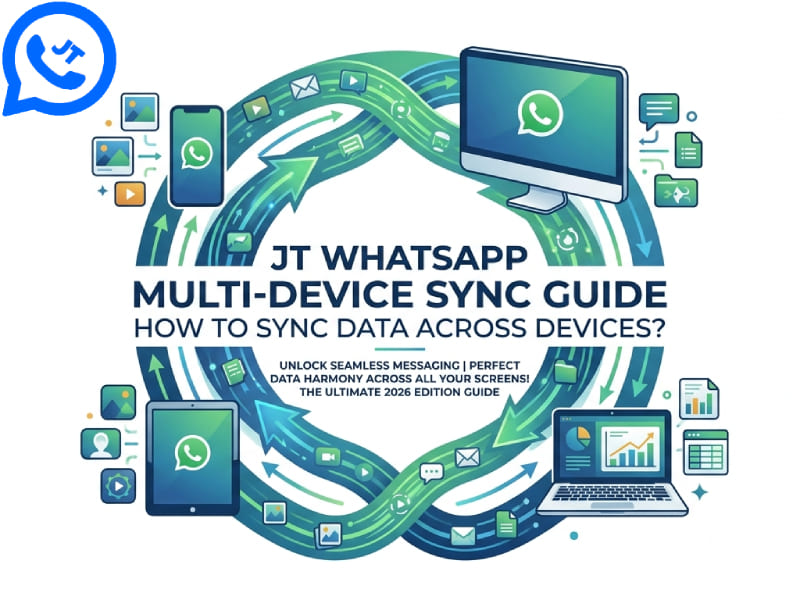
JT WhatsApp’s multi-device sync feature allows users to access the same account on multiple devices. Users don’t need to rely on just one main phone; they can connect other devices to continue chatting on different platforms.
This feature is very useful for users who use multiple devices daily. For example, WhatsApp Business multiple devices allows you to reply to messages on your computer, view conversations on your tablet, or switch between different devices while working without manually migrating your chat history.
With multi-device sync, JT WhatsApp can help keep important information available across connected devices, including:
- Chat conversations
- Contact information
- Shared images and videos
- Voice messages
- Group chats
- App preferences
The goal of this feature is to provide a more convenient way to stay connected.
How Does JT WhatsApp Multi-Device Sync Work
JT WhatsApp’s multi-device sync feature is achieved by connecting other devices to the same account. Once the devices are associated, the application will keep information synchronized between these devices.
When you send or receive a message on one device, the changes will also be reflected on other connected devices. This allows users to continue the conversation without being limited to using the same phone.
The sync process usually includes three main steps:
- Connect another device to your account.
- Confirm the connection through the linking process.
- Use JT WhatsApp on the connected device.
Once the setup is complete, users can manage chats from different devices more easily.
How to Enable Multi-Device Sync in JT WhatsApp
Previously, the methods to fix the problem of delayed messages in JT WhatsApp have been shared. Setting up multi-device syncing on JT WhatsApp is very simple. Specific options may vary depending on the application version, but the general steps are similar.
Step 1: Open JT WhatsApp Settings
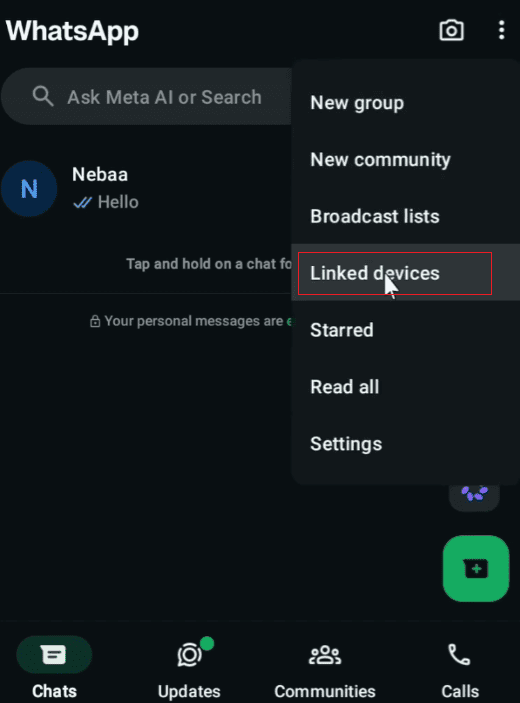
First, open JT WhatsApp on your main device. Click the menu icon to enter the settings interface.
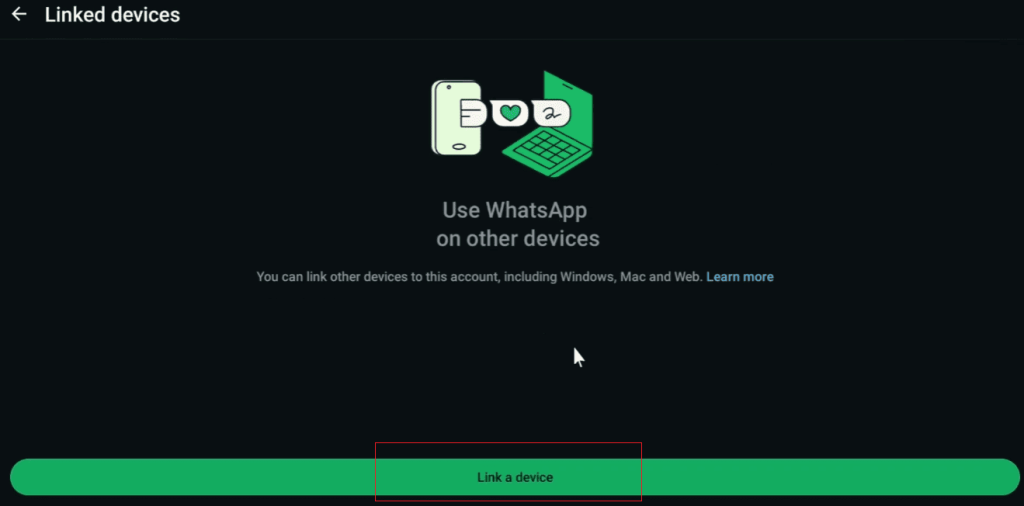
Look for options related to “Associated Devices” or “Multi-Device Management”. In this section, users can view and connect to other devices.
Step 2: Choose Link a New Device
After entering the device management page, select the option to add a new device.
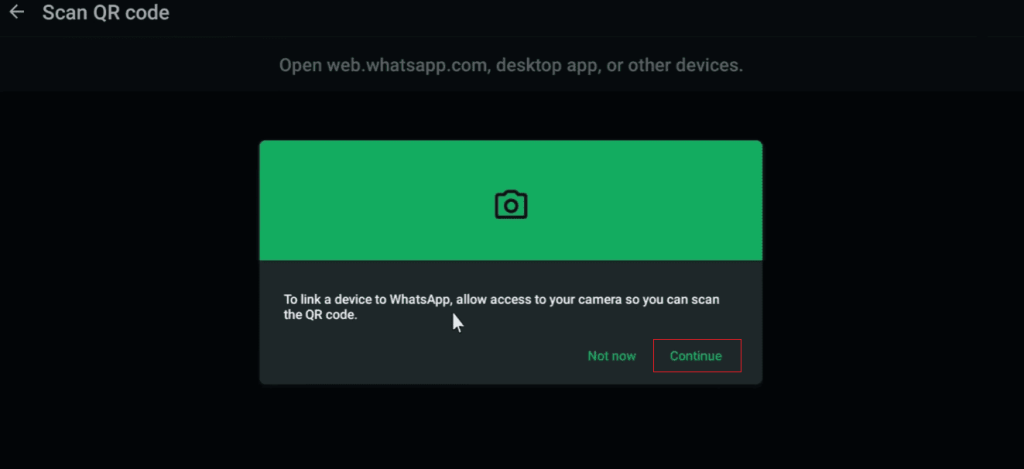
The application will provide ways to connect to other devices. Please follow the on-screen instructions to continue.
Step 3: Complete Device Connection
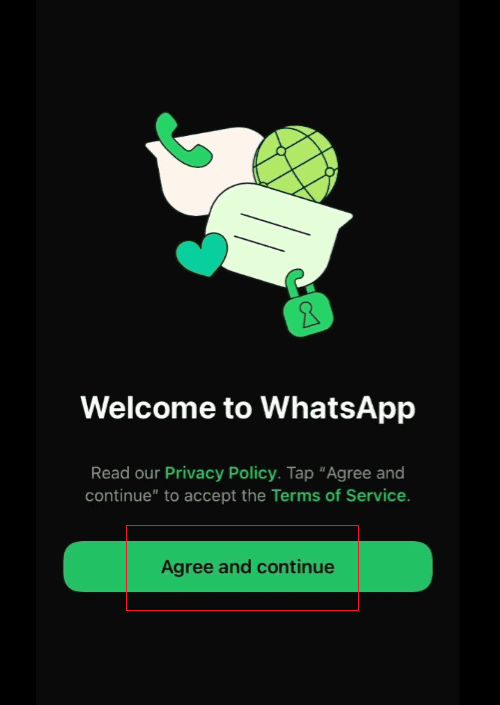
Open JT WhatsApp on the second device and complete the linking process.
Once the connection is successful, the new device will appear in your list of associated devices. Then you can use JT WhatsApp on multiple devices.
What Data Can Be Synced Across Devices
Multi-device synchronization is designed to ensure that important account information is available on connected devices. Different types of data may include:
Chat Messages
Messaging is the core of any instant messaging app. Thanks to the synchronization feature between devices, users can continue the conversation without switching back to their main phone, making it easier to transfer chats to another device and keep messages available across different platforms. This feature helps users maintain a smooth communication experience while managing conversations on multiple devices.
This is especially useful for people who frequently use different devices at work or while traveling.
Photos and Videos
Media files shared during conversations can also be accessed via connected devices. Users can more easily view images, watch videos, and manage shared content.
Group Conversations
The group chat function remains available when using linked devices. Users can follow discussions, reply to messages, and stay updated on group activities.
Voice Messages
You can access voice messages on connected devices and easily listen to and reply without switching devices.
Account Settings
Some basic preference settings may also remain consistent across different devices, thus helping users maintain the same application experience.
How to Manage Connected Devices in JT WhatsApp
After connecting multiple devices, proper management of these devices is crucial. JT WhatsApp offers a device management feature where users can view connected devices.
In this section, users can usually:
- View currently linked devices
- Check device information
- Remove old devices
- Add new devices
Regularly checking the device list helps keep the account organized and makes it easier to control where the account is being used.
How to Use JT WhatsApp on Multiple Devices More Efficiently
Having multiple connected devices can improve everyday communication. Here are some practical tips to help you make better use of this feature.
Use a Computer for Faster Typing
Typing long messages on a mobile phone is often time-consuming. After connecting JT WhatsApp to a computer, users can use a keyboard to enter messages, thereby improving typing speed and providing a more comfortable experience.
This is very useful for handling work communication, writing long replies, or managing multiple chat sessions at the same time.
Keep a Main Device for Daily Use
Although multiple devices can be connected, many users prefer to keep one main device for daily operation.
The main device can be used to manage settings, while other devices are used to quickly view messages.
Organize Media Files Regularly
When using JT WhatsApp on multiple devices, conversations may involve sharing a large number of photos and videos. Regularly clearing out unnecessary files helps keep the app tidy and organized.
Common Problems When Syncing JT WhatsApp Across Devices
Sometimes, users may encounter problems when connecting or using multiple devices. Understanding common problems can help you resolve them more quickly.
1. Device Connection Failure
If the devices cannot connect, users can check whether both devices are properly connected to the Internet. Restarting the application and trying to connect again may also help.
2. Messages Not Updating
If the message is not displayed immediately, waiting for the synchronization process to complete can resolve the issue. Checking the device connection status is also helpful.
3. Difficulty Managing Multiple Devices
When many devices are connected, it can become difficult to remember them all. Removing devices that are no longer in use simplifies management.
Tips for Better JT WhatsApp Multi-Device Experience
To get a smoother experience when using JT WhatsApp across devices, consider these tips:
1. Keep the App Updated
Using the latest version can provide better performance and access to newer features.
2. Use Stable Internet Connections
A stable connection helps devices communicate and update information more smoothly.
3. Check Device Settings Regularly
Review connected devices from time to time. This helps users understand which devices are currently connected and manage them better.
4. Choose Devices Based on Your Needs
Not every user needs many connected devices. Linking only the devices you use often can make daily management simpler.
JT WhatsApp Multi-Device Sync vs Traditional Single-Device Use
Traditional instant messaging applications are typically centered around a primary device, which users must use to view conversations and media content.
Multi-device synchronization changes this experience, allowing users to switch between different devices more freely.
The main differences include:
| Feature | Single Device Use | Multi-Device Sync |
| Access chats | One device | Multiple devices |
| Device switching | Less convenient | More flexible |
| Computer use | Limited | Easier |
| Daily workflow | Depends on one phone | Works across devices |
For users who frequently switch devices, multi-device sync provides a more flexible way to manage conversations.
Conclusion
JT WhatsApp’s multi-device sync feature makes it easier for users to access chat history and share content across different devices. With the ability to WhatsApp connect multiple devices, users can link their accounts, manage connected devices, and adjust various settings in an organized way. This helps create a smoother communication experience by keeping conversations and shared files available across multiple platforms.
Whether you use a computer to improve your typing speed, are used to browsing chat content on a tablet, or frequently switch between multiple devices in your daily life, this multi-device feature provides a more flexible way of communicating. Knowing how to set up and manage JT WhatsApp sync can help users make more efficient use of their devices, thereby improving their daily communication experience.