Voice messages have become one of the most common ways people communicate on WhatsApp. A short audio recording can often convey more information than a long text, and it is also faster to send. However, voice messages also have some problems: you can’t know the duration of the message before it’s played, and you can’t quickly view its content in a busy group chat. With WhatsApp voice message features, users can better manage audio conversations by checking, organizing, and handling voice content more easily, making daily communication more convenient and efficient.
This article will introduce the function’s purpose, working principle, and how to properly manage this function within the application.

What Does Voice Note Preview and Control Mean
In short, this feature allows users to view details of voice messages and adjust the playback method, instead of simply clicking play and listening to the entire message without any other options.
The main parts of this feature include:
Waveform Preview: The app displays the sound waveform before playing the voice message. This allows users to get a general idea of the pauses, louder sections, and overall duration of the recording, helping them decide whether to listen immediately or wait for a more appropriate time.
Duration Display: The exact duration of the voice message is clearly displayed next to the message. Users can quickly determine whether a message is five seconds long or two minutes long and schedule the time accordingly.
Playback Speed Control: Users can adjust the playback speed of voice messages, with common options including 1x, 1.5x, and 2x speed. This is especially useful for long recordings, allowing listeners to hear the content more quickly without missing any key points.
Pause and Resume: Voice messages can be paused midway and resumed later from where they were paused, without having to start all over again.
In-Chat Scrubbing: Users can drag the playback progress bar forward or backward to jump to a specific part of the recording, similar to how music or video players work.
How to Access Voice Note Preview in JT WhatsApp
This feature is built into the chat window, so you can get a basic preview without having to look for it in a separate menu. Here is a general process:
- Open a chat where a voice note has been received.
- Look at the message bubble — the waveform and duration are already visible without pressing anything.
- Tap the play button to start listening.
- Tap the speed icon (usually shown as “1x”) to switch between playback speeds.
- Drag the small circle on the waveform to move to a different part of the recording.
Because the waveform and duration are displayed automatically, users can preview the message before deciding to spend time listening.
Managing Voice Message Settings
Beyond the basic playback tools, JT WhatsApp gives users a settings menu where voice note behavior can be adjusted further. To reach it:
- Open JT WhatsApp and go to Settings.
- Select Chats or Privacy, depending on the app version.
- Look for an option labeled Voice Message Settings or Media Controls.
- From there, several toggles and options are usually available.
Typical settings include:
- Default playback speed— choose whether voice notes always start at normal speed or at a faster speed by default.
- Auto-play next voice note— when turned on, the next unheard voice note in a chat plays automatically after the current one finishes.
- Waveform color and style— adjust how the waveform looks to match a chosen chat theme.
- Download behavior— decide whether voice notes download automatically or only after tapping play.
These settings apply to all chats, so once configured, users don’t need to repeat the process every time they receive a new voice message.
Managing Voice Notes You Send
Control is not limited to messages you receive. JT WhatsApp also gives more options for voice notes before and after sending:
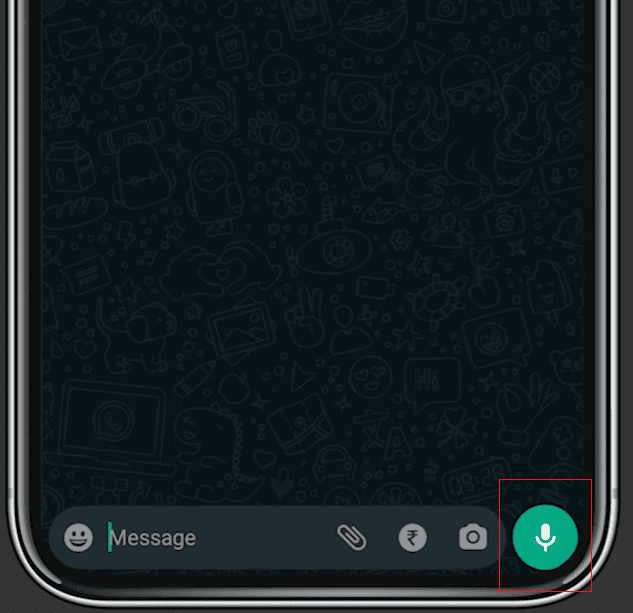
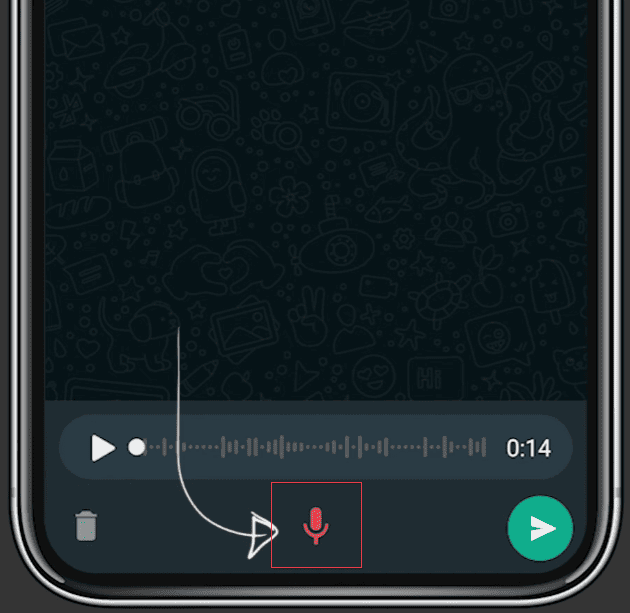
Preview Before Sending: After recording a voice message, the system will display a preview bar, allowing the sender to listen to it before deciding to send, re-record, or give up. This feature also works well with tools that can transcribe WhatsApp audio, helping users review the content more clearly before sharing. By checking the recording in advance, users can reduce the likelihood of sending problematic messages caused by errors or background noise that went unnoticed during recording.
Trim Recording: Some versions allow you to directly trim the beginning or end of a recorded voice message, thus removing silent segments or accidentally recorded noise without having to re-record the entire message.
Message Info for Voice Notes: Long-press on a sent voice message and view the message details to confirm whether the message has been delivered, read, or is only in the “received” state; this helps confirm whether important voice messages have indeed been listened to.
Why This Feature Matters in Daily Use
While voice messages are convenient, listening to them is more tedious than reading text, especially in group chats where multiple voice messages may come in one after another. Here are some practical scenarios where this feature is applicable:
- Group Chats with Frequent Voice Notes: Seeing the waveform and duration helps decide which messages to play first, rather than opening each one blindly.
- Long Voice Notes: Speed control saves time when someone sends a lengthy explanation or story.
- Quiet or Public Places: Being able to preview length and skip to a relevant section means less need to play a full message just to find one part.
- Reviewing Sent Messages: Preview before sending helps avoid re-sending corrections, keeping the chat cleaner.
Comparing With Standard WhatsApp
The standard version of WhatsApp has improved its voice messaging features with basic waveform display and playback speed options. JT WhatsApp goes further by combining speed adjustment, waveform preview, audio trimming, and personalization settings, while also supporting users who want to transcribe WhatsApp audio to text for easier message management.
Tips for Getting the Most Out of This Feature
Set a default playback speed that matches how you normally listen — 1.5x works well for most people who want to save time without losing clarity.
Use the waveform preview to judge whether a voice note is worth listening to immediately or can wait.
Preview your own recordings before sending, especially in professional or work-related chats where clarity matters.
Adjust auto-play settings based on how many voice notes you typically receive in a day — turning it off can help in busy group chats where notes arrive frequently.
Final Thoughts
JT WhatsApp’s voice message preview and control features make even simple voice messages easier to manage. Users don’t need to play every audio message in the same way. Instead, they can check the duration, waveform, and playback speed before listening and adjust the settings according to their personal habits. With tools like a WhatsApp voice message translator, users can also better understand audio content when dealing with different languages or communication needs. For users who frequently send and receive voice messages, these features not only improve processing efficiency and enhance organization but also retain the simplicity and convenience that made voice messages so popular in the first place.