Sharing video status updates has become a daily habit for many WhatsApp users. People upload travel videos, short video blogs, music videos, gaming moments, and family videos almost every day. However, a common problem keeps recurring: the video becomes blurry after being uploaded. Many users solve this issue by adjusting media settings or using mods like JT WhatsApp, and some even search for the JT WhatsApp updated version download to access newer features that support better video quality and smoother status uploads.
Many users have switched to JT WhatsApp because it offers more media settings options than the official WhatsApp app. With the right settings, you can keep your video clear and smooth while reducing over-compression.
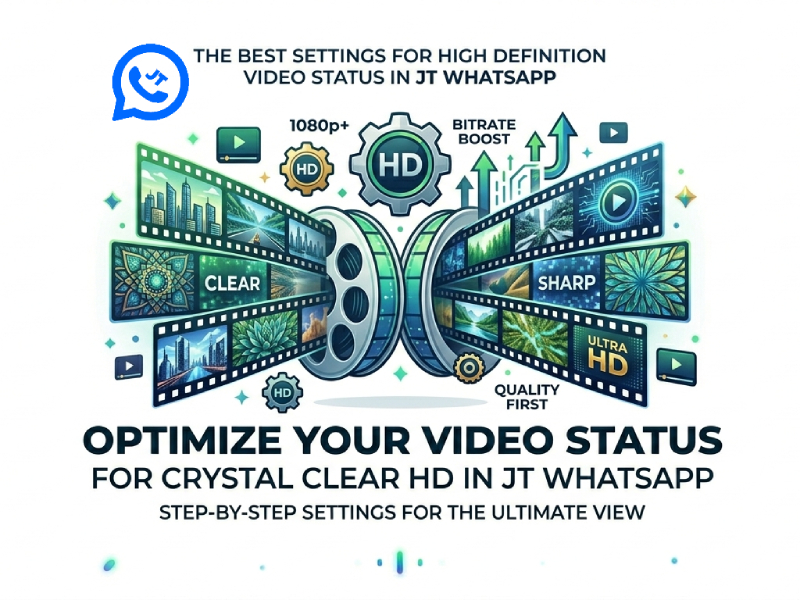
In this guide, you will learn the best settings for HD video status in JT WhatsApp, the reasons for video quality degradation, and how to improve upload quality without increasing file size.
Why Video Quality Drops on WhatsApp Status
Many users have found that videos appear sharp and clear in their phone’s photo album, but become blurry when uploaded to WhatsApp statuses. This is because WhatsApp automatically compresses media files before sending or publishing. The app does this to reduce server load, save mobile data, and speed up uploads for users worldwide. To avoid this issue, some people choose modified apps like JT WhatsApp Mod APK, which include extra media settings that may help preserve better video quality during status uploads.
When compressing a video, multiple parts of the file are compressed. WhatsApp may reduce the resolution, decrease the bit rate, and remove some visual details in each frame. Therefore, the video may lose clarity, the colors may appear soft, and fast-moving scenes may appear less smooth.
Large files are most affected. For example, 4K videos recorded by modern smartphones often contain far more detail than is actually needed for a WhatsApp status. Because the platform is designed for users to watch quickly on mobile devices, the system typically compresses large videos significantly. This is why high-resolution videos sometimes end up with a lower final image quality than properly optimized 1080p videos.
Network connectivity can also have an impact. If the network connection is unstable during the upload process, the app may process the video differently to speed up the transfer. In some cases, a weaker mobile data connection can result in lower upload quality compared to a stable Wi-Fi network.
Best JT WhatsApp Settings for HD Video Status
Below are the recommended settings for clearer status uploads.
Enable High Quality Media Upload
This is the first setting you should change:
- Open JT WhatsApp
- Tap the three-dot menu
- Go to Settings
- Open JT Mods
- Select Media Sharing
- Enable High Quality Media
This option tells the app to preserve more detail during uploads. If this setting is disabled, videos may become heavily compressed even before posting.
Increase Video Size Limit
JT WhatsApp allows larger file sharing compared to the official version.
Recommended size settings:
- Video limit: 100 MB to 250 MB
- Status length: Keep under 30 seconds per clip
Larger files typically retain more visual detail. However, even very large videos may be compressed when the upload status is updated. For general status updates, videos around 15MB to 40MB usually work well.
Use 1080p Instead of 4K
Many users believe that 4K videos always look better in the WhatsApp status bar. However, 4K files are actually too large and are often over-compressed.
1080p is usually the best balance point between file size, resolution, upload speed, and playback smoothness.
Recommended export resolution:
- 1920×1080
- 30 FPS
This format works well on most phones and avoids unnecessary compression.
Choose MP4 Format
JT WhatsApp handles MP4 videos more smoothly than other formats.
Best format settings:
- Format: MP4
- Codec: H.264
- Audio: AAC
These settings improve compatibility and reduce upload errors.
Some video editing apps export videos that WhatsApp compresses more severely. MP4 format, which uses H.264 encoding, usually maintains stable image quality.
Keep the Frame Rate Moderate
Higher frame rates create larger files.
For status uploads:
- 30 FPS is recommended
- 60 FPS is optional for gaming or action videos
Most users won’t notice the huge difference between 30 FPS and 60 FPS on their phone screens, especially after WhatsApp compression.
Lower frame rates also upload faster.
Recommended Bitrate for Better Quality
Bitrate affects video clarity more than many users realize.
Recommended bitrate levels:
| Video Type | Suggested Bitrate |
| Normal videos | 5–8 Mbps |
| Gaming clips | 8–12 Mbps |
| Music edits | 6–10 Mbps |
If the bitrate is too low, the video will appear blurry. If the bitrate is too high, WhatsApp may over-compress the video. Generally speaking, a balanced setting yields the best results.
Best Video Length for Clear Status Uploads
Video length has a greater impact on video quality than many users realize. Even if the video is recorded at high resolution, it often becomes blurry after being uploaded for a long time and then processed. This is because WhatsApp compresses larger files more rigorously to save bandwidth and speed up loading. Many users searching for how to use HD status in JT WhatsApp often overlook the fact that shorter videos usually keep better clarity and smoother playback after compression.
For the best balance between quality and smooth playback, shorter clips usually work much better.
Recommended length:
- 15 to 30 seconds per status clip
- Under 20 seconds for very high-quality uploads
- Avoid posting full 2–3 minute videos in one upload
When videos stay short, JT WhatsApp can process them faster and preserve more details, such as:
- Facial sharpness
- Background textures
- Color accuracy
- Motion smoothness
Not only will excessively long videos reduce image quality, but when the network connection is unstable, the upload speed will also slow down or even be interrupted.
For music clips, travel highlights, and game montages, many users believe that a video length of 10-20 seconds is ideal because shorter videos have lower compression rates and load faster.
In daily life, shorter status videos are also more likely to attract attention. Friends prefer to watch short, clear videos in their entirety rather than skipping long, blurry ones.
Use Good Lighting Before Recording
Good lighting can greatly improve video quality before you even upload the file to JT WhatsApp. Videos recorded in dark places often become blurry or noisy after compression. Natural daylight usually gives the best results because colors look cleaner and details remain sharper.
If you are recording indoors, try standing near a window or using a soft light source instead of a dim room light. It is also helpful to keep the camera stable and clean the lens before recording. Even small dust marks on the camera can reduce video clarity.
Better lighting helps JT WhatsApp preserve more detail during status uploads, particularly when sharing HD videos.
Does JT WhatsApp Really Improve Status Quality?
For many users, the main reason for installing JT WhatsApp is simple: they want clearer photos and videos. The official WhatsApp app is known for heavily compressing media files, especially when uploading status updates. After publication, the video may lose detail, appear dull in color, and become less fluid in motion.
JT WhatsApp is attempting to mitigate this issue by offering additional media controls not available in the original app. Features such as high-quality media sharing, larger file size limits, and lower compression settings can help videos look better after uploading. Because of these extra options, many users now consider JT WhatsApp one of the Best WhatsApp Mods in 2026 for sharing HD videos without losing too much visual quality.
In actual use, many users have noticed that status videos uploaded via JT WhatsApp look clearer than the official version. Details such as text, facial features, lighting, and background objects are usually preserved better. This difference becomes even more pronounced when uploading travel videos, game clips, music clips, or movie recordings.
However, it should be noted that JT WhatsApp has not completely removed WhatsApp’s own compression system. Status updates still need to go through WhatsApp servers, which means that some degree of quality loss will always exist. Even if you upload a perfect 4K video, the platform may compress it before other users watch it.
Final Thoughts
Uploading clear, high-definition video statuses on WhatsApp doesn’t rely on a single setting. The excellent results stem from the correct recording method, intelligent export settings, and proper in-app media configuration.
These settings achieve a good balance between video quality, speed, and file size.
Instead of uploading massive 4K files, focus on clearer recordings and optimized export settings. In many cases, a properly optimized 1080p video will look far better in the WhatsApp status bar than a 4K video.