Many people use the modified version of the WhatsApp app because they want better control over privacy, design, and messaging settings. One feature that often draws attention is the “Forwarded” label, which appears when a message is forwarded from another chat. This tag is automatically added in the official WhatsApp and is usually not removable. Users of JT WhatsApp latest version 2026 sometimes look for ways to hide or disable this label in order to make forwarded messages appear more natural and less restricted during conversations.
This guide will explain how the “Forwarded” label works, whether JT WhatsApp can remove this label, and what you should know before changing this setting.
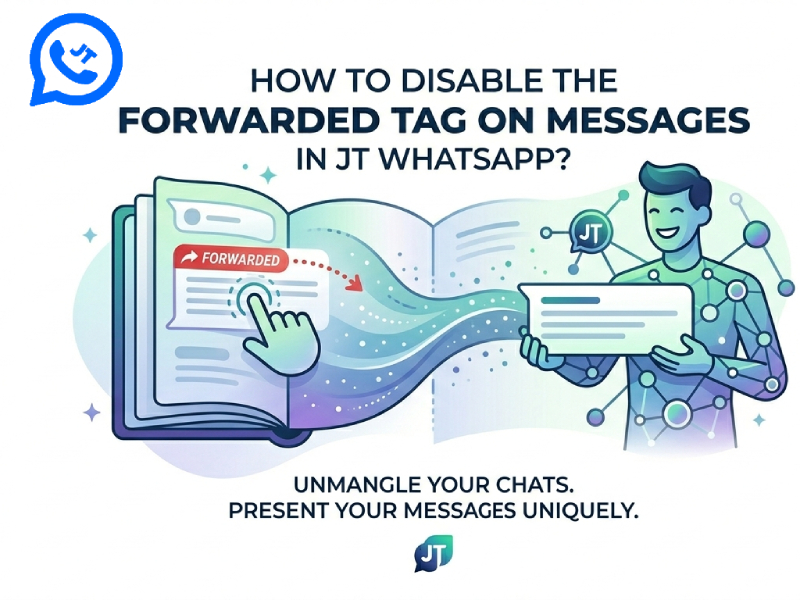
What Is the Forwarded Tag?
A forwarding label is a small label that appears above a message when a user forwards it from another chat group. WhatsApp added this feature to increase conversation transparency and help users identify copied or forwarded content, making it easier to verify messages even if someone accesses them through a free JT WhatsApp download.
For example, if a user receives a message in one group and then uses the forward button to send it to another group, WhatsApp will automatically add a “forward” label to the message. The same thing happens with photos, videos, links, voice messages, and documents.
In some cases, WhatsApp may also display “forwarded multiple times”. This usually occurs when a message is forwarded multiple times to multiple chat groups. The system aims to slow the spread of spam, fake news, scams, and misleading information.
Forwarding tags usually do not affect message quality or delivery, but they can change how the message appears to other users. Many people can tell at a glance that the content was copied from elsewhere rather than written by the author. Therefore, some WhatsApp users try to remove the label to make their messages look more concise or original.
It’s also important to note that forwarding and copying are not exactly the same thing. When you forward a message directly, WhatsApp retains some internal message information and automatically adds tags. However, when you manually copy text and paste it into a new message, the application usually treats it as entirely new content.
Why Do People Want to Remove It?
There are many reasons why users search for this option in JT WhatsApp. For some, it’s just about appearance, while others are more concerned with privacy or content management.
Cleaner Conversations
Some users dislike the fact that forwarding tags disrupts the flow of conversation. In active chats or large groups, repetitive forwarding tags can make messages appear disorganized and impersonal. Removing this tag can create a cleaner, more natural chat style.
Content Sharing in Groups
People who manage fan groups, gaming communities, study groups, or business chat groups often forward the same information to many users. If every message is tagged “forwarded”, the conversation will become repetitive and cumbersome. A simpler message format can make announcements and updates appear more direct and organized.
Privacy and Source Protection
Some users are unwilling to disclose the original source of their information. This is especially common when sharing emojis, tips, or screenshots between different friends. Hiding forwarding tags helps protect the privacy of information sources and reduces unnecessary inquiries about the origin of content.
Better Presentation for Media
Sharing tags can sometimes make shared photos, videos, or promotional content look less original. Users who post edited images, status updates, or media collections may want the message to appear as a newly uploaded one, rather than a duplicate share.
Enjoying Extra Customization
Many JT WhatsApp users install the app mainly for customization features. Apart from themes and privacy tools, they enjoy having more control over how messages appear. Disabling the forwarded tag is often treated as just another personalization option.
Does JT WhatsApp Support Disabling the Forwarded Tag?
Many JT WhatsApp versions offer options to prevent forwarding detection or hide forwarding status. This is one reason why some users prefer modified versions over the official app. If you want to disable forwarded tag on JT WhatsApp, the app provides extra privacy and customization settings that are not available in the regular version. In contrast, the official WhatsApp automatically adds a “forwarded” label to shared messages, while JT WhatsApp focuses on giving users more control over how messages appear in chats.
Depending on the version, the feature may appear under different names, such as:
- Hide forwarded label
- Anti-forward tag
- Disable forward notice
- Forward without tag
These settings are typically located in privacy settings, conversation settings, or JT-specific custom menus.
When this feature is enabled, forwarded messages may appear as regular messages without the forwarding flag. This makes the chat interface look cleaner and more natural, especially suitable for users who frequently share updates, media files, or copied information in groups.
Support for this feature is not always stable. Some versions of JT WhatsApp include this feature, while others may remove or change it after an update. In some cases, even if this option is available, it may not work properly because WhatsApp’s servers will still detect forwarding activity in the background.
The outcome also depends on how the message is shared. For example, directly using the forward button may still trigger the tag in some cases, while manually copying and pasting text can usually avoid this more effectively.
Users should also note that JT WhatsApp is an unofficial modified version. Features such as hiding forwarding tags cannot be guaranteed to be permanently effective, especially after official WhatsApp security updates or server-side changes.
How to Disable the Forwarded Tag in JT WhatsApp
The process is usually simple. Follow these general steps.
Step 1: Open JT WhatsApp
Launch the app normally from your phone.
Step 2: Open Settings
Tap the three-dot menu in the top corner and enter the settings section.
Step 3: Find Privacy or Extra Features
Depending on your version, the option may be inside:
- Privacy settings
- Conversation settings
- JT features
- Universal settings
Step 4: Look for Anti-Forward Options
Search for settings related to forwarding labels or forward privacy.
Possible names include:
- Disable forwarded tag
- Hide forward label
- Anti-forward mode
Step 5: Enable the Feature
Turn the option on and save changes if needed.
Step 6: Restart the App
Some settings only work after restarting JT WhatsApp.
Sometimes the Feature Does Not Work
There are situations where the forwarded tag still appears.
WhatsApp Server Changes
Even though WhatsApp has changed its interface, some message information is still controlled by WhatsApp servers. This means that some forwarding details may still be detected.
Outdated Version
Older JT WhatsApp builds may stop working correctly after WhatsApp updates its system.
Forwarding Method
Some forwarding methods will automatically trigger tags. In some cases, manually copying and pasting content has a different effect than using the forward button.
Is It Safe to Use This Feature?
There are a few things to consider before using modified WhatsApp functions.
Account Risk
JT WhatsApp is not an official app. Using modified versions of the app may sometimes result in WhatsApp temporarily restricting or issuing warnings.
Privacy Concerns
Since modified applications are created by third parties, users should carefully choose where to download updates.
Bugs and Crashes
After the official WhatsApp update, some additional features may not work properly. Some users may experience crashes, lost chat history, or notification issues.
Tips Before Changing Settings
To avoid problems, it is a good idea to follow some basic steps.
Backup Your Chats
Always create a backup before updating or changing major settings.
Use the Latest Version
Newer versions usually fix broken features and improve compatibility.
Avoid Too Many Modifications
Turning on every extra feature at once may cause instability.
Test With a Friend First
Before using the feature widely, test it in a private chat to see whether the forwarded label actually disappears.
FAQs
Can official WhatsApp disable the forwarded tag?
No. The official version of WhatsApp does not provide an option to remove or hide the forwarded label from messages.
Why does the forwarded tag still appear in JT WhatsApp?
This can happen if the feature is broken, outdated, or limited by WhatsApp server rules. Updating JT WhatsApp may help.
Is copying and pasting better than forwarding?
For many users, yes. Copying and pasting text usually removes the forwarded label because the message is treated as new content.
Does disabling the forwarded tag affect message delivery?
No. The message can still be sent normally. The setting mainly changes how the message appears in chat.
Can I remove the forwarded tag from photos and videos?
Sometimes. Some JT WhatsApp versions support this feature for media files, while others only work with text messages.
Is JT WhatsApp safe to use?
JT WhatsApp is a third-party modified app, so there is always some risk. Users should download updates carefully and back up chats regularly.
Will my account get banned for using JT WhatsApp?
Some users receive temporary warnings or restrictions when using modified WhatsApp apps. The risk depends on the version and WhatsApp policy updates.
Do I need to restart JT WhatsApp after changing settings?
In many cases, yes. Restarting the app helps apply changes correctly.
Why do people remove the forwarded tag?
Most users want cleaner chats, more privacy, or a more natural look when sharing messages.
Does disabling the forwarded label work forever?
Not always. WhatsApp updates can change how forwarding detection works, so some features may stop working over time.
Final Thoughts
For users who want a more concise chat history and stricter message control, disabling the forwarding tag in JT WhatsApp is a popular feature among many JT WhatsApp mod users. In many versions, this setting can be enabled through privacy settings or the additional features menu. If the built-in options are not working, manually copying and pasting the message is also a common solution.
However, users should note that JT WhatsApp is a modified version of the application and may not always function stably after the official WhatsApp update. Users are advised to back up their data and use a trusted version to reduce problems when using these additional features.