Many JT WhatsApp users have noticed that messages sometimes arrive late when the app is running in the background. Even if the message was sent early, you may receive multiple messages at once after opening the application. This issue can affect communication efficiency, especially when waiting for important replies from friends, family, or work contacts. Users of the JT WhatsApp Android APK often experience this behavior due to background activity restrictions, notification settings, or battery optimization features that prevent the app from maintaining a stable connection while not actively in use.
The good news is that delayed notifications are usually related to device settings, rather than a problem with the WhatsApp app itself. By adjusting some system options, you can improve message delivery speed and make JT WhatsApp run more efficiently in the background.
We have shared the way to clear the JT WhatsApp cache without deleting media. This guide explains the common causes of message delays and provides practical solutions to help improve notification speed.
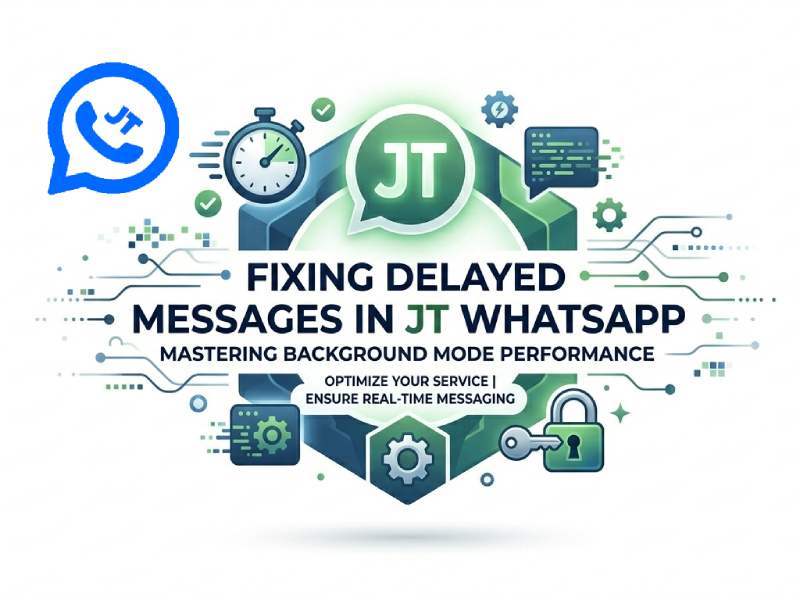
Why Do Messages Arrive Late in Background Mode
When JT WhatsApp is running in the background, it relies on the phone’s operating system to maintain a connection and receive new messages. Modern smartphones are designed to balance performance, battery life, and network usage, so background apps don’t always get the same system resources as the apps running on the screen. This is why some users choose to install the JT WhatsApp new version, as newer releases may include improvements that help the app stay connected more reliably and deliver notifications faster while operating in the background.
One of the most common causes of message delays is background process management. To extend battery life, Android may reduce the activity of apps that haven’t been used recently. In this situation, JT WhatsApp may check for new messages less frequently, resulting in delayed notification display.
Network conditions also have a significant impact. If your device encounters situations such as a weak Wi-Fi signal, unstable mobile data, or frequent network switching, the connection used for message synchronization may be temporarily interrupted. Even brief interruptions can cause message delays until the connection is restored to a stable state.
Understanding these factors is the first step to improving notification performance. Once you’ve identified the factors limiting background activity on your device, you can adjust the relevant settings to help JT WhatsApp receive messages more reliably.
Check Battery Optimization Settings
Battery optimization is one of the most common causes of notification delays.
Many Android devices will automatically put apps into power-saving mode after they have not been used for a long time. Therefore, the background message synchronization speed may be slower.
To improve performance:
- Open your phone settings.
- Navigate to Battery settings.
- Find Battery Optimization.
- Locate JT WhatsApp.
- Select an option that allows unrestricted background activity.
Different mobile phone brands use different names for this function, but the purpose is the same: to prevent the system from restricting background communication.
Allow Background Activity
Background activity is crucial to the speed at which WhatsApp receives new messages. If this function is restricted, it may stop normal communication with the server even if the application is not open on the screen. Therefore, the message may remain in a pending state until you restart the application.
Many smartphone manufacturers have built-in power-saving features that automatically limit background processes. While these features help reduce power consumption, they can also affect message sending performance. If WhatsApp is prohibited from running in the background, notification sending speed may be slower, and notifications sent throughout the day may be inconsistent.
To improve message synchronization, please check your device settings to ensure that WhatsApp is allowed to run in the background. Depending on your phone model, these options may be named as follows:
- Background Activity
- Background App Refresh
- Auto Start
- App Launch Management
- Run in Background
- Unrestricted Background Usage
After enabling background operation, restart the application and observe the notification performance for several hours. In many cases, allowing JT WhatsApp to run in the background helps maintain a more stable connection and reduces delays in receiving new messages.
Review Notification Permissions
Notification permissions play a crucial role in how quickly you receive new messages. Even if JT WhatsApp is running normally in the background, notifications may not appear immediately if notification settings are disabled or restricted. In some cases, users may mistakenly believe that messages are delayed when the real reason is that the system is blocking or delaying notifications. Users who recently installed the app through a JT WhatsApp APK free download should also double-check notification access after setup, as some devices may not automatically grant all required permissions. Ensuring that notifications are fully enabled can help messages appear more consistently and reduce missed alerts.
First, open your device settings and find the notification option for JT WhatsApp. Make sure all important notification options are enabled, including message alerts, group message notifications, lock screen notifications, notification badges, and pop-up notifications. If any of these settings are disabled, the received messages may not display as expected.
In addition, setting notification priorities is also important. Many Android devices allow users to mark certain apps as high priority. Once enabled, the system will grant these apps higher privileges to send alerts faster, even if multiple apps are running simultaneously.
If you recently updated your phone’s operating system or installed a new version of an app, please check your notification settings again after the update. System updates may sometimes reset permissions or change notification behavior without the user’s knowledge. A quick check helps ensure that JT WhatsApp continues to send notifications smoothly and reliably.
Maintain a Stable Internet Connection
Message delivery depends heavily on network quality.
Even if the application is configured correctly, an unstable connection can cause message delivery delays.
Consider these tips:
Use Reliable Wi-Fi
A weak Wi-Fi signal may interrupt communication between the phone and the instant messaging server.
If possible:
- Stay within range of the router
- Reduce interference from other devices
- Restart the router occasionally
Avoid Frequent Network Switching
Frequent switching between Wi-Fi and mobile data may cause brief connection interruptions.
While waiting for important information, please try to maintain a stable network connection.
Check Mobile Data Availability
If you rely on mobile data, make sure:
- Data service is active
- Signal strength is sufficient
- Background data usage is allowed
A stronger connection generally results in faster message synchronization.
Clear Temporary Cache Files
Over time, applications accumulate temporary files that can help speed up the execution of certain tasks. However, excessive cached data can sometimes lead to performance issues.
Regularly clearing the cache can help WhatsApp run more smoothly.
Steps usually include:
- Open App Settings.
- Select JT WhatsApp.
- Tap Storage.
- Choose Clear Cache.
This process removes temporary files while keeping chats and media intact.
Keep the App Updated
Keeping JT WhatsApp up-to-date is one of the easiest ways to improve background messaging performance. Developers regularly release updates to fix bugs, improve the notification system, and enhance compatibility with newer versions of Android, which is also an important step when learning how to fix JT WhatsApp notifications. If you have been using an older version for a long time, the app may not be able to interact smoothly with the latest system updates, resulting in notification delays or slower message synchronization.
Updates can also optimize how the app handles background processes. Because smartphone manufacturers frequently tweak battery management and notification frameworks, messaging apps also need corresponding improvements to maintain stable performance.
Installing the latest version helps ensure that JT WhatsApp can communicate efficiently with your device while running in the background and receive messages more reliably.
Restarting the app after an update and checking if notification permissions are still enabled is also a good practice. In some cases, system updates or application updates may reset certain settings. Taking a few minutes to check permissions and background activity options can help you take full advantage of the latest improvements and get a smoother messaging experience.
Reduce Memory Pressure on Your Device
When multiple applications are running simultaneously, available memory becomes limited.
Some smartphones automatically close background applications to free up resources. If WhatsApp is shut down by the system, message delivery may be delayed until the application reconnects.
To reduce memory pressure:
- Close unused apps
- Remove unnecessary widgets
- Restart the device occasionally
- Keep sufficient free storage space
A device with more available resources can maintain background communication more effectively.
Additional Tips for Faster Notifications
To achieve the best background performance, developing some simple daily device usage habits can be helpful. Small adjustments can often make notifications delivered more frequently throughout the day.
- Keep your device software updated so that the operating system can work smoothly with newer app versions.
- Maintain a stable internet connection whenever possible, especially when using messaging apps for important conversations.
- Avoid excessive battery restrictions that may prevent JT WhatsApp from staying connected in the background.
- Clear cache occasionally to remove temporary files that may affect app responsiveness.
- Keep enough free storage available, as a nearly full device can slow down app operations and notification processing.
- Review notification permissions after major system updates, since some settings may change automatically.
- Restart your phone every few days to refresh system services and network connections.
- Limit the number of apps that constantly run in the background, as too many active apps can compete for system resources.
While each adjustment may seem insignificant in isolation, combining several methods can significantly improve notification speed and reliability. Users who keep their device environment organized typically experience less latency and receive more stable messages throughout the day.
Conclusion
Message delays when JT WhatsApp is running in the background are usually caused by battery optimization, limited background activity, unstable network connection, or insufficient device resources. Fortunately, most of these problems can be solved with simple settings adjustments.
By allowing background activity, checking notification permissions, maintaining a stable network connection, clearing cache files, and keeping apps and devices updated, users can improve message synchronization and enjoy a smoother messaging experience. Continuous maintenance and proper device settings can often significantly improve the speed at which JT WhatsApp receives notifications when it is running in the background.