Compared to the official WhatsApp app, JT WhatsApp offers many additional features, but users may still encounter some common issues while chatting. One of the most confusing issues is the “Waiting for this message” error. This message usually appears when you open the chat window but cannot see the content of the message sent by the other party.
This problem does not always mean the message is lost. In most cases, this is because JT WhatsApp is unable to fully receive or process encrypted message data. This problem can usually be solved in just a few simple steps.
In previous articles, we discussed ways to speed up JT WhatsApp on older Android devices. In this guide, we will explain why the “Waiting for this message” error occurs in JT WhatsApp and provide several solutions.
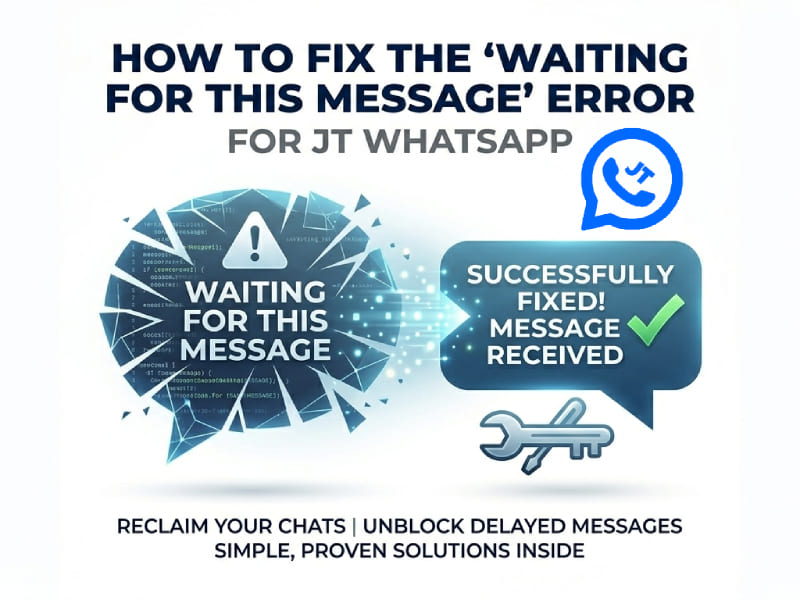
What Does “Waiting for This Message” Mean on JT WhatsApp
When a message is protected by WhatsApp’s encryption system, the app needs the correct encrypted information to display the content. If WhatsApp has not yet received the required data, it may display the following message:
“Waiting for this message this may take a while.”
This typically happens when a new conversation is started, the app is recently reinstalled, or the sender and recipient are not online at the same time.
The message itself may still exist, but JT WhatsApp needs to complete the message verification process before it can be displayed.
Common Reasons for the “Waiting for This Message” Error
Before fixing the problem, it helps to understand what causes it. The most common reasons include:
1. The Sender Has Recently Reinstalled WhatsApp
If the person sending the message recently reinstalled WhatsApp or changed their phone, the encrypted information between the two accounts may need to be updated.
During this process, JT WhatsApp may temporarily display a message waiting list.
2. The Sender Is Offline
Sometimes, the sender needs an internet connection to send a message correctly. If the sender’s device has been offline for an extended period, JT WhatsApp may not receive the full message data.
3. JT WhatsApp Was Recently Installed
Newly installed WhatsApp may take some time to sync chat messages. If you open an old conversation immediately after installing JT WhatsApp, some messages may not display correctly.
4. Network Connection Problems
Unstable network connection or weak signal may interrupt message synchronization. JT WhatsApp may be unable to download the required message information.
5. Background Sync Is Disabled
If JT WhatsApp is unable to run background tasks, message updates may be delayed. This can cause some messages to remain in a pending state.
How to Fix “Waiting for This Message” on JT WhatsApp
Try the following solutions one by one to restore your messages.
Method 1: Ask the Sender to Open WhatsApp
The simplest way to resolve this issue is to ask the sender to open WhatsApp and stay online for a while.
Once the sender comes online, the message information on both devices will be updated synchronously.
After that:
- Open JT WhatsApp.
- Enter the conversation.
- Wait for the message to load.
- Check if the content appears.
This method works well when the problem is caused by a temporary synchronization delay.
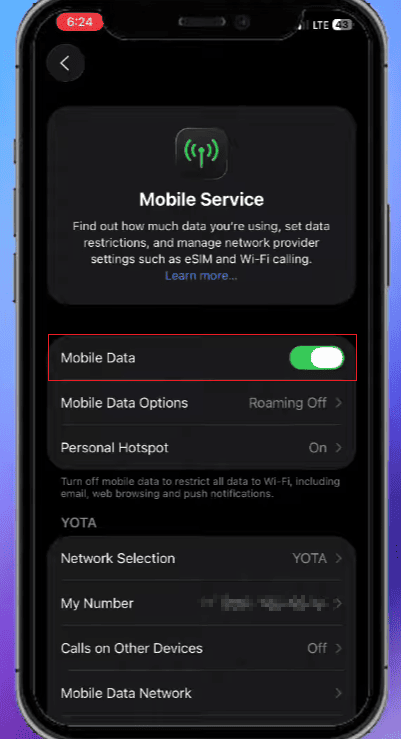
Method 2: Check Your Internet Connection
A stable network connection is essential for message synchronization. If your internet connection is slow, JT WhatsApp may not receive the full message.
You can try:
- Switching between Wi-Fi and mobile data.
- Restarting your network connection.
- Moving to a location with a stronger signal.
After reconnecting, open JT WhatsApp again and check the conversation.
Method 3: Restart JT WhatsApp
Sometimes the app may fail to refresh message data correctly. Restarting JT WhatsApp forces the app to reconnect to the server.
Follow these steps:
- Close JT WhatsApp completely.
- Remove it from recent apps.
- Wait a few seconds.
- Open JT WhatsApp again.
Then check whether the waiting message has disappeared.
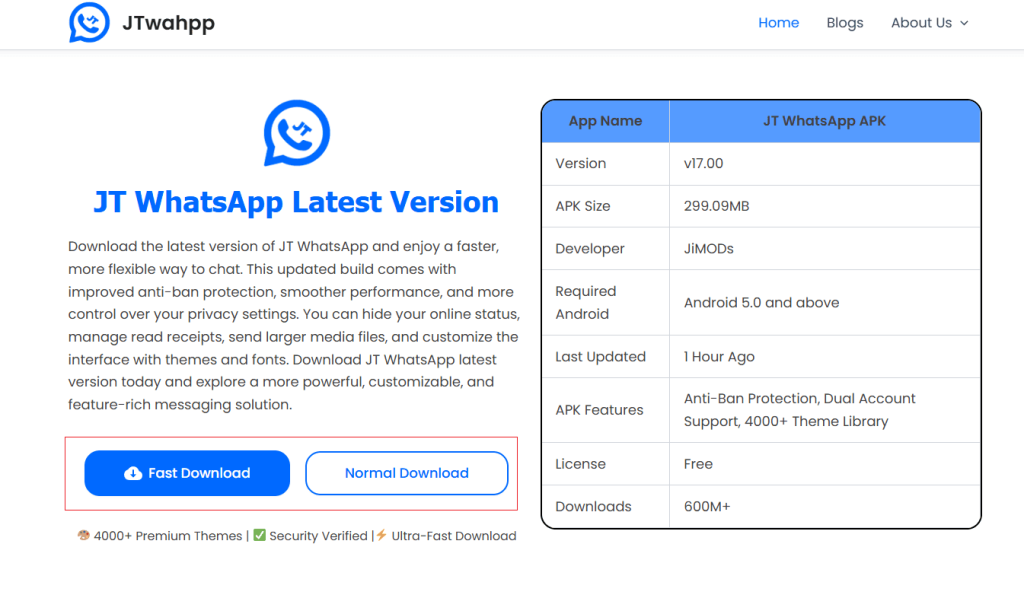
Method 4: Update JT WhatsApp to the Latest Version
Older versions of JT WhatsApp may have issues with handling new messages or chat synchronization.
Keeping the app updated can help improve:
- Message loading speed.
- Chat stability.
- Compatibility with new WhatsApp features.
Before updating, check that your important chat information is properly saved.
Method 5: Restart Your Phone
A simple phone restart can solve many temporary app issues.
Restarting your device can:
- Refresh network connections.
- Clear temporary system errors.
- Help JT WhatsApp reconnect properly.
After restarting, open JT WhatsApp and check the affected chat again.
Method 6: Enable Background Data for JT WhatsApp
If JT WhatsApp is unable to use background data, messages may be delayed in arriving.
To check this setting:
- Open your phone settings.
- Go to Apps.
- Select JT WhatsApp.
- Check mobile data and background activity options.
- Make sure they are enabled.
The exact steps may be different depending on your phone model.
Method 7: Clear JT WhatsApp Cache
Cache files help apps load faster, but corrupted temporary files can sometimes cause problems.
Clearing the cache can refresh JT WhatsApp without deleting your chat data.
Steps:
- Open phone settings.
- Select Apps.
- Find JT WhatsApp.
- Choose Storage.
- Tap Clear Cache.
After clearing the cache, restart JT WhatsApp and test the conversation.
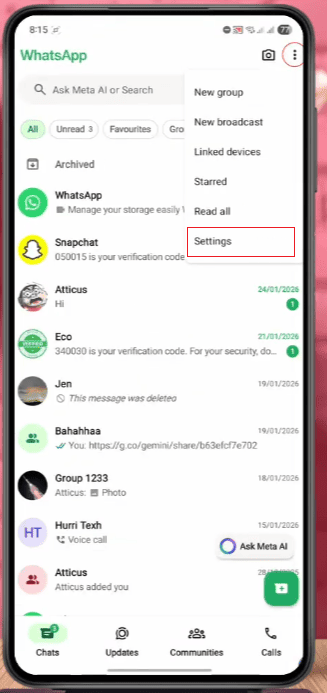
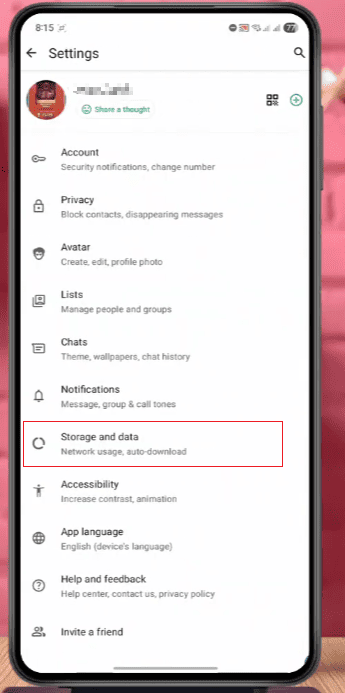
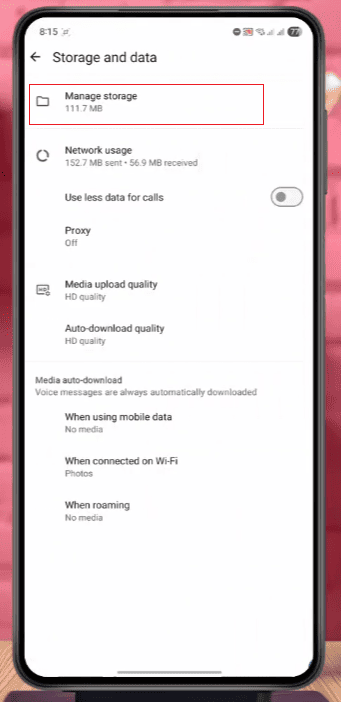
Method 8: Restore Chat Data
If you encounter a waiting prompt after changing devices or reinstalling JT WhatsApp, restoring chat data may help you recover lost messages.
Please make sure to use the correct backup file and carefully follow the recovery steps.
After restoration:
- Open JT WhatsApp.
- Wait for chats to load completely.
- Check the previous conversation.
How to Prevent the “Waiting for This Message” Problem on JT WhatsApp
Although such errors are usually temporary, certain habits can reduce the likelihood of them recurring.
Keep JT WhatsApp Updated
New versions typically improve message compatibility and application performance. Regular updates help fix bugs in older versions and can also prevent issues such as waiting for this message whatsapp by ensuring better synchronization between users and the app. Keeping the application updated helps provide a smoother messaging experience with fewer compatibility problems.
Keep Regular Chat Backups
Backups help protect your conversation history when you switch phones or reinstall apps.
Avoid Interrupting Message Sync
When you switch to a new phone or set up JT WhatsApp, please allow enough time for chat messages to load before using the application normally.
Maintain a Stable Internet Connection
Good network conditions help JT WhatsApp receive messages faster and keep chats in sync.
Difference Between “Waiting for This Message” and Missing Messages
Many users think this error means the message has been deleted, but these situations are different.
| Problem | Meaning |
| Waiting for This Message | The app is still trying to process the message |
| Deleted Message | The message was removed from the chat |
| Message Not Delivered | The message has not reached the device |
| Loading Delay | The app needs more time to sync data |
Understanding the difference helps you choose the right solution.
Can You Fix the Error Without Contacting the Sender
In many cases, restarting WhatsApp, checking your network connection, updating the app, or clearing the cache may solve the problem.
However, in some cases, the sending device needs to reconnect because the message information depends on both parties in the conversation.
If the problem only affects a few messages, waiting for the sender to come online may be sufficient.
Final Thoughts
The “Waiting for this message” error on WhatsApp is usually caused by message synchronization problems, network latency, or changes to the sender’s device. This does not always mean that your message has been lost.
Some simple steps, such as restarting JT WhatsApp, improving network connectivity, updating the app, and waiting for message syncing to complete, can usually resolve the whatsapp message waiting issue and help messages appear normally again. These basic troubleshooting methods often fix temporary syncing problems without requiring complex settings changes.
Keeping the app updated and developing good chatting habits will help you have a smoother chatting experience on JT WhatsApp.