JT WhatsApp is a modified instant messaging application that includes many useful tools to enhance the chat and content-sharing experience. One of its features is the “Media Editor,” which allows users to edit photos and videos before sending them to contacts. Similar to managing images in a WhatsApp photo gallery, users can quickly adjust media content directly within JT WhatsApp without needing other editing software, making it easier to improve and personalize shared content.
For users who frequently share photos, short videos, or creative content, the media editor is very useful. It offers a suite of easy-to-use editing tools that allow users to optimize the visual appearance of media files and add personalized features before sending.
Previously, we talked about who can see your Phone number on JT WhatsApp. This guide will detail the features and usage of the JT WhatsApp Media Editor, as well as the various editing options available when working with media files.
What Is the Media Editor Feature in JT WhatsApp
The media editor in JT WhatsApp is a built-in tool designed to allow users to edit photos and videos before sharing them. When you select a media file from your photo album, the editor will launch and offer a variety of options for you to adjust the content.
With this feature, users can make basic changes such as:
- Cropping images
- Adding text
- Drawing on photos
- Applying emojis or stickers
- Adding filters
- Adjusting the appearance of images
- Editing videos before sending
The main purpose of a media editor is to speed up content editing. Users don’t need to switch between different applications when they only need to make minor modifications.
Why Use the Media Editor in JT WhatsApp
Many users share photos and videos daily through instant messaging applications. Sometimes, simple editing can make content clearer or more interesting. Media editors help users process these files quickly, and the WhatsApp edit message Android feature also allows users to adjust and manage shared content more easily, making daily communication more convenient and efficient.
Some common reasons to use this feature include:
Create More Personalized Photos
Adding text, stickers, or doodles can make ordinary photos more unique. For example, users can add short text to travel photos or highlight specific parts of an image.
Save Editing Time
Opening a separate photo editor may add extra steps. The built-in editor allows users to edit files immediately after selection.
Improve Shared Content
Making some minor adjustments before sending photos (such as cropping out unwanted areas or improving brightness) can help make the photos look cleaner.
Add Creative Elements
This editor includes tools that allow users to add unique styles to images and videos. This is very useful when creating fun pictures, greeting cards, or special messages.
How to Open the Media Editor in JT WhatsApp
Using the Media Editor is a simple process. Follow these steps:
Step 1: Open a Chat
First, open JT WhatsApp and enter the conversation where you want to share a photo or video.
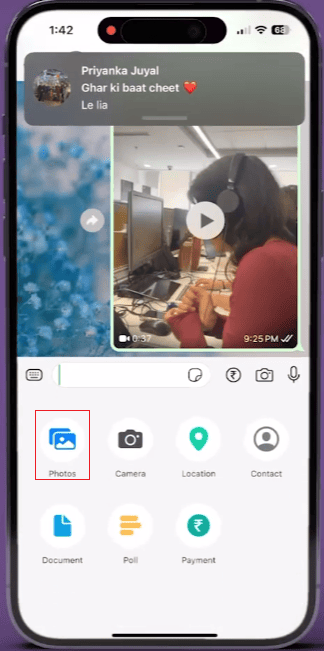
Step 2: Select Media
Tap the attachment icon and choose a photo or video from your device gallery.
Step 3: Enter the Editing Screen
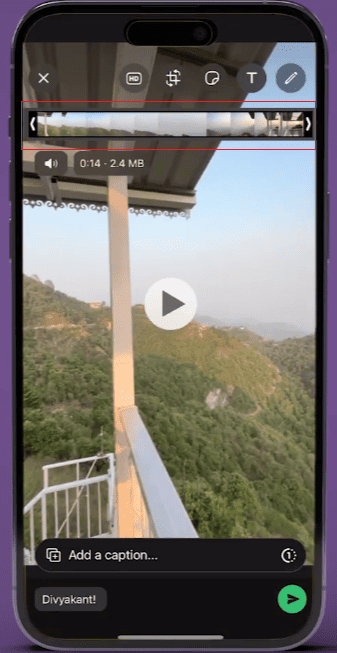
After selecting the file, JT WhatsApp will open the media preview page. Before sending, you can use the editing tools provided on the screen.
Step 4: Edit Your Media
Choose the tools you want to use, make the changes, and check the final result.
Step 5: Send the Edited File
After you finish editing, click the send button. The edited media content will be shared in the conversation.
Main Editing Tools Available in JT WhatsApp Media Editor
The media editor includes a variety of useful tools. Depending on the type of content you want to create, each option has a different purpose.
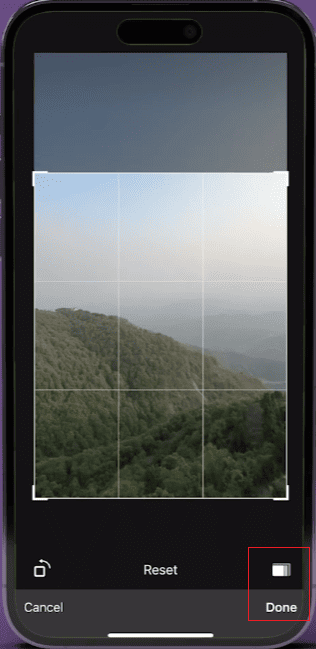
Crop and Rotate Images
The cropping tool allows users to remove unwanted parts of a photo. This feature is very useful when the subject is not positioned correctly or when you need to change the image size. When managing WhatsApp images in gallery, users can crop pictures before sharing them to make sure the important details remain clear and the final image fits their needs. This simple editing option helps improve photo quality and provides more control over how images appear in conversations.
The rotation option helps adjust the image orientation. If a photo is taken from the wrong angle, users can correct it before sharing.
Add Text to Photos
The text tool allows users to write words directly on images. You can use it for:
- Adding captions
- Creating simple announcements
- Highlighting important information
- Making greeting images
Users can usually adjust text placement and choose different styles to match the image.
Draw on Images
The drawing tools allow users to add hand-drawn markers to photos, which can be used to mark details or create simple patterns.
For example, users can circle objects in photos, add handwritten annotations, or create fun doodles.
Add Emojis and Stickers
Emojis and stickers can make photos more expressive. JT WhatsApp allows users to add these elements to images before sending them.
This feature is often used for casual chatting, fun photo editing, and creating creative messages.
Apply Filters
Filters can change the overall look of an image and help create different styles, such as a brighter effect or a unique color effect.
Users can try out various filters and choose the one that best suits the photo.
Edit Videos Before Sharing
In addition to photos, the media editor also supports video editing. Users can make simple modifications before sending video clips.
Common video editing options include:
- Cutting unwanted parts
- Selecting the right video section
- Adding text or stickers
- Adjusting the video presentation
These tools are useful when users want to share shorter and cleaner video content.
Tips for Using JT WhatsApp Media Editor Better
Although the Media Editor is easy to use, some simple tips can help create better results.
Keep Edits Simple
Too many special effects can make the visuals look cluttered. Use text, stickers, and filters only when they improve the quality of the content.
Choose the Right Crop Area
Before cropping, identify which parts of the photo are important. Keeping the main subject visible can improve the final image quality.
Match Text With the Image
When adding text, please select the appropriate position and size. The text should be easy to read and should not obscure important parts of the photo.
Preview Before Sending
Be sure to check the final version before sharing. This helps you spot subtle details that may need adjustment.
Difference Between JT WhatsApp Media Editor and Regular Gallery Editors
Many smartphones have built-in photo editing tools, but the JT WhatsApp Media Editor focuses on quick sharing.
While standard photo editing features are typically designed for granular photo management, JT WhatsApp’s editor is specifically designed for quick editing during chats.
The main differences include:
| Feature | JT WhatsApp Media Editor | Gallery Editor |
| Quick editing before sending | Yes | Not always |
| Text and stickers | Available | Available |
| Used inside chats | Yes | No |
| Designed for sharing | Yes | Mainly for storage |
For users who frequently send media content via messaging, using editing tools directly during chat makes sharing much more convenient.
Common Uses of the Media Editor Feature
The Media Editor can be used in many daily situations:
1. Sharing Travel Photos
Users can add location names, stickers, or short text notes to their travel photos before sending them to friends.
2. Creating Greeting Images
With simple editing, you can transform ordinary photos into birthday wishes, holiday greetings, or personalized messages.
3. Highlighting Information
Users can mark important areas in screenshots or pictures by adding drawings or text.
4. Making Social Content
Users who want to share content with friends can use the editor to create more attractive images and short videos.
Frequently Asked Questions About JT WhatsApp Media Editor
1. Can JT WhatsApp Edit Videos?
Yes, the media editor supports basic video editing features, allowing users to adjust video content before sharing.
2. Can I Add Text to Photos in JT WhatsApp?
Yes. The text tool allows users to add words and captions directly to images.
3. Does the Media Editor Work With All Photos?
Depending on the device and JT WhatsApp version, most common image formats can be edited.
4. Can I Edit Media After Sending It?
The media editor is primarily used for editing before sending. Once a file is shared, it usually needs to be modified by editing the original file again.
Final Thoughts
JT WhatsApp’s “Media Editor” feature provides a simple and convenient way for users to personalize photos and videos before sharing them. With tools such as cropping, adding text, stickers, doodles, and filters, users can quickly optimize media content without switching to other editing applications, making the process of sending videos on WhatsApp more creative and efficient.
For users who frequently send pictures and videos in chat, this feature not only simplifies the sharing process but also provides more options for personalized creation. By becoming familiar with the various editing tools, users can create more visually appealing and creative media messages.