“Emoji responses” have become a common practice in daily communication. Sometimes, sending a heart or smiley face with a simple tap conveys more information than typing a whole sentence. JT WhatsApp takes this concept a step further, allowing users to choose their own emojis to respond rather than being limited to the system’s default options. This makes it easier to personalize quick reactions and express different moods in chats. If you want to know about the ways to disable the forwarded tag on messages, you can refer to the last guide. For users looking for more flexibility, custom emoji for WhatsApp can make everyday conversations feel more personal and varied. This article will explain what custom emoji responses are, how they work in JT WhatsApp, and how to set them up and use them flexibly.
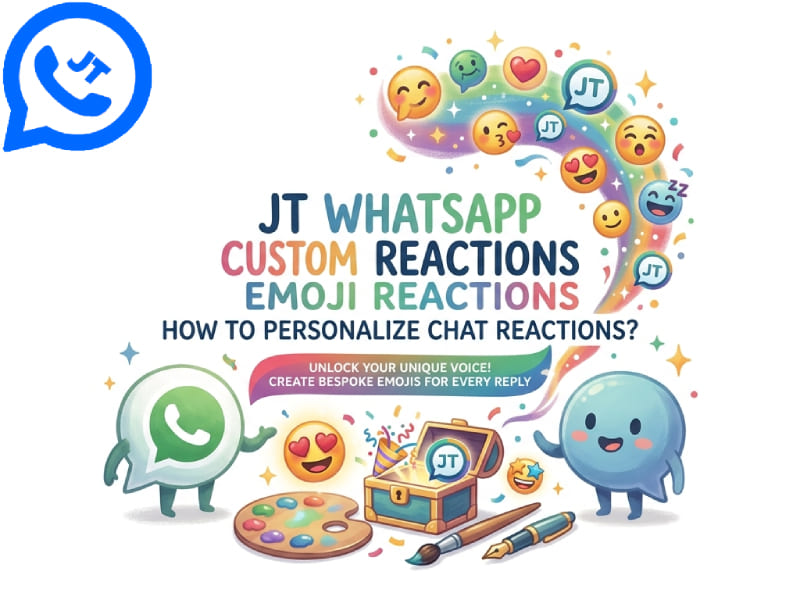
What Are Custom Emoji Reactions
In the standard version of WhatsApp, when a user long-presses a message, the system provides a fixed set of “emoji responses,” which usually include hearts, thumbs up, laughing, surprised, sad, and hands clasped together. That’s all; unless WhatsApp officially updates the list, users cannot add any other emojis.
JT WhatsApp breaks this limitation by opening up an emoji response menu. Users are no longer limited to those six fixed options, but can now choose from a full emoji keyboard. Whether you want to respond with flames, skulls, fireworks, or an animal head, no extra steps are required; you can achieve this directly using the app’s built-in functions.
Why This Feature Matters
Instant messaging apps serve as personal spaces. People create “insider memes” with friends that only they understand, use specific emojis as recurring jokes in family group chats, or prefer to use response symbols that match their own personality rather than the generic options preset by developers. Features like the ability to add custom emoji to WhatsApp make conversations feel more personal, allowing users to express emotions with unique symbols that better represent their style and the shared memories behind each chat. The customizable response feature perfectly meets these needs.
A few practical reasons people like this feature:
- Group chats often develop their own emoji language. A specific emoji might mean something only that group understands. Custom reactions let people keep using it consistently.
- Some emojis communicate tone better than the default six. A skeptical face, a clapping hands emoji, or a specific meme-style emoji can carry more meaning in certain contexts.
- Reacting instead of replying keeps chats shorter and less cluttered, especially in busy group conversations. Having more emoji choices makes this shortcut more useful.
How Custom Emoji Reactions Work in JT WhatsApp
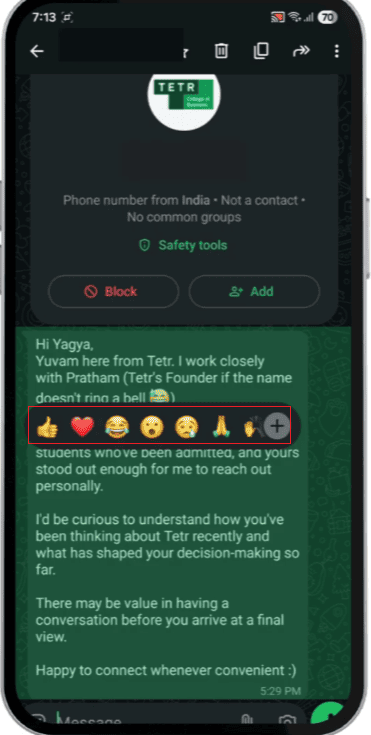
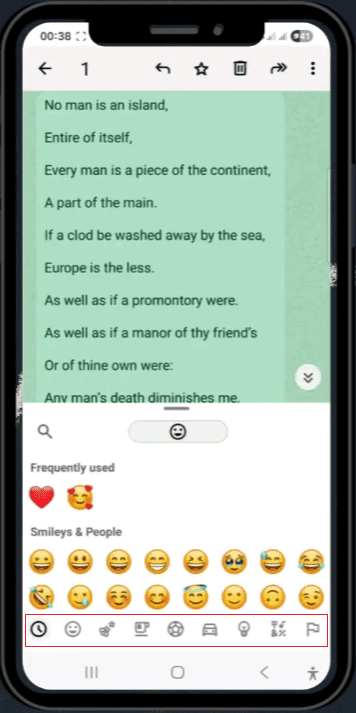
This mechanism may seem simple, but it can significantly improve the daily user experience. When a user long-presses a message, the system will display an “emoji response” bar, just like in the standard version of WhatsApp. In JT WhatsApp, an option has been added next to the default emojis; clicking this option will open the full emoji keyboard.
Users can browse various emojis, including faces, animals, food, objects, symbols, flags, and more. Once you select any emoji, it will be sent as a response and attached to the message just like a regular response.
Some versions of JT WhatsApp also support searching for emojis by entering keywords, similar to how most mobile phones use their built-in emoji keyboards. This method makes finding specific emojis much faster, eliminating the need to search through long lists one by one. For users who want more personalized options, features like create your own emoji WhatsApp can also make conversations more creative by allowing users to explore unique emoji styles and express their feelings in a more customized way.
Setting Up Custom Reactions Step by Step
- Open a chat where you want to react to a message.
- Long-press the specific message you want to react to. The reaction bar will pop up above the message.
- Look for the plus icon or extra option at the end of the default emoji row.
- Tap it to open the full emoji panel.
- Browse or search for the emoji you want to use.
- Tap the emoji once to send it as your reaction.
The reaction will show up under the message the same way a default reaction does, with a small counter if multiple people react with the same emoji.
Customizing Reaction Settings
Beyond just picking a different emoji each time, JT WhatsApp also allows some level of settings control around reactions:
Reaction visibility: Some builds let users decide whether reaction notifications show up as regular notifications or stay silent.
Default reaction shortcut: Users can sometimes set a favorite emoji as the go-to reaction, so long-pressing and tapping once sends that emoji without opening the full keyboard each time.
Reaction removal: Tapping the same reaction again typically removes it, giving users a quick way to undo a reaction they sent by mistake.
These settings are usually found inside the app’s general customization menu, often labeled under “Chat Settings” or “Universal Settings,” depending on the version installed.
Tips for Using Custom Reactions Well
1. Keep group context in mind. An appropriate response when interacting with a close friend may leave a different impression when placed in a large group chat consisting of colleagues or extended family members. Choosing emojis that fit the context of the audience helps ensure clear and smooth communication.
2. Use search to save time. Browsing through emoji categories often takes more time than typing keywords. If the installed version supports emoji search, you can instantly narrow down your choices by entering words like “fire” or “laugh”.
3. Combine reactions with short replies when needed. “Emoji responses” are best suited for quick confirmation. For content that requires further explanation, a brief text reply is still more effective in conveying information than simply using emojis.
4. Update the app regularly. As new emojis are released, the emoji collection will continue to be updated. Keeping your app updated ensures you can use new emojis, keeping your custom reactions fresh and useful at all times.
Custom Reactions vs Default WhatsApp Reactions
| Feature | Default WhatsApp | JT WhatsApp |
| Number of reaction emojis | 6 fixed emojis | Full emoji keyboard |
| Emoji search | Not available | Available in most builds |
| Reaction shortcuts | Not customizable | Often customizable |
| Reaction removal | Tap again to remove | Tap again to remove |
This comparison shows that the main difference between the two lies in their flexibility. The standard version of WhatsApp maintains simplicity and uniformity, suitable for all users; while JT WhatsApp offers more room for personalized expression.
A Quick Note on Installation
JT WhatsApp is a modified application based on the original WhatsApp codebase and is not available on the Google Play Store or Apple App Store. Users need to download the APK file directly and enable installation from unknown sources on Android devices. It also includes features like create self emoji WhatsApp, but users should download from trusted sources and keep the app updated when using unofficial applications.
Final Thoughts
The custom emoji response feature adds a personal touch to a small and often overlooked aspect of instant messaging. JT WhatsApp is no longer limited to the six fixed options that everyone uses, but gives users more room to express themselves, allowing them to respond in a way that truly fits the context of the conversation. Whether it’s for interactions targeting specific “insider jokes,” more precise emotional expression, or simply to add fun, this flexibility makes everyday chats more personalized.