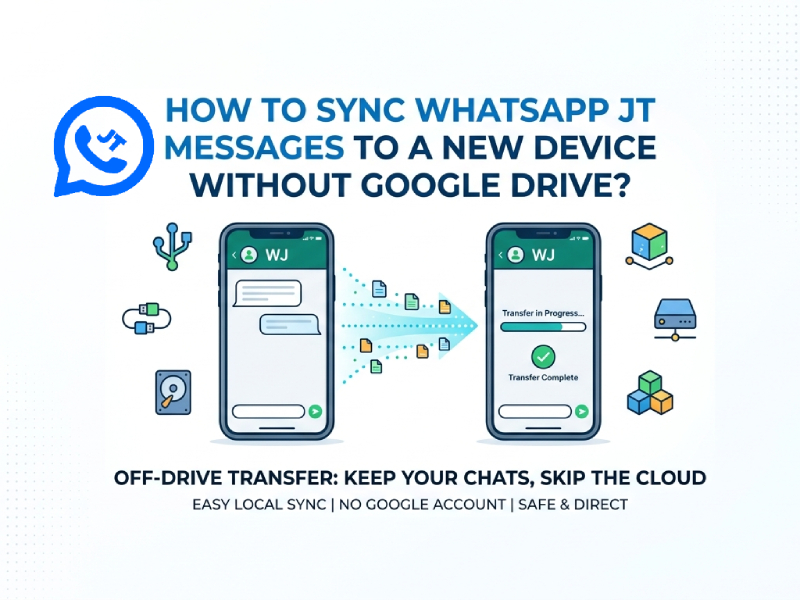
Transferring WhatsApp JT messages to a new phone can seem difficult, especially if you don’t want to use Google Drive. Many users of JT WhatsApp APK prefer alternative transfer methods to keep their chat history private and under their control when changing devices. In this guide, we will introduce a simple and reliable method to synchronize messages without using cloud storage.
1. Understanding WhatsApp JT Backup Options
Like the official WhatsApp, JT WhatsApp will back up your chat history to the WhatsApp database folder on your local phone. Each backup file contains your messages, and sometimes media files, depending on your settings. Knowing the location of backup files is crucial, as it’s key to transferring chat logs without using Google Drive. At the same time, many users also explore privacy features such as JT WhatsApp hide online status to manage their visibility while keeping their conversations secure and accessible.
Local backups are created automatically on a regular basis, usually once a day, but you can also manually back them up at any time in the app settings. Manual backups are very useful if you plan to replace your device soon, as they ensure your latest messages are saved.
It should be noted that the backup file name of WhatsApp JT may differ from the official file, and usually follows a format like msgstore.db.crypt12. Understanding this naming convention will help you find the correct file to transfer. By tracking these backup files, you can safely migrate your chat history and restore it on a new device without losing any messages.
2. Using Local Backup to Transfer Messages
Local backup is one of the most reliable ways to transfer your WhatsApp JT messages without using Google Drive, especially if you want to learn how to back up JT WhatsApp messages before switching devices. WhatsApp JT automatically creates backup files on your phone’s internal storage, usually in a folder called WhatsApp/Databases. These files contain your chat history, including text messages, voice notes, and sometimes media files, making it easier to move your conversations safely to a new phone without relying on cloud services.
Here’s a step-by-step guide to using local backup:
- Create the latest backup:
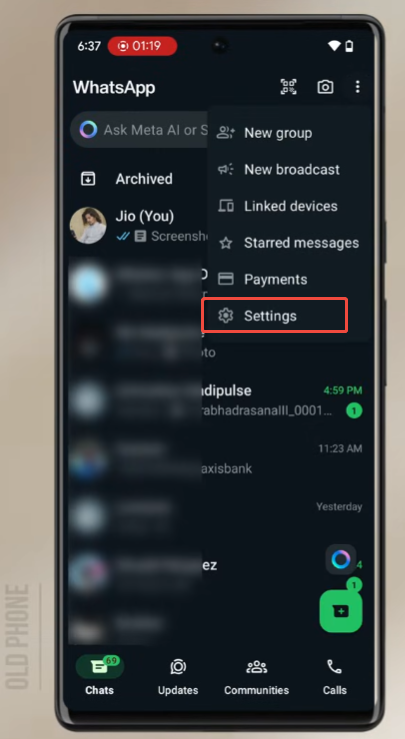
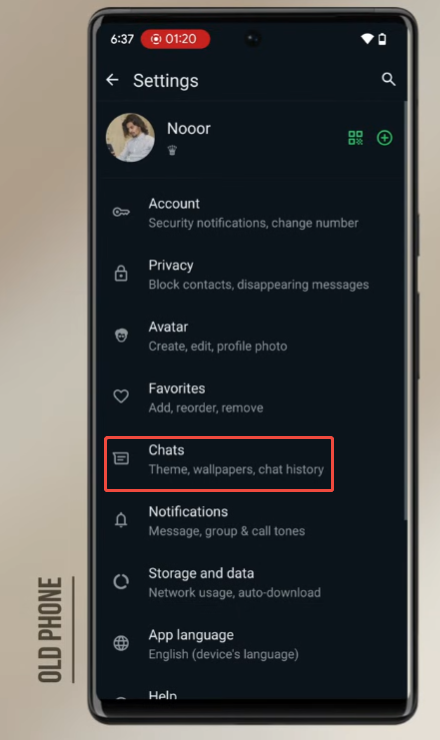
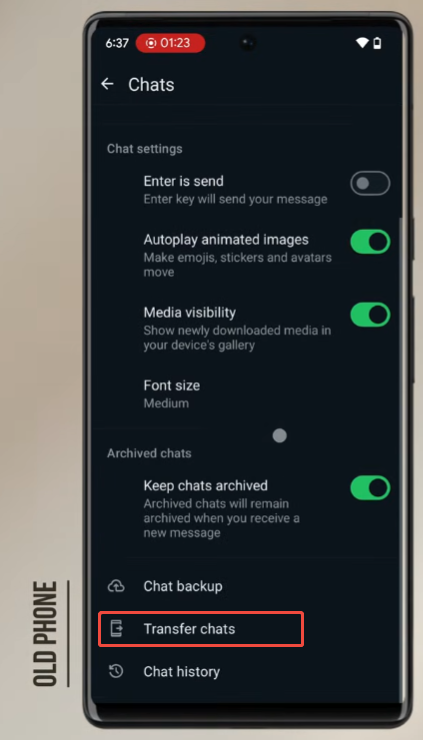
Open WhatsApp JT on your old phone. Go to Settings > Chats > Chat Backup, and tap Back Up. This ensures that your most recent messages are saved in a backup file. It’s important to do this before starting the transfer. - Locate the backup file:
Use a file manager app on your phone or connect your phone to your computer. Locate the WhatsApp/Databases folder. Backup files are typically named something like msgstore.db.crypt12 or a similar number, which indicates the backup version. - Copy the backup file:
Choose the backup file and copy it to your computer, SD card, or a secure folder that you can access on your new phone. Please do not rename the file, as WhatsApp JT requires the exact same filename to recognize it. - Transfer the file to the new phone:
On your new phone, install WhatsApp JT first, but don’t open it yet. Use a file manager or computer to move the backup file to the WhatsApp/Databases folder on your new device. If the folder does not exist, you can create it manually and specify the correct path. - Restore messages:
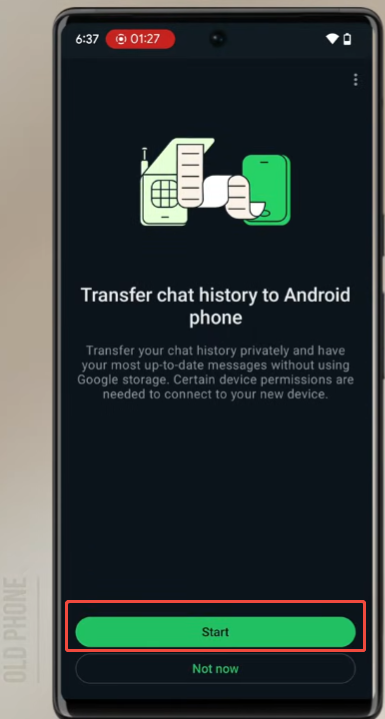
Open WhatsApp JT on your new phone. The app will automatically detect the backup and prompt you to restore your messages. Confirm the recovery, then wait for the recovery process to complete. Once completed, all your chat history, voice messages, and supported media files should appear just like on your old phone.
Extra tips for local backup transfer:
- If you have multiple backup files with different dates, choose the one with the latest date to ensure you don’t lose recent messages.
- Avoid opening WhatsApp JT on the new device before copying the backup, because the app may create a new empty database that can overwrite your backup.
- Keep a separate copy of the backup file as a precaution, in case anything goes wrong during the transfer.
By using local backups, you can safely and quickly move all your WhatsApp JT messages without relying on Google Drive or an internet connection.
3. Using a File Transfer App
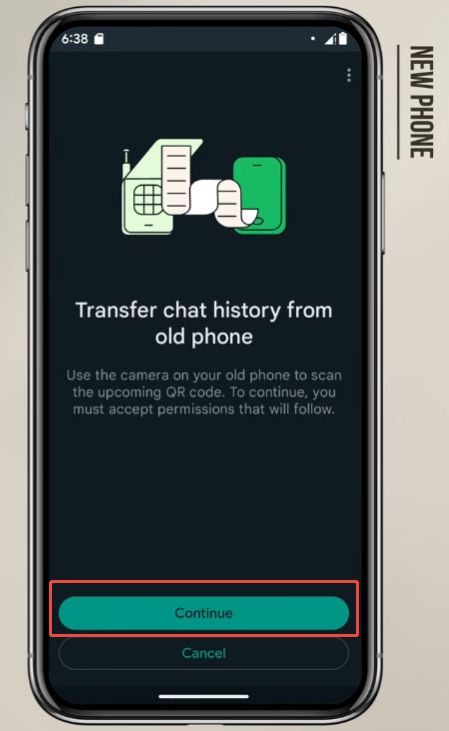
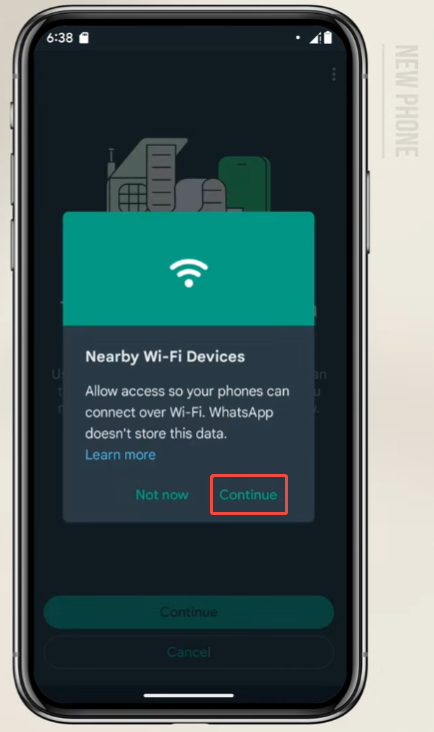
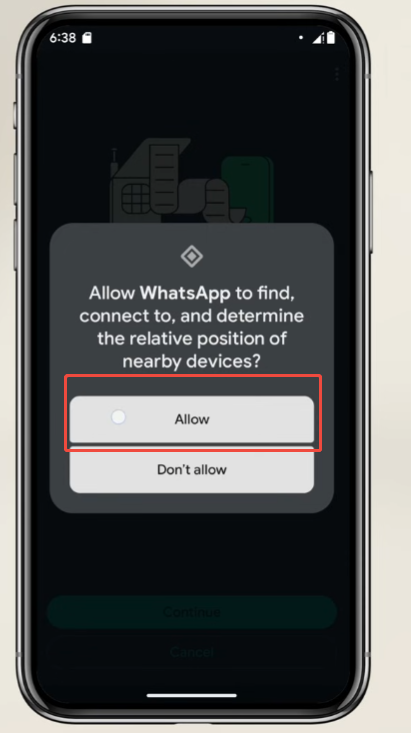
If you don’t want to connect your phone to your computer, using a file transfer app is a convenient option. Apps like ShareIt, Xender, or Feem can help you quickly and securely transfer WhatsApp JT backups from one device to another.
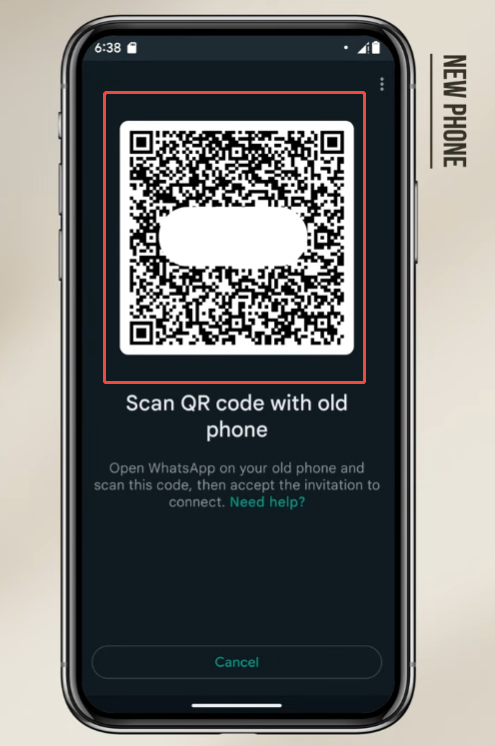
Install the selected app on both your old and new phones. Open the app on both devices and make sure they are connected, usually via the same Wi-Fi network or by scanning a QR code.
Locate the backup file in the WhatsApp/Databases folder on your old phone. This file is usually named something like msgstore.db.crypt12. Select the file and then use a transfer app to send it to your new phone.
After the transfer is complete, place the backup file in the WhatsApp/Databases folder on the new device. If the folder does not exist, you can create it manually. Before opening the app, it may also help to review common JT WhatsApp crashes solution tips to avoid unexpected startup issues during migration. Afterwards, install or open JT WhatsApp on your new phone. The app should automatically detect the backup and provide an option to restore your chat history.
The advantages of using a file transfer application are that it does not require an internet connection, transfers large backup files faster, and ensures that chat history remains intact during the transfer.
4. Using an SD Card
If both your old and new phones support SD cards, this may be one of the most stable methods for migrating WhatsApp JT messages. It does not require a network connection, and the transfer process is usually faster than uploading and downloading backup files.
Open the file manager on your old phone and locate the WhatsApp JT folder. In most cases, backup files are stored in the WhatsApp/Databases folder. If you want to retain photos, messages, videos, documents, and chat history, you may also need to copy the Media folder.
Once you find these folders, copy them to your SD card. Depending on the size of the chat logs and media files, this could take several minutes. Before removing the SD card, please ensure that all files have been successfully copied.
Next, insert the SD card into the new phone. Reopen the file manager and move the backup file to the correct WhatsApp/Databases folder on the new device. If the folder does not already exist, please install WhatsApp JT so that the application can automatically create the required folder.
Once everything is ready, open WhatsApp JT on your new phone and verify your phone number. The app should detect the local backup and display a “Restore” option. Click this option, wait for the recovery process to complete, and your chat history will appear on the new device.
This method is especially useful for users with a large number of media files, as SD cards can handle larger file transfers without relying on network speed.
5. Tips for a Smooth Transfer
Transferring WhatsApp JT messages is simple, but some small mistakes can cause problems. Here are some tips to ensure the process goes smoothly:
- Keep the backup file intact
Backup files are key to restoring chat history. Please make sure you do not rename it incorrectly or move it to the wrong folder. Filenames are typically similar to msgstore.db.crypt12. If the application cannot find the file, your message cannot be recovered. - Check storage space on your new phone
Large chat logs and media files, such as photos and videos, can take up a lot of space. Please ensure that the new device has sufficient available storage space before starting the transfer to avoid errors or incomplete recovery. - Avoid using multiple WhatsApp versions at the same time
Running multiple JT versions of WhatsApp or the official WhatsApp simultaneously may cause backup conflicts. It is best to temporarily uninstall other versions until the transfer is complete. - Make a backup before transferring
Even if you plan to migrate all your content manually, it’s best to create a new backup on your old phone. This ensures that you have a secure copy of your chat history should any problems occur during transmission. - Transfer all related files
WhatsApp messages may contain media files such as photos, videos, and voice messages. If you only move the msgstore backup file, you may lose some media files. To avoid this, please copy the entire WhatsApp/Media folder and the Databases folder. - Use a stable file transfer method
Whether using a USB cable, SD card, or file transfer application, ensure a stable connection. Interrupted transfers may corrupt backup files and render them unrecoverable. - Restore immediately after transfer
After moving the backup file to the new device, please open WhatsApp JT immediately and restore your chat history. Leaving the backup file in the folder for an extended period without restoring it may sometimes cause recognition issues.
6. Advantages of Using Local Backup
Using a local backup to transfer WhatsApp JT messages has several clear benefits that make it a preferred method for many users.
- No internet needed: Unlike cloud backup, you can migrate your chat history without Wi-Fi or mobile data. This feature is especially useful if your network connection is limited or your chat history is large, making uploading or downloading time-consuming.
- Faster restore: Restoring from a local backup is usually faster than using a cloud service because the files already exist on your device. You don’t need to wait for downloads from Google Drive or other online services, which can save time when transferring large amounts of media files, such as photos, videos, or voice messages.
- More control over your data: With local backups, you know exactly where your messages are stored. If you are concerned about privacy or do not want your chat history to be stored in the cloud, this will give you peace of mind. For added security, you can also save a copy to your computer, SD card, or other mobile phone.
- Works even if cloud services fail: Sometimes, Google Drive backups may not work properly due to account issues, application errors, or network connectivity problems. Local backups ensure you still have a reliable way to recover your emails.
- Flexibility to transfer between devices: Local backup files can be copied to multiple devices or stored as a long-term archive. You can choose when and where to restore it, a flexibility that cloud backup sometimes cannot provide.
- Safe for modified apps: Since WhatsApp JT is a modified version of WhatsApp, local backups are generally more compatible than cloud backups, which may have limitations or constraints on unofficial versions.
Local backups give you speed, control, and reliability when moving your messages to a new device. For users who want to avoid the cloud, it’s the safest and most practical option.
7. Conclusion
Once you understand how local backups work, you can easily sync WhatsApp JT messages to a new device without using Google Drive. You can safely migrate all your chat history and media files by manually copying backup files or using a transfer application. This method gives you greater control over your data and ensures that no messages are lost during transmission.